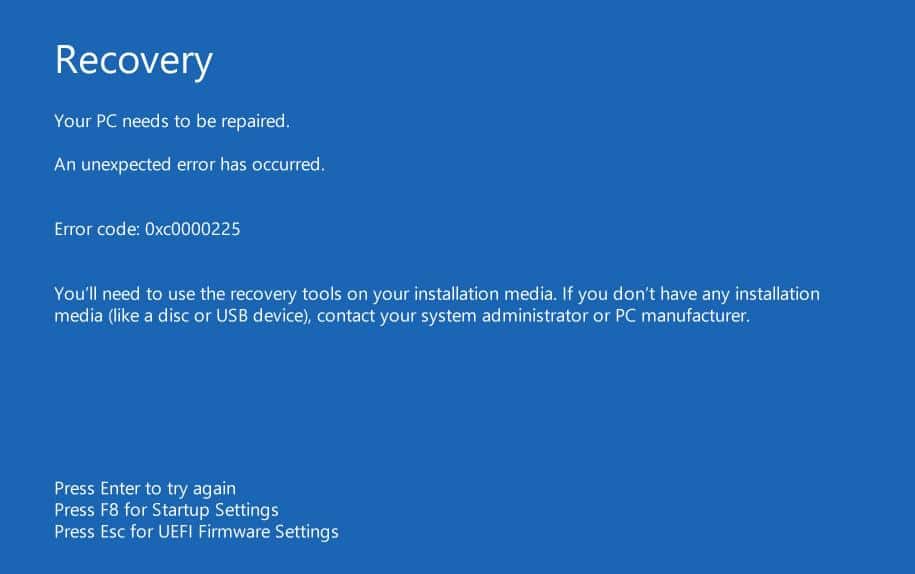
Windows Windows错误代码0xc0000225:如何解决问题 by Johannes 17 3 月, 2022 written by Johannes 17 3 月, 2022 2.3K 当显示错误代码0xc0000225时,Windows 10无法再正常启动。你可以在这个实用的提示中找到如何修复错误。 修复错误代码0xc0000225。你能做什么 当系统文件被破坏时,启动时出现错误代码0xc0000225。要解决这个错误,你需要从安装介质启动Windows。 例如,你可以在U盘上安装Windows 10,当你启动电脑时,让它从U盘上启动。 然后选择 “计算机维修选项 “和 “故障排除”。然后点击 “高级选项”。 在概览中,选择 “启动援助 “项目,并以 “回车 “确认。你的系统现在将被检查,错误将被自动纠正。 重新启动后,应该不再发生错误。 BootErrorMicrosoftOperating system 0 comments 0 FacebookTwitterPinterestThreadsBlueskyEmail Johannes previous post 按字母顺序对谷歌电子表格进行排序–就这么简单 next post 欧标6c、6d和6d TEMP:你需要知道什么 Related Articles 将 Office... 25 2 月, 2026 什么是 BIOS... 4 2 月, 2026 在 Window... 2 2 月, 2026 电脑启动时发出蜂... 2 2 月, 2026 无法更新 Mic... 29 1 月, 2026 切换英语键盘:电... 27 1 月, 2026 使用 Windo... 12 1 月, 2026 读卡器无法识别存... 12 1 月, 2026 Windows ... 6 1 月, 2026 如何安装未刻录的... 24 12 月, 2025 Leave a Comment Cancel Reply Save my name, email, and website in this browser for the next time I comment.