Previously, the Microsoft Remote Desktop app was used to connect to Windows computers via RDP from devices on other platforms, but recently its support has been discontinued and now the main app for this purpose is Windows App.
This guide describes the features of the new official RDP app and how to connect using it.
Features of the application for different platforms
Previously, the official Microsoft Remote Desktop application allowed you to connect to a computer via RDP from any supported platform, such as Windows, Android, or macOS, but now there have been changes in this regard.
- The Windows App for Windows 11/10 is not designed to connect to your own computers. Only to organization or educational institution accounts, Windows 365, Microsoft Dev Box. That is, the connection is made via URL or account to the relevant services, rather than by computer name or IP address.
- The same app on other platforms: Android, macOS, iOS, iPadOS can do the same as described in the previous paragraph, but also allows connections via the RDP protocol.
These features may raise questions for users who have decided to connect via RDP to one of their computers from another Windows computer in this application.
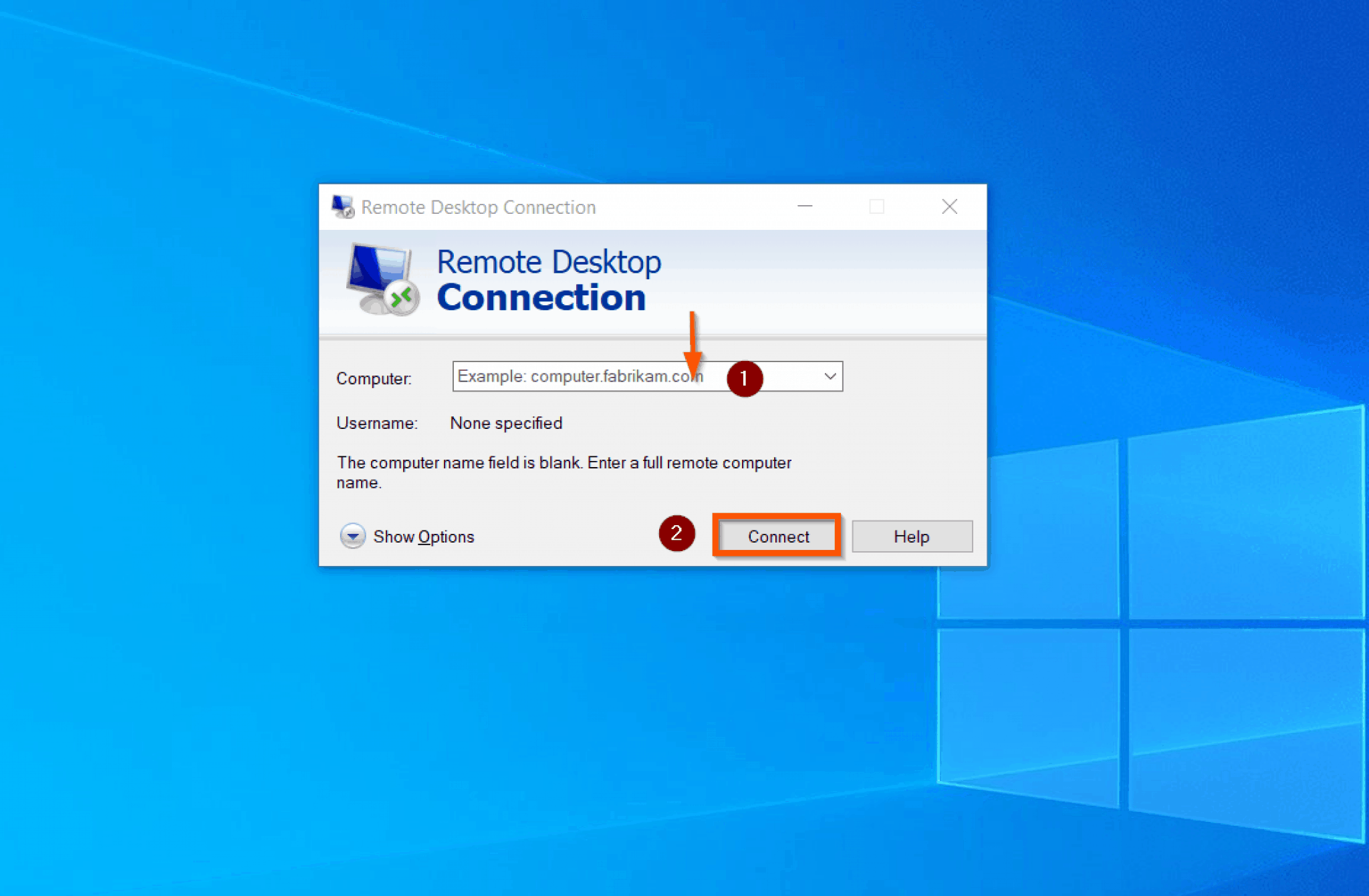
For them, nothing changes in this regard (except for the absence of the old application in the Microsoft Store) — you can press the Win+R keys on your keyboard, enter mstsc.exe, press Enter, and then connect to the remote desktop:

Connecting to a remote computer in the Windows App
As noted above, connecting to your own remote computers not in the Microsoft Azure, Windows 365, work, or school account infrastructure is only possible in the Windows App on platforms other than Windows.
The app itself is available in official stores, such as the Apple App Store or Google Play.
Example for connecting from Android:
- When you first launch the app, you will be prompted to sign in to your account, add a workspace, or connect a computer. We are interested in the last item.
- When adding a computer, you will need to specify its network name or IP address, set a “friendly name” (which will be displayed in the list of computers) if necessary, and configure the sound output and other settings. The connection option itself must be enabled on the other computer.
For more details, see the article: Windows 11 Remote Desktop (also applicable to Windows 10). - The computer will be added to the list of available connections. Simply click on it to start a session:
- After logging into the remote computer account that is authorized for RDP connections (the first time you connect, you will be prompted to save your credentials so you don’t have to enter them again), you will have access to the remote desktop with the features that were configured in the application:
- The Windows App itself also has general settings for connections, credentials, gateways, and more. They are quite modest: