12
If the built-in graphics card is no longer recognized by the computer, you can solve the problem in many cases with just a few clicks. We’ll show you how to do it.
Graphics card is not recognized: Fixing software problems
In the best case scenario, the cause lies in the graphics card driver. An update or reinstallation can already provide a remedy.
- Press the [Windows] and [R] keys simultaneously to open the “Run” command.
- Enter “devmgmt.msc” here and confirm with “OK”. The Device Manager will then start.
- Select the “Graphics cards” category and right-click on the installed graphics card.
- The “Update driver” option is used to search for the latest version. If an update is available, the driver will be reinstalled.
- If the problem persists, select the “Uninstall device” option. Then select the “Install device” option again.
- If this does not help either, install the associated software.
This can be found in the Control Panel under names such as “Intel graphics driver”, ‘NVIDIA’ or “AMD”. - Then download the latest driver from the manufacturer’s website. You can find the respective driver at NVIDIA, AMD or Intel.

Solving hardware problems with the graphics card
If you could not find the cause in the software, the problem is probably in the hardware. You should not follow the following instructions for laptops.
- Switch off your computer completely and flip the power switch at the back.
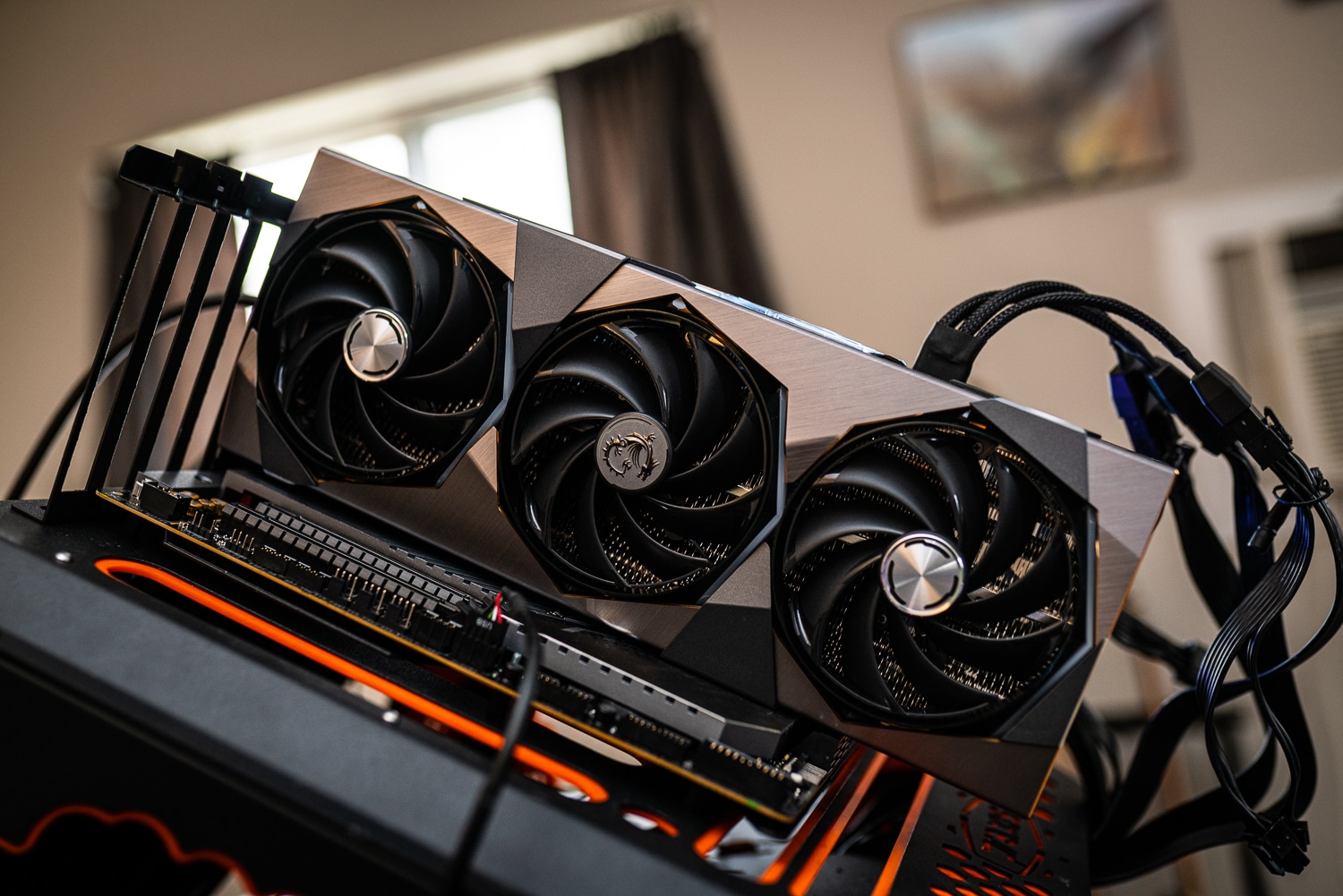
- Open the PC and take a closer look at the graphics card. Loose cables or a loose fit may be the cause.
- Unscrew the graphics card from the back of the housing and carefully remove it from the holder.
- Blow the dust out of the graphics card slot and reinsert the card. Do not touch the gold contacts with your fingers.
- If the graphics card still does not work, you should install the card in another PC. If it does not work there either, there is probably a defect.