10
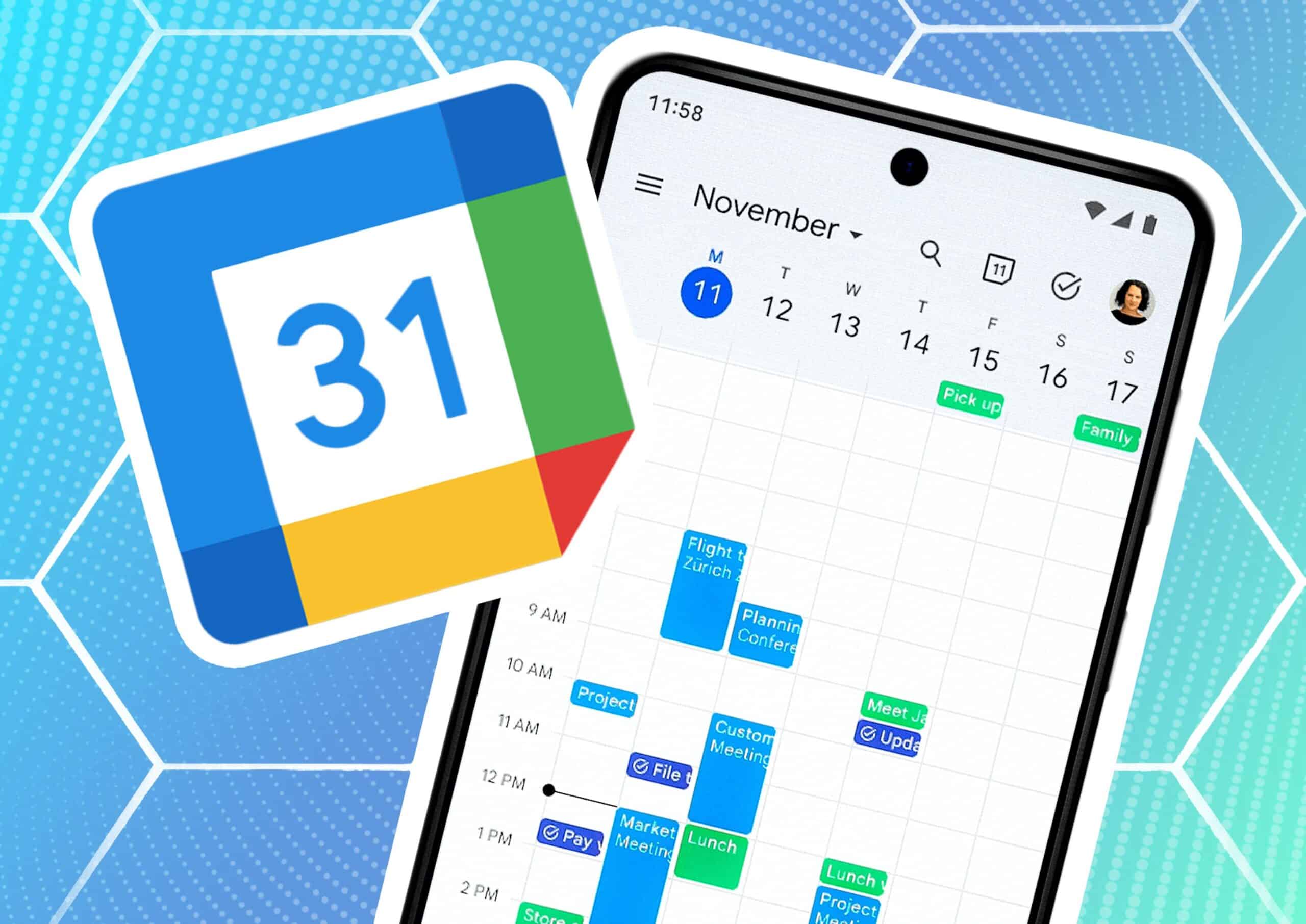
Synchronize your Google Calendar so that you have your appointments at hand everywhere. This works between different computers as well as mobile devices such as smartphones and tablets.
How it works: Synchronize Google Calendar
So that you have your appointments available on your mobile devices just like on your computer, Google Calendar is suitable as an app or in the browser. Synchronizing your appointments in Google Calendar is not difficult:
- The data in your Google Calendar is saved in your Google account. Install the app on your smartphone and sign in with your user data to view your appointments.
- If you want to view your calendar on a computer, log in to your Google account and Google Chrome will automatically save your identity so that you always have access to your Google services.
- If you enter new appointments or edit existing data on one of your devices, Google automatically applies these changes to all your devices. So only your account is important.
- It usually takes a few moments for the appointments to appear on all devices. If this takes too long in the mobile app, synchronize your account manually. To do this, tap the button with the three dots and select “Synchronize”.

Problem solving: Appointments do not synchronize
Synchronizing Google Calendar is easy, but not without problems. However, these can usually be solved quickly:
- If the appointments are not synchronizing, first check whether you have an active internet connection. To do this, open a website in your browser, for example. If this does not work, briefly disconnect the power supply to the router and then reconnect it. If you have no internet, contact your internet provider.
- Next, check whether you are using the right app and whether you are logged in with the correct Google account . If you are using a different account on your Android, you will need to change the account in the Google Play Store. On the iPhone, you should be able to log in directly in the app. If this does not work, add your Google account in the Google app.
- If you have too little storage space on your smartphone or tablet, Google may not be able to synchronize the data. There are a few tricks to create space on both Android and iPhone.
- The calendar storage may be deactivated. Open the settings and navigate to the “Apps and notifications” or “Apps” menu. Select “App info” and open the menu.
Here, select “Show system > calendar storage”.