917
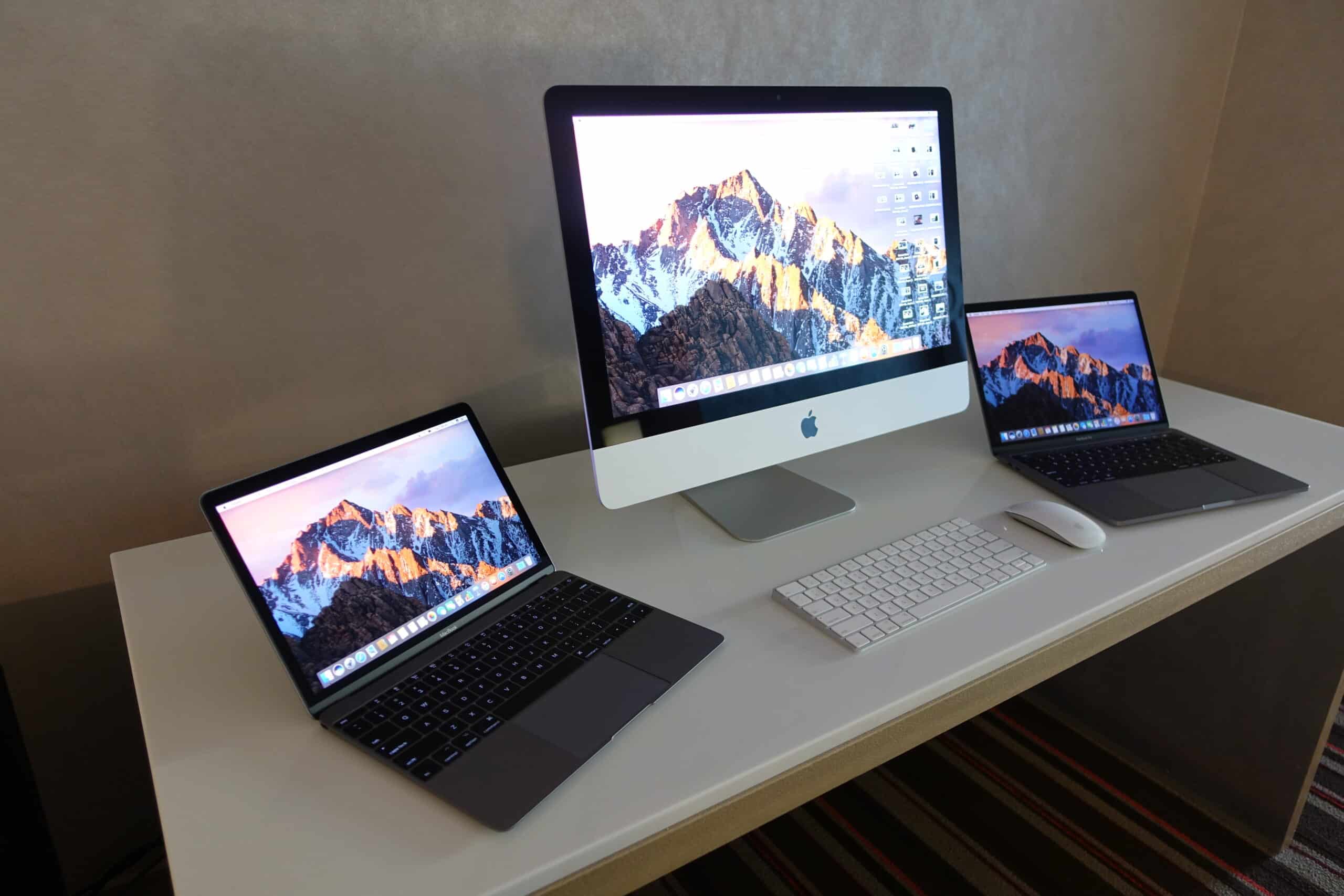
If you want to sell your MacBook or iMac, you should reset the device to its factory settings. This will delete all personal data on the computer.
Resetting your iMac/MacBook to factory settings – preparations
Before you reset your MacBook or iMac to factory settings, you should make sure to create a backup, for example with Time Machine.
- iTunes: For macOS versions prior to Catalina, you must sign out of iTunes by launching iTunes and navigating to “Account -> Authorizations -> ”Deauthorize This Computer.“ Enter your Apple ID and password and click ”Deauthorize.”
- iCloud: Then log out of iCloud. If you have macOS Ventura installed, click on the Apple icon in the menu and select “System Preferences.” Click on “Apple ID” and then select “Sign Out” at the bottom right. On macOS Monterey, macOS Big Sur, or macOS Catalina, click “Apple ID” in System Preferences, then click “Overview” and “Sign Out” in the sidebar. On older versions of macOS, click ‘iCloud’ in System Preferences, then click “Sign Out.”
- iMessage: Launch the Messages app and select Messages -> Preferences from the menu. Click on iMessage and then Log Out.
- NVRAM: Finally, reset NVRAM to clear user settings from memory. To do this, hold down the [alt] + [cmd] + [P] + [R] keys simultaneously for about 20 seconds while turning on your iMac or MacBook.
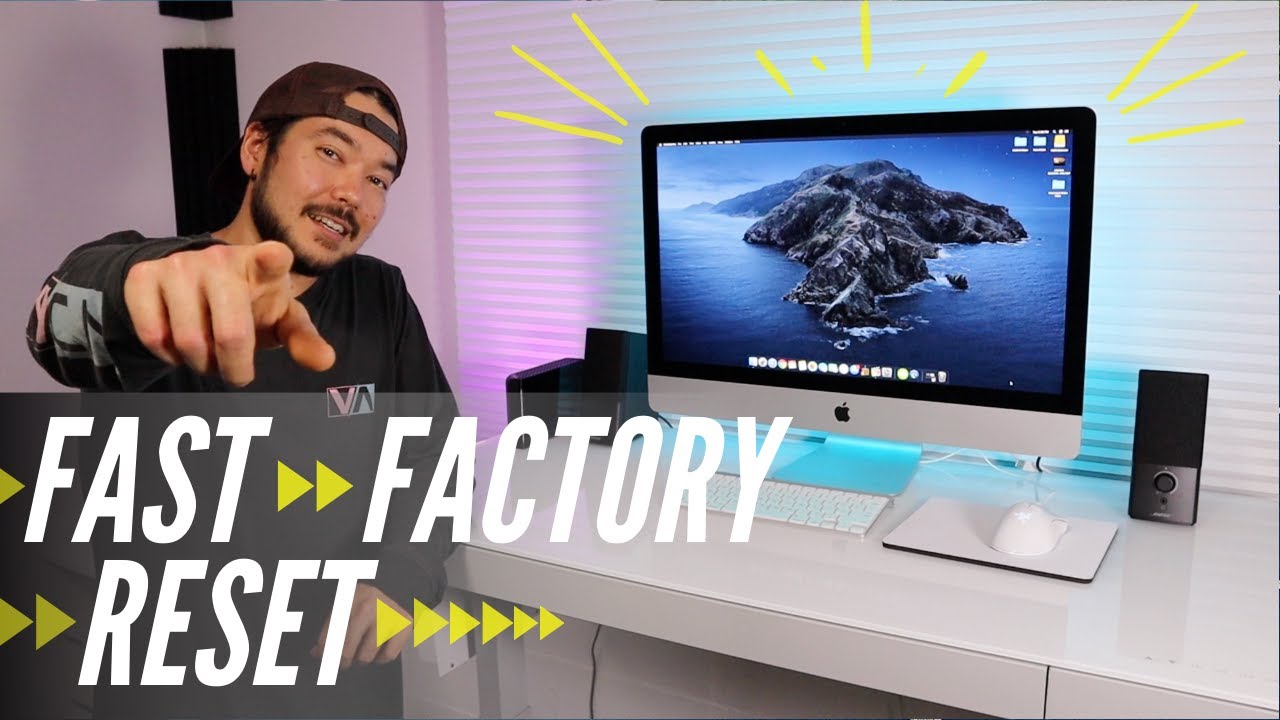
Reset iMac / MacBook to factory settings
Once you have completed the preliminary steps, you can reset your MacBook or iMac to factory settings.
- To reset your computer, you must be connected to the Internet. Then restart your Mac by clicking on the Apple icon and selecting “Restart.” While doing so, hold down the [⌘] and [R] keys.
- When the computer restarts, a menu will appear. Select “Disk Utility” and then click “Continue.”
- The next step is to find your startup volume. If you haven’t renamed it, it will be called “Macintosh HD.” Select the startup volume and click “Erase.”
- In the ‘Format’ menu, select “Mac OS Extended (Journaled).” If you want, you can give the volume a new name. Click “Erase” to start the process and format the hard drive.
- Then select “Disk Utility > Quit Disk Utility.”
- Since you are connected to the Internet, you can now reinstall the operating system. To do this, click “Reinstall Mac OS X” and “Continue.”
- It may take a while for the operating system to download and install. Once this is complete, your computer will be reset to its factory settings.