334
With OneDrive Vault, you can provide additional protection and security for files in your cloud. Find out what Vault offers and how it works in this practical tip.
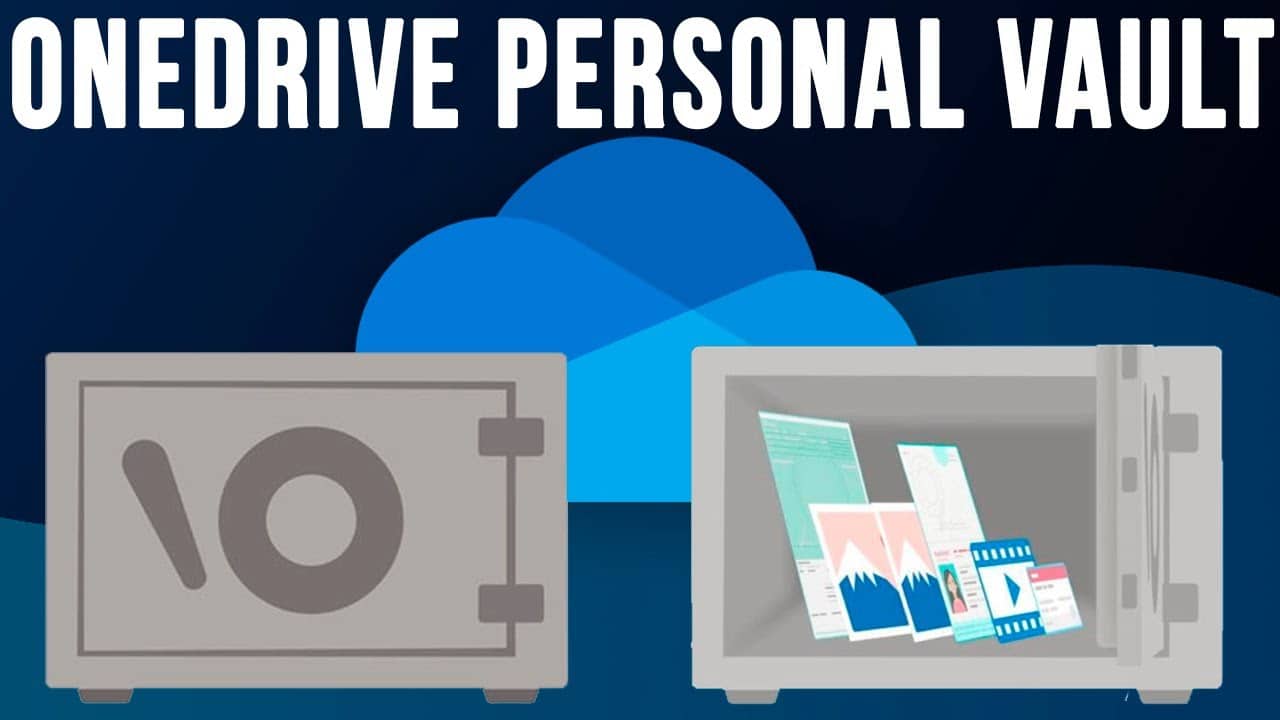
OneDrive Vault – How the safe works
With OneDrive Vault, you can additionally encrypt and secure files stored in your OneDrive.
- This allows you to add an extra layer of security to important or confidential files to protect them.
- The vault is a separate folder in your OneDrive and can be activated in just a few steps. You can add files by dragging and dropping them or uploading them directly from your computer.
- Two-step verification provides additional protection for your data.
- In addition, you will be automatically logged out of the vault after 20 minutes of inactivity and will need to use the second factor to unlock your vault again.
- You can choose whether you want to use a one-time password (OTP), the Microsoft Authenticator app, or receive a code via email as your second factor to verify access.
- However, in the free version of OneDrive, you can only secure 3 files with your vault. To add more files to the vault, you must access a Microsoft 365 subscription.

OneDrive Vault: How to set it up
To set up OneDrive Vault for the first time, you only need to follow a few steps.
- Open OneDrive in your browser and sign in with your credentials.
- On the home page of your own files, you will find a folder called “Personal Vault” with a vault icon. Click on the icon.
- When setting it up for the first time, you will first see information about the personal vault. Click [Next].
- To confirm that you are logged in with the correct credentials, you must check your details in the next step and then confirm by clicking [Verify].
- A small window will now appear in which you must enter a code. If you have not yet set up two-factor authentication for Microsoft, you can do so now.
- After you have entered the code that you received via your authenticator app or email, you can click [Confirm] and then access your vault.