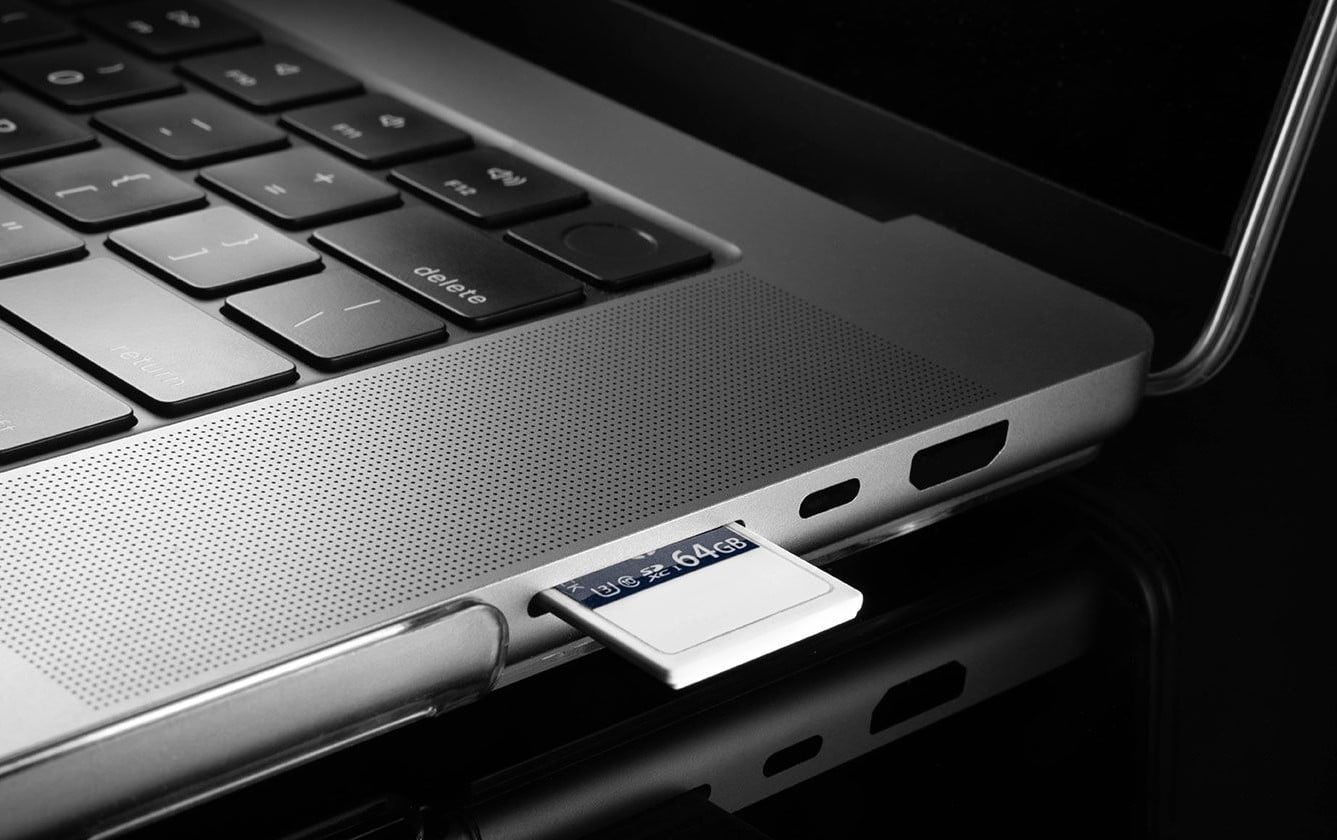
When connecting an SD or MicroSD memory card to a laptop or PC using a card reader, users expect its contents to appear in File Explorer, just like when connecting a USB flash drive. This is usually the case, but not always.
This guide explains in detail why a card reader may not recognize a memory card and how to fix this in Windows 11 or Windows 10.
Drivers and connection
The first thing to check, especially if no memory cards are visible when connected via a card reader, is the presence of the device itself for reading them from the “point of view” of Windows:
- Open Device Manager: you can do this by right-clicking on the Start button or by using the command devmgmt.msc in the Run dialog box (Win+R).
- Check if the card reader is available and if it is displayed with errors. Usually, on modern PCs, it is located in the “MTD devices” section, but there may be other options: “USB controllers,” “Host adapters for storage devices,” “Disk devices.” Look for any device with “Card Reader” in its name.
If there are no such devices, but there are devices with errors, pay special attention to them and the error code (you can search for it on this site or on the Internet) in the properties of such a device: it may be your card reader, and the reason for the “invisibility” of SD memory cards is that the device is not working.
The most common reasons for the card reader itself not working are drivers (especially on laptops) or lack of connection (if we are talking about a device on the front panel of a PC). The solutions are as follows:
- For laptops — find the official support page for your laptop model, download the card reader driver from the driver download section, and run the installer. Notes: a message from the device manager stating that the most suitable driver is already installed only means that Windows cannot offer you any others — I recommend performing a manual installation anyway; The official website may only have drivers for previous OS versions, but in most cases, they will work fine on Windows 11/10. Sometimes, the operation of such devices may depend on the availability of original drivers from the “Chipset” section. I recommend installing them as well.
- For PCs — make sure you have installed all the original drivers from the “Chipset” section of the manufacturer’s website for your motherboard model. If you assembled the computer yourself or performed work inside it, make sure that the USB cable from the card reader or the front panel of the PC is connected to the appropriate connector on the motherboard.

Assigning a drive letter
A connected memory card may not appear in Windows 11/10 File Explorer (or other file manager) if the connected drive has not been automatically assigned a letter. You can check if this is the case by following these steps:
- Open Disk Management — in the menu by right-clicking on the Start button or using Win+R — diskmgmt.msc
- Check if there is a drive corresponding to the connected memory card. If it is available but does not have a letter assigned to it, right-click on the disk, select “Change Drive Letter or Path,” and add the desired drive letter.
-
As a result, the memory card will appear in File Explorer:
Please note that memory cards used on other devices with operating systems other than Windows may appear to have a RAW file system, and Windows will report an unrecognized file system:
The reasons for this may be: the device uses a file system that Windows does not support (for example, ext4), or sometimes the file system on the drive is damaged. For the first case, these instructions may help, and for the second, this article about RAW partitions.
For new, previously unused memory cards, you may see an “Unallocated” area on the disk:
The solution is to right-click on it, select “Create Simple Volume” and follow the wizard’s instructions to create a partition and format it in the desired file system.
Problems with the memory card or card reader
And the last of the possible causes of the problem in question is some kind of hardware problem with the memory card or the card reader itself, sometimes with the adapter (for example, if you are using a microSD to SD adapter).
Everything described below applies to cases where the memory card reader itself is displayed in Device Manager without errors and has the original drivers installed (in the case of a laptop; PCs often do not require drivers):
- If possible, check whether the problem occurs with only one memory card or with all of them. If it is only with one card, the problem is most likely with the memory card itself. Sometimes, gently cleaning the contacts with a soft eraser without applying too much pressure can help.
- If you are using a microSD to SD adapter, try a different adapter. Experience shows that they often fail, even if they are just sitting on a shelf (oxidation of internal and external contacts).
- If no memory cards connected via a card reader can be read, the problem is probably with the card reader itself. I recommend double-checking the drivers (the card reader itself, the chipset), and the connection (in the case of a PC). Please note: check the memory card connection slot for visible damage — if someone persistently tried to insert the memory card upside down or a family member used the slot to “connect” something other than a memory card, this could have caused it to malfunction.