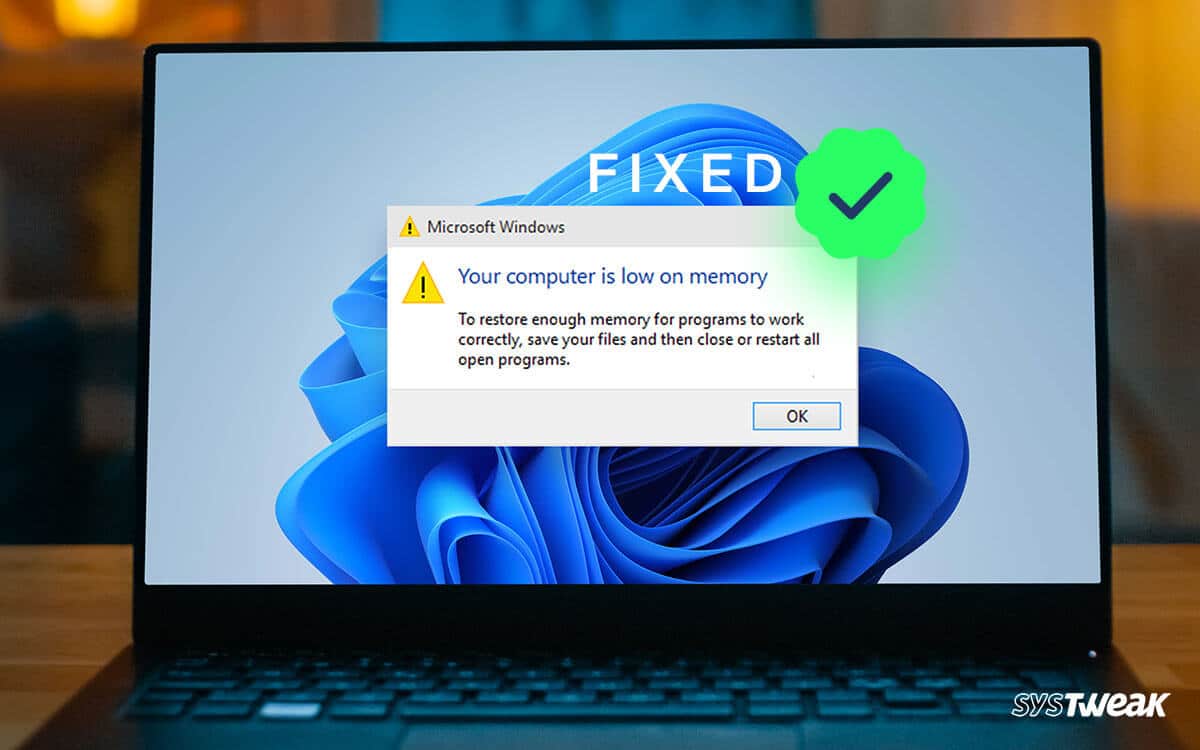
When copying folders and files from one location to another—most often between drives—some users may see an error message window titled “Not enough memory” with the message “Not enough memory to complete the operation” .
This guide explains in detail what might cause this error and how to fix it in Windows 11/10 and other OS versions.
Possible causes of the error and how to fix it
Before we begin, I should note that everything described here applies only to the “Not enough memory” error when copying files and folders. Similar but distinct errors are covered in separate guides: There is not enough disk space to perform this operation, Not enough system resources to complete the operation.
The “Not enough memory” error in question, which appears in the Windows file copy window—sometimes immediately, sometimes after some progress has been made—usually does not indicate an actual shortage of RAM or space on the SSD/HDD.
The actual causes of the error are most often the following:
- Loss of connection to the disk from which the copy is being performed. In this case, the process usually starts, data is copied, but at a certain point (usually varying) you see the “Not enough memory” error.
- Issues with file/folder access permissions on the disk. Usually, a different error occurs in this case, but some users also encounter the one described in this article.
- Interference from antivirus software (often third-party), scanning files “on the fly”.
- Less commonly: Explorer (explorer.exe) copy buffer limits, long paths, file system errors.

This leads to the following main solutions:
- If you haven’t encountered this problem before, I recommend starting with a simple computer restart (be sure to select “Restart” rather than “Shut Down” followed by a power-on); sometimes this is enough.
- If you get a “Not enough memory” error when copying from an external storage device (flash drive, external hard drive), try connecting it to a slower port (USB 2.0), and if none are available, simply to a different port.
Sometimes this helps resolve the issue (slower transfer speed, reduced heat, more stable operation). It’s best to connect directly to the back panel of the PC rather than through any hubs. - Try using robocopy (a built-in Windows command-line tool) or alternative file managers, such as Far Manager or Total Commander, for copying; you can also use TeraCopy. These tools copy files “differently” than File Explorer does and allow you to bypass issues that File Explorer cannot handle. Furthermore, these same tools (particularly TeraCopy) can provide a more detailed error message if a failure occurs, which will facilitate further troubleshooting.
- If you are copying any files from unlicensed software or games (or anything else of a “questionable” nature), try temporarily disabling your antivirus.
- Only when copying from NTFS: using the “Security” tab in the properties of the folder or file you want to copy, make sure that you (your account or the ‘Users’ group) have all the necessary permissions, specifically “Read”. If this is not the case, either configure them manually there via the “Advanced” button, or use simple programs for this.
- Run a file system check on the drive from which you are copying. Example for drive D; change the letter as needed: chkdsk D: /f
- If an error occurs when copying photos and/or videos from your phone, review the transfer settings in its settings, specifically disable (if available) the automatic format conversion option. For example, on an iPhone, the path is as follows: Settings — Apps — Photos — the “Transfer Originals” option in the “Transfer to Mac or PC” section.