
455
If you accidentally switch to the English keyboard, you can easily undo this and use the German keyboard again.
Switching from an English keyboard to German
If the Y suddenly becomes a Z, you have set the English keyboard. If the German keyboard is also installed, you can quickly switch back to it.
- Press the key combination [Alt] + [Shift]. This will switch directly between all input languages installed on the PC.
- Alternatively, press the keys [Win] + [Space bar] to switch between languages. Hold down the [Win] key to open a selection menu with all keyboard layouts.
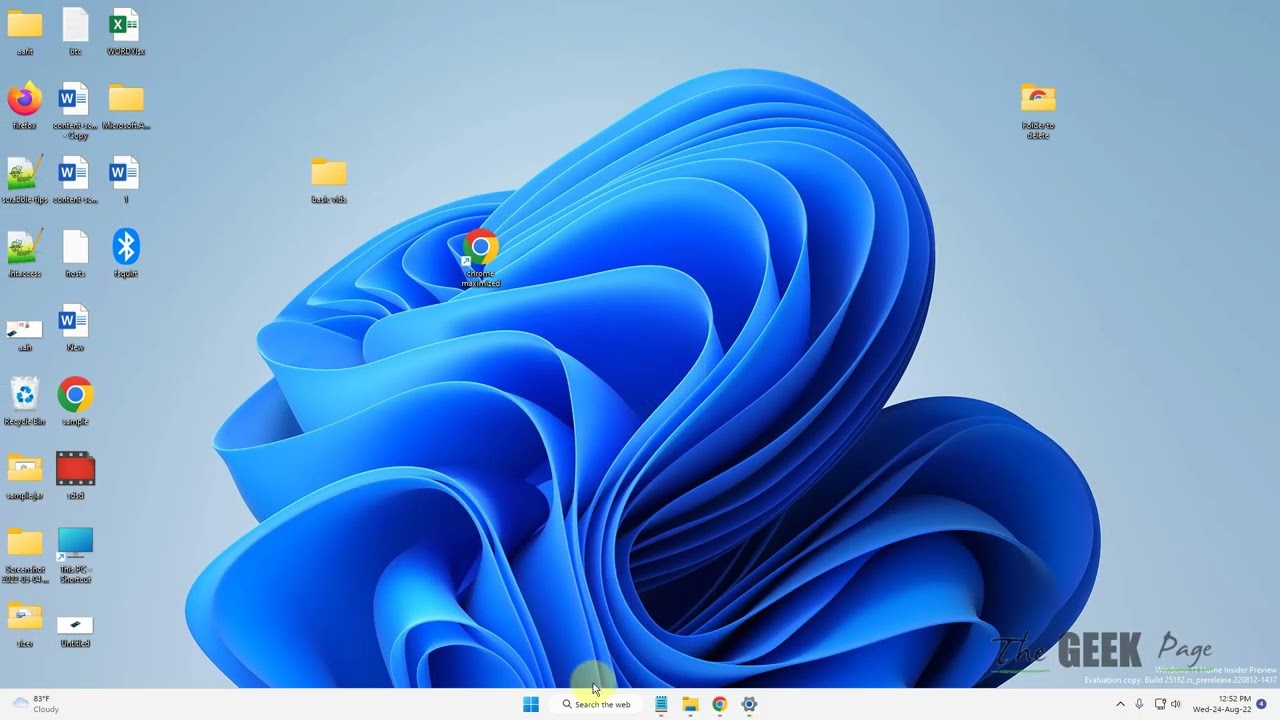
- You can identify the current language by the language change icon next to the clock. This should display DEU for “German.”
- You can also left-click on the language switch icon to open the selection menu.
- If you cannot see the icon, open the settings and navigate to Time and Language > Input > Advanced keyboard settings. Turn the option Use desktop language bar when available on and off and check whether the language switch icon appears in the taskbar.
- Please also note that the icon only appears if multiple languages are installed. If only the English layout is available on your PC, you must first install the German layout. You can read how to do this in the next paragraph.
Change the keyboard language in Windows
If the method described above does not work, you will need to change the keyboard language in Windows 11.
- To do this, click on the Windows icon in the taskbar and then on Settings (the gear icon).
- Go to the Time & Language menu and click on Language & Region on the left (Windows 10: “Language”).
- Under “Preferred languages,” click on the three dots next to ‘English’ and select Language options (Windows 10: “Options”).
- If “German” is missing, click on Add language. Then select German (Germany). Follow the steps on the screen to set up the layout.
- At the bottom, under “Keyboards,” select “German – QWERTZ” to switch from the English keyboard to the German version. You can remove other layouts if you don’t need them.