1K
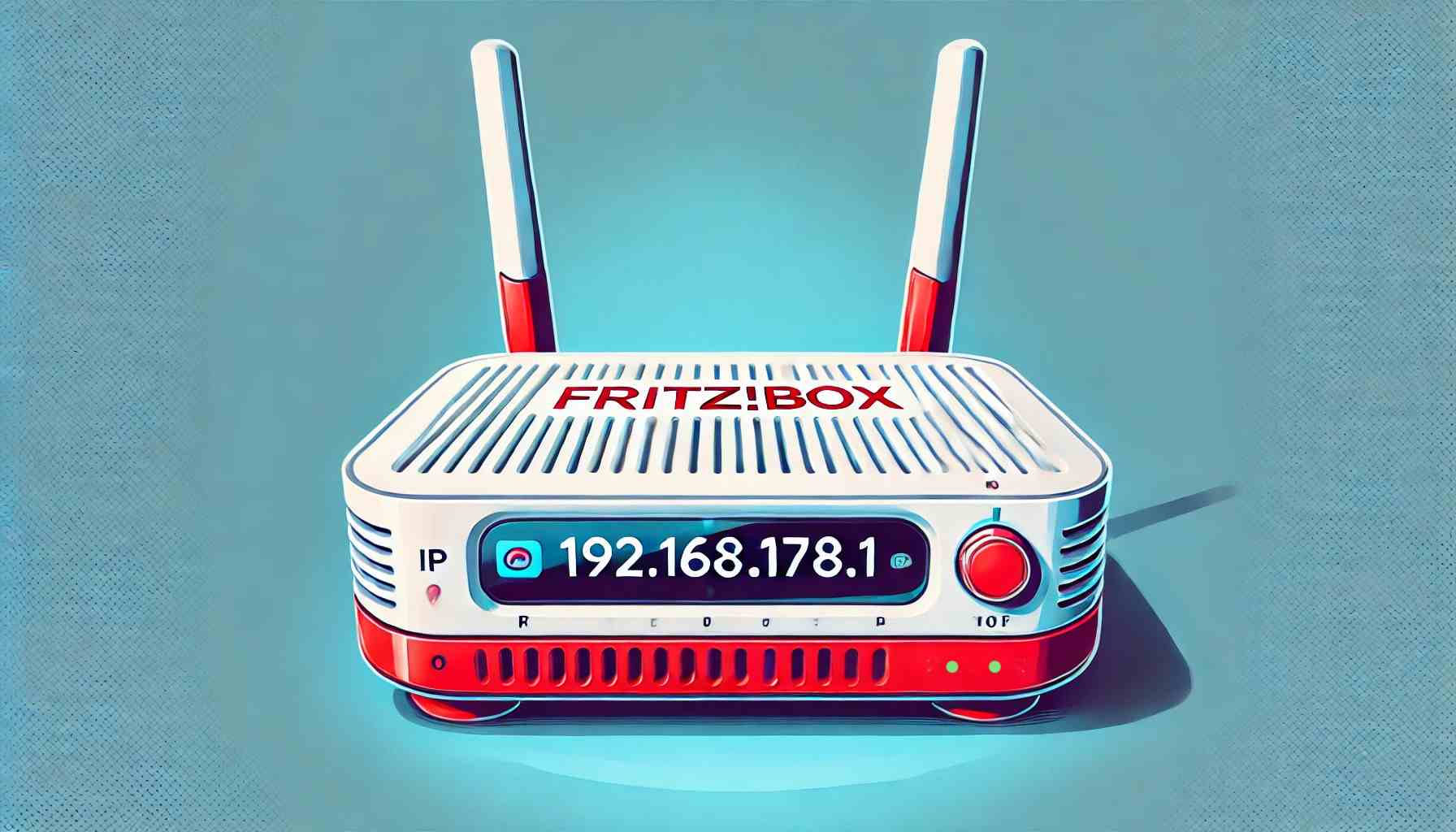
In this practical tip, we explain how to access the login page for your router menu via the address 192.168.178.1. All you need is a browser.
192.168.178.1: Accessing the FritzBox router menu login – here’s how
To access the menu of your FritzBox, all you need is an Internet-enabled computer or mobile device and a web browser.
- Open a browser (e.g., Chrome, Firefox, Safari).
- Enter 192.168.178.1 or fritz.box in the address bar. This address works for all FritzBox models.
- Press Enter. The login page for your FritzBox will appear.
- Enter your router password.
- If the connection via these addresses does not work, you can alternatively use the emergency IP 169.254.1.1. This so-called fallback IP is used if the device has not received an IP address from the router (e.g., in the event of a DHCP error) and establishes a direct connection to the FritzBox.
- In addition to browser access, you can also use the official MyFRITZ!App from AVM to conveniently open your router menu via your smartphone – both in your home network and on the go via an AVM service.
- In addition, operating systems offer their own tools for finding out the IP address of the router: In Windows, this works with the ipconfig command in the command prompt; in macOS or Android, you can find the relevant information in the Wi-Fi settings under “Router” or “Gateway.”
Problems accessing the router – possible solutions
If you cannot access your FritzBox, the following causes may be responsible:
- DNS problems: If fritz.box does not work, use the IP 192.168.178.1.
- Incorrect network: Make sure you are connected to the FritzBox home network.
- VPN/firewall: Temporarily disable them – they sometimes block local connections.
- Incorrect password: Check that you are using the correct router password (not the Wi-Fi password).
- Security information for router access: To protect your FritzBox and your home network optimally, you should follow some basic security tips. Always use a strong password to access the user interface—it should be as long as possible, unique, and not identical to the Wi-Fi password.
- Also, always keep your router’s firmware up to date. Firmware updates not only fix bugs, but often close security gaps as well. Finally, you should only allow access to the router menu from within your home network. This will prevent unauthorized persons from accessing your FritzBox from outside.

Router access for other manufacturers
If you are not using an AVM (FritzBox) router but a device from another manufacturer, the above addresses will not work. The access addresses vary depending on the manufacturer. Here you will find the most common router brands and their standard access addresses:
- AVM FritzBox: Access via 192.168.178.1 or fritz.box
- Telekom Speedport: Access via 192.168.2.1 or speedport.ip
- Vodafone (cable router): Access via 192.168.0.1 or kabel.box
- Netgear: Access via 192.168.1.1 or routerlogin.net
- TP-Link: Access via 192.168.0.1 or tplinkwifi.net
- Asus: Access via 192.168.1.1 or router.asus.com
- D-Link: Access via 192.168.0.1 or dlinkrouter.local
- If you are unsure which address applies to your router, you can determine the IP address of the default gateway via the network settings of your computer or smartphone. In Windows, use the ipconfig command in the command prompt. On macOS or Android, you can usually find the router address under the Wi-Fi details as “Router” or “Gateway.”