If you want to transfer several or larger files from one PC to another, there are various ways to do this. In this practical tip, we show you the best way to transfer data.
Transferring data from PC to PC – An initial overview of file transfer
If the two computers are on the same network, you can connect the devices directly to each other. This is mainly worthwhile if you are transferring large or many files.
- Under Windows, you can mark individual folders as “Public” and thus share them with selected users in the network. In the following practical tip, we will show you how to transfer data via LAN or WLAN.
- Alternatively, you can use a special USB data cable . This connects both devices directly via USB. As a rule, the above option is much faster and cheaper via the network.
- If the two computers are not in close proximity and only a few files are involved, you can simply use a USB stick. An external hard disk is worthwhile for larger amounts of data.
- If you want to transfer the data from your old computer to the new computer, you can also use the internal hard disk. If a slot is available, you can simply remove the hard disk and insert it into the other PC.
- Of course, you can also do it without a USB stick or hard disk: With a free cloud storage you can also send your data to the other end of the world. Upload the data to one PC and download it to the other. Depending on your internet speed, however, the process may take considerably longer.
Sending data from PC to PC via USB stick or external hard disk
Using a USB stick or an external hard disk, files can be moved quickly and easily between two computers. This method is particularly suitable if both devices are directly accessible and large amounts of data need to be transferred.
- Plug the USB stick or external hard disk into a free port on the source computer. Wait until the device has been recognized – a window will usually open or you will find the drive in Explorer under “This PC”.
- Select the files to be transferred, then right-click on them and select “Copy”. Now call up the displayed USB drive and right-click on an empty space. Select “Paste”.
Alternatively, you can use drag-and-drop. - Safely remove the USB stick or hard disk by using the “Safely remove hardware” icon at the bottom right of the taskbar. Now insert the device into the target computer.
- Open the drive again in Explorer and copy the desired data to the new computer as described above. The data has now been transferred.
Transfer files securely from PC to PC via the home network
A data transfer in the home network is particularly practical if both computers at home are connected to the same router. The following steps show how files can be securely and easily exchanged between multiple devices on the network
- Connect both computers to the same router – this works via WLAN or LAN cable. Check that both devices are visible on the network.
- Mark the desired folder for sharing with other users in the network. To do this, right-click on the folder, select “Grant access”, then “Specific people” or “Everyone” and assign sharing rights.
- From the target computer, open the “Network” area in File Explorer. There you will see the shared folder. Copy the contents to a separate folder on the new computer.
- Tip: If there are connection problems, it often helps to check the Windows network settings and restart both devices.
Connect data from PC to PC directly with LAN or Ethernet cable
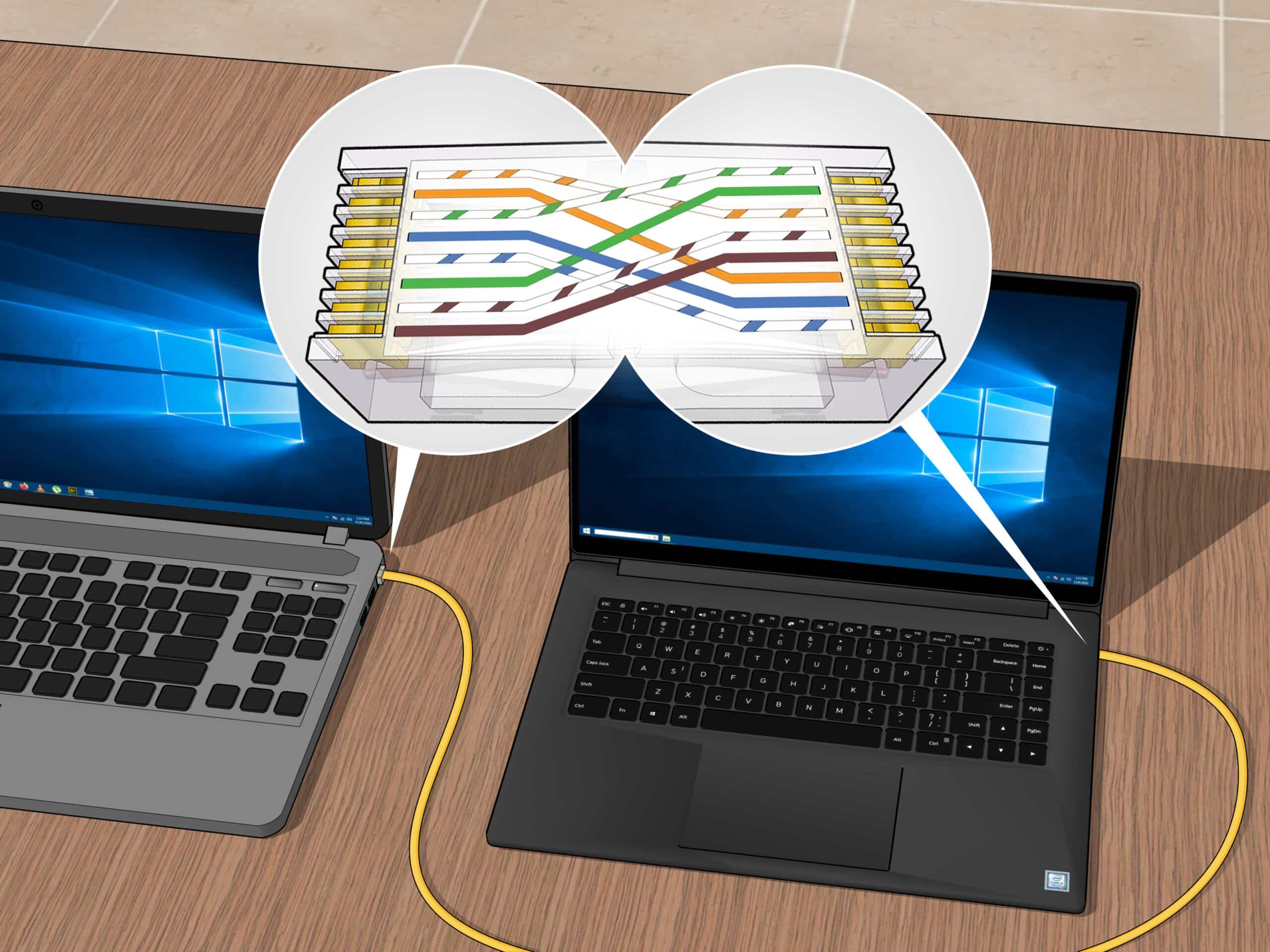
With a LAN or Ethernet cable, two computers can be connected directly and in a particularly stable manner. This solution is suitable for reliable and fast file transfers, without any interference from wireless networks or external influences.
- Connect both computers via LAN cable by inserting the plugs at the ends of the cable into the source and target computers. This is how you connect the network cards of the two computers. A standard CAT5 or CAT6 cable is usually sufficient.
- Go to the “Network and Sharing Center” settings on both devices: Configure the IP addresses manually and activate file sharing.
- Create a new folder, then move the files to be transferred there and finally set up the sharing as described above.
- Open the network window of the target computer and search for the source computer there. Now transfer all the desired data using “Copy & paste”.