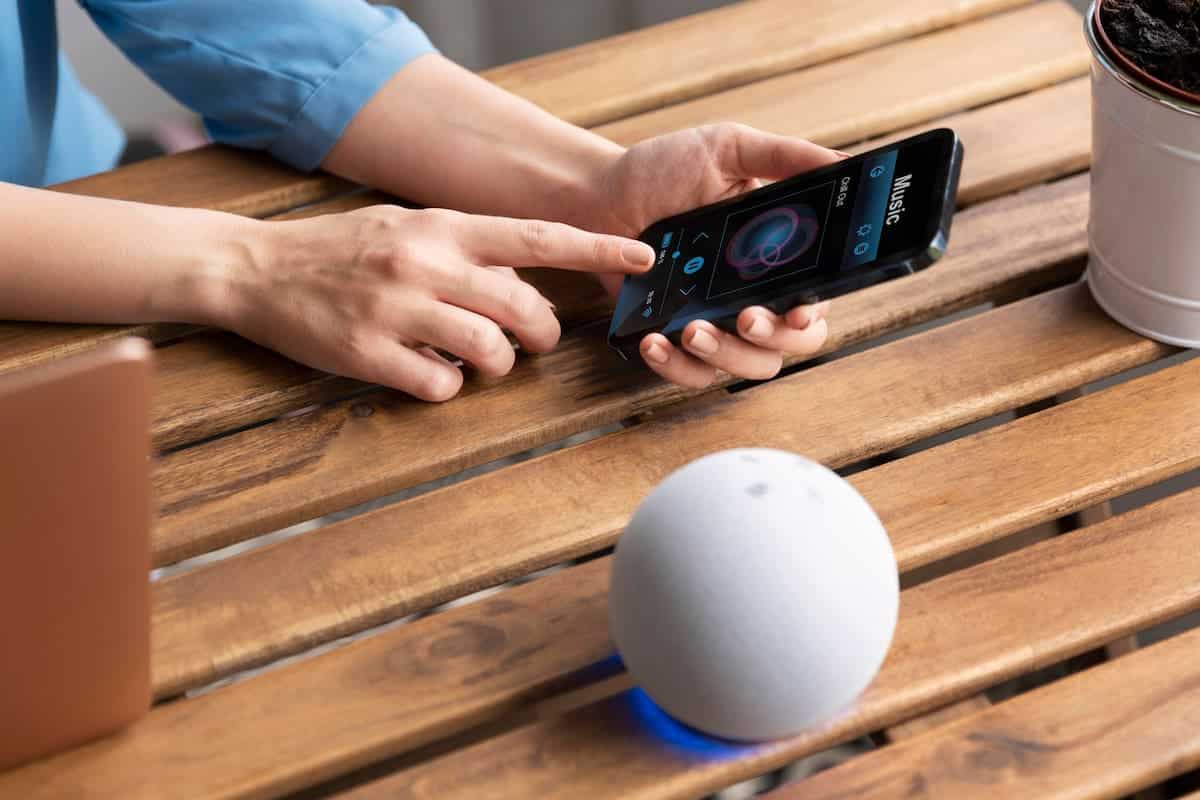
You can also make phone calls with Alexa. However, you’ll first need to set up your Amazon Echo or Echo Dot. In this post, we’ll show you how.
Set up Alexa for phone calls
To make phone calls with Alexa, you need the latest version of the Alexa app. Make sure that both the app and your Echo device are running the latest software to use new features such as Skype calls, Vodafone OneNumber, or emergency contacts. We explain how to update your Alexa in another practical tip.
- Once the update is installed, a pop-up will appear immediately, letting you know that you can now use the phone feature.
- Launch the app and tap the speech bubble icon. An installation process will begin, guiding you through the app setup.
- At the end of this process you’ll need to verify your phone number. Amazon will send you a code via text message, which you’ll then need to enter.
- Once that’s done, the app will ask to import your contacts from your smartphone. You’ll need to agree to this. This allows Amazon to identify which of your contacts also have the Alexa app installed and use the Amazon Echo.
- You can now also save emergency contacts in the Alexa app, which you can quickly reach via voice command. You can also manage contacts manually and grant individual devices access to Drop In and calls.
- In the app’s settings, you can then enable the “Drop In” feature under “General.” Here, you can also specify who can call you.
- For example, if you select “Only my household,” you can use other Echos and Echo Dots in your household as an intercom system.
- If you select “On” instead, phone calls with other contacts from your list are also possible, provided they also use the feature.
Comparison of calling options
Alexa now offers various types of calls that differ in their capabilities and requirements.
- With Alexa-to-Alexa calls conversations are conducted free of charge over Wi-Fi. Both contacts must use an Echo device or the Alexa app.
- The Drop-in feature is ideal as an intercom, as conversations start immediately without the recipient having to answer the call. Drop-in is limited to approved devices and household members.
- For landline calls the “Echo Connect” device was originally required. However, this adapter is no longer sold.
In Germany, Vodafone offers OneNumber as an alternative, which routes voice calls through your personal mobile number.
- Mobile phone calls via Alexa are only possible if both parties have an Echo or the Alexa app. These are not traditional mobile phone connections, but rather internet-based connections.
- A new feature is the integration of Skype, which allows you to link your Microsoft account to the Alexa app. This lets you call contacts directly via Skype.
- For video calls you need a device with a camera and screen—for example, an Echo Show, an Echo Spot, or the second-generation Fire TV Cube.

Making calls with Alexa – a guide
If you want to make a call, start the call with the command “Alexa, call (contact’s name).” For this to work, certain requirements must be met.
- You can only call a mobile contact via Alexa if the recipient also has an Echo or Echo Dot. They must also be using the Alexa app.
- To call via Skype, say: “Alexa, call (contact’s name) on Skype.” Vodafone OneNumber customers can make and receive calls using their own mobile number without using their phone.
- This does not apply when calling a landline number. You can make these calls even if the person you’re calling doesn’t have an Echo. The Alexa app is also not required for these calls.
- When a call comes in, Alexa signals this with a green ring of light and a ringtone. On Echo devices with a screen, you’ll also see the caller’s name or profile picture.
- If you have set up Alexa for phone calls, you can start a video call with the command “Alexa, video call with (contact’s name).”
- If you’d rather not make a call but send a message instead, that’s also possible. You can send both text and voice messages.
- The corresponding commands are “Alexa, send a message to (contact’s name)” or “Alexa, send a voice message to (contact’s name).”
- When you receive a text or voice message, the assistant signals this with the color ring: Alexa lights up yellow.