
1
In AutoCAD, you can explode a block to edit the individual elements it contains. This is done using the ‘Explode’ command.
Exploding a block in AutoCAD
In AutoCAD, you can use the “Join” command to combine individual objects into a single block to make it easier to work with. Here’s how to break this block reference back down into its individual components:
- Launch AutoCAD and first open your technical drawing.
- Now, using the left mouse button, select the individual block in your drawing that you wish to break down into its components.
- Next, go to the “Home” tab in the menu bar at the top left and click on the “Modify” option.
- In this command toolbox, you will find an exploded cube, which represents the ‘Explode’ command. Click on this icon to make changes. The opposite command, ‘Join’, can also be found in this toolbox.
- Alternatively, to save time, you can type the command ‘ORIGIN’ or ‘EXPLODE’ directly into the command bar at the bottom after selecting your object.
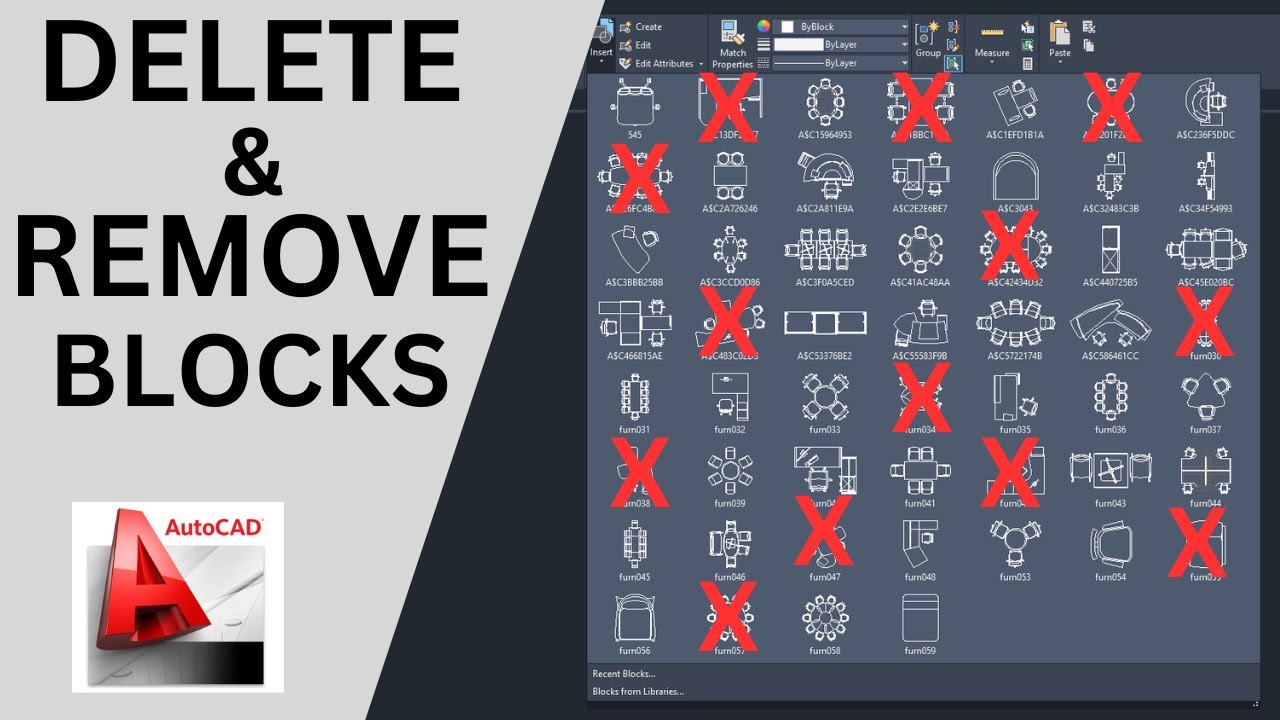
Important notes and common pitfalls when exploding blocks
When exploding blocks, you should bear the following points in mind:
- Blocks that cannot be exploded: Some blocks are defined in such a way that they cannot be exploded. To change this, open the block in the Block Editor, ensure that nothing is selected, and set the “Allow Explosion” option to “Yes” under “Block” in the Properties palette.
- Layers and properties: After expansion, the colours, line types and other properties of the objects may change. Ensure that the objects are placed on the desired layers with the correct properties.
- Dynamic blocks: Dynamic blocks may contain special parameters and actions. When such blocks are exploded, dynamic properties are lost and the block’s flexibility is restricted.
- Alternative commands: As well as “EXPLODE”, AutoCAD also features the “XPLODE” command, which offers additional options for controlling objects during explosion. However, this command is not available in all versions of AutoCAD.
