1.5K
You can save text, images, and much more in the Android clipboard. In this practical tip, we’ll show you how to find the clipboard and delete it if necessary.
Find and clear the clipboard on Android
When you select and copy text on your Android smartphone, the text is stored in the clipboard. You can then paste the text elsewhere.
- The clipboard is only deleted when you copy new text. The old text is then overwritten. Alternatively, you can restart your phone, which will also empty the clipboard.
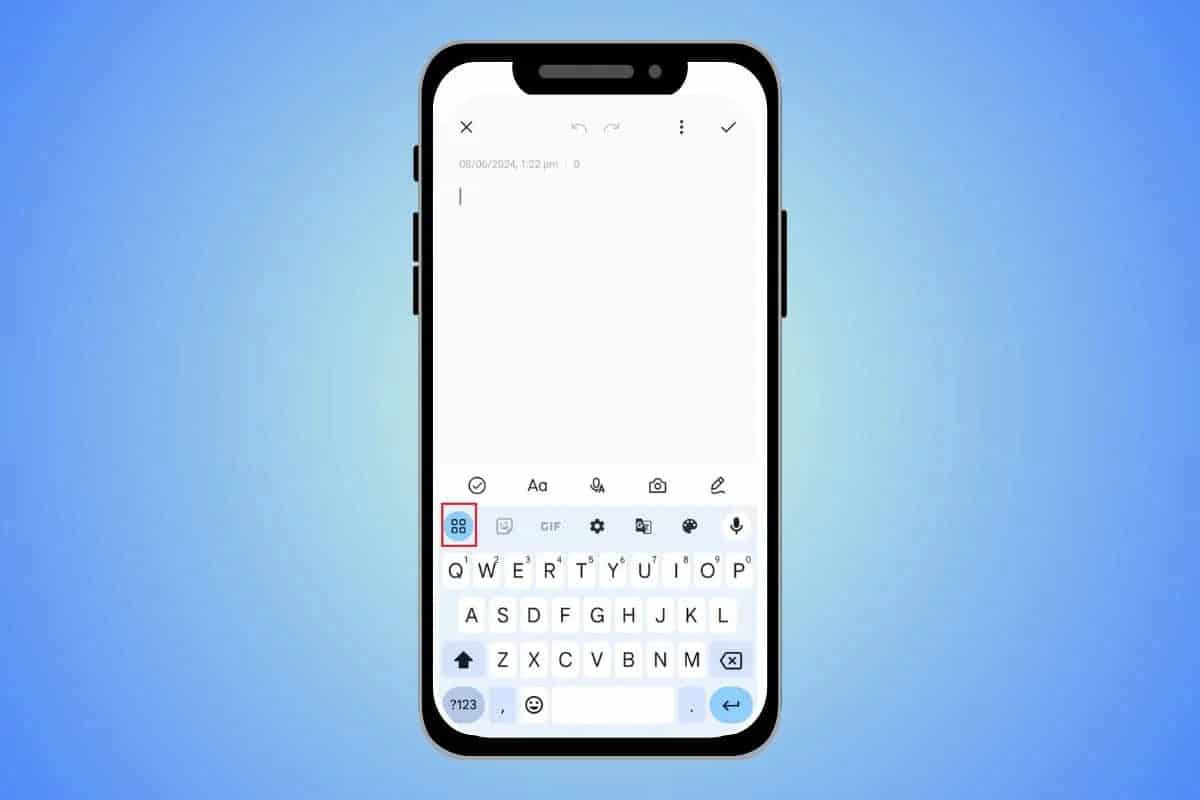
- On current Android devices, you can even view the clipboard on the keyboard. If you find a gear icon or a clipboard icon on the keyboard, this is where the clipboard is hidden.
- Tip: With the free Clipper Plus app, you can save multiple items to the clipboard at the same time.

Deleting the clipboard on Android
The clipboard is controlled by the keyboard. On Android, you can choose between different keyboards. The Google keyboard, known as “Gboard,” is pre-installed on every device. The following instructions refer to Gboard, the most commonly used keyboard on Android. If you use a different keyboard, the procedure is usually similar.
- First, select any word in an app of your choice, for example WhatsApp. To do this, hold your finger on the word until the text is highlighted in color.
- Above the keyboard, you will see a small clipboard icon. This is where the clipboard is hidden, containing everything you have recently copied.
- Tap the pencil icon in the top right corner to select all the content you want and then remove it using the trash can icon.
- Many devices have another clipboard. To use it, select a word again and choose the three dots next to “Copy” and ‘Cut’ to select the “Clipboard” option.
- Here you will see not only the most recently copied text, but also the most recently created screenshots on some devices. You can also empty this clipboard using the trash can icon.