2
The Windows Error Log or Event Log provides a clear overview of all system operations and errors. You can open it via the Control Panel.
Opening the Error Log/Event Log in Windows: Instructions
- First, open the Control Panel on your computer. In the System and Security category, click on Administrative Tools.
- An Explorer window containing several tools will open. Next, double-click the entry Event Viewer.
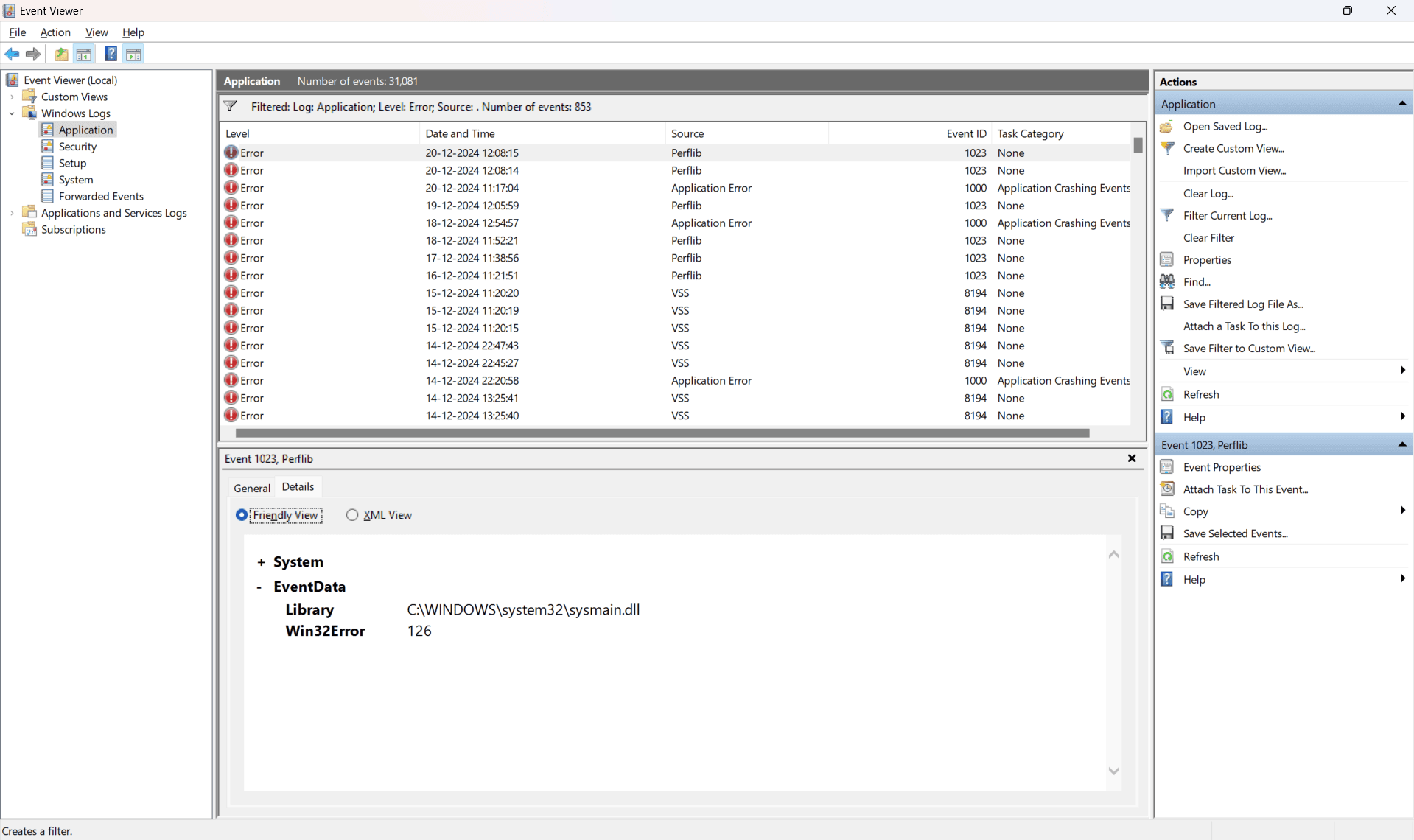
- A new window will open, in which you will find a detailed list of all system errors and errors from individual programmes.
- To do this, select the Administrative Events Summary tab. You can also view log summaries or
How to search for entries in Windows
The Event Log in Windows makes it easy for you to search for specific entries. There are several methods available for this.
- Within the administrative events and log lists, you will find the Search function in the action menu on the right-hand side. Enter the desired search term to find the event.
- Alternatively, simply click anywhere in the overview and then press a letter on your keyboard to jump to the entries beginning with the corresponding initial letter. This allows you to quickly skip to the relevant section in the list.
- It is also possible to filter all lists. For example, if you wish to filter system logs, select Filter current log… from the actions menu.
- You can then customise the filter to suit your requirements. For example, you can filter by specific users or by event level. Click OK to complete the process.
- Note: Following an update to your Windows operating system, the event logs and filters may no longer behave as they did previously. Check regularly your logging and analysis strategies, particularly in light of your security requirements.