1
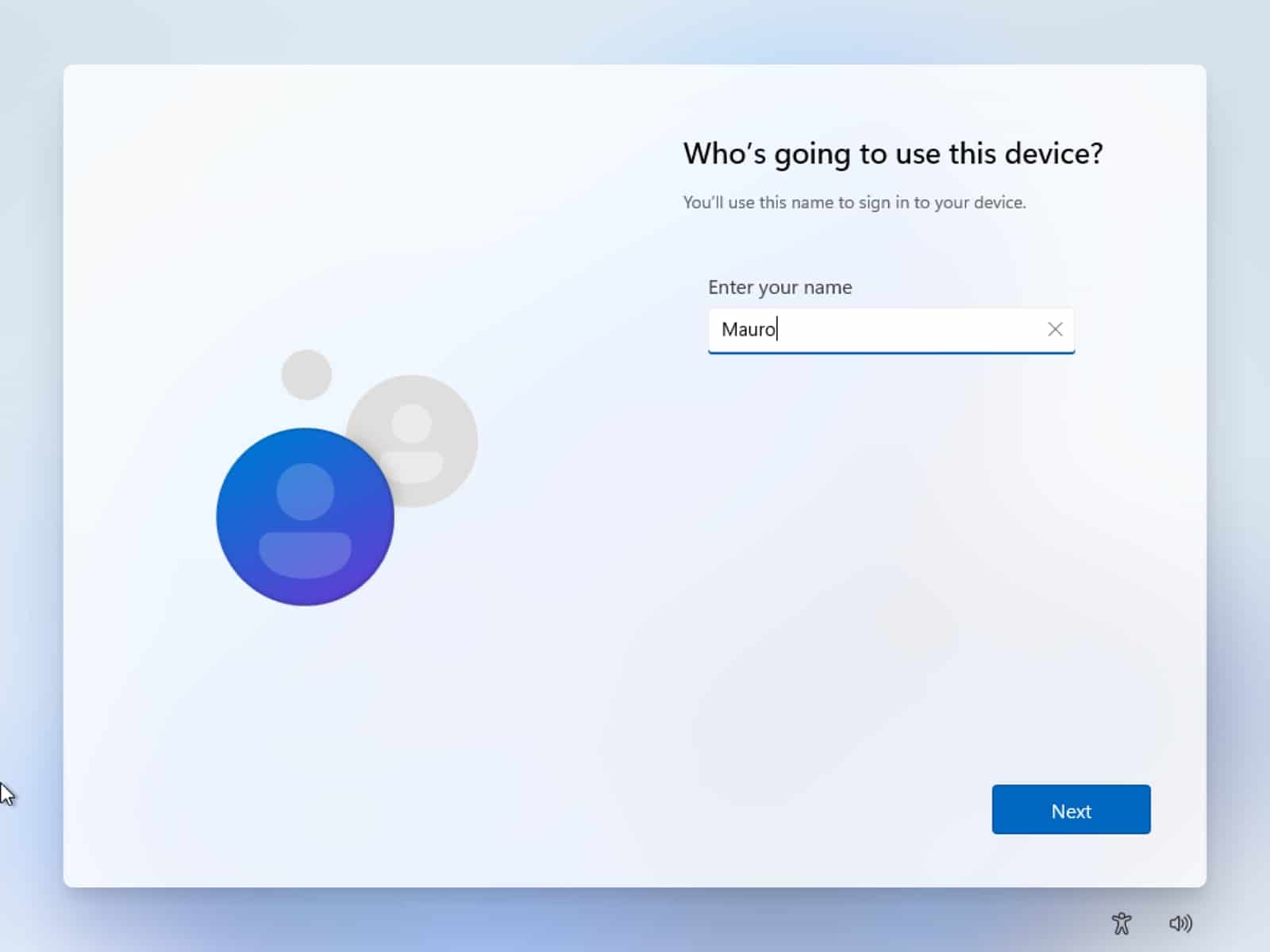
If you’re currently installing Windows 11 on your computer and don’t want to create a Microsoft account, there’s a way round it. You don’t necessarily have to disclose your personal details or create an account that you won’t need later on to get the new system up and running.
Windows 11 without a Microsoft account: Preparation
If you have Windows 11 on your computer, you can set up an offline Microsoft account. If you’d rather not do that, there’s a workaround you can use to avoid having to create a Microsoft account. To do this, first create a user account for someone whose account details you don’t appear to know.
- Before you start the installation, there are a few preparatory steps to take. To do this, go to Settings and click on “Accounts > Other users”.
- Here, go to “Other users > Add an account”.
- In the new window, you’ll be asked for the login details for your Microsoft account. Here, select “I don’t know this person’s login details”.
- Then go to “Add a user without a Microsoft account”.
- In the next step, enter a username and click “Next”.
- In the settings, select “Family and other users”. Click the arrow next to the user and select “Account type”. From the drop-down menu, select “Administrator” and confirm by clicking “OK”.
Next steps: Instructions
Once you have set up an account, it’s time for the final steps:
- Go to the Start menu and click on your username. Sign out via “Sign out”.
- Sign in to the user account you have just created.
- Go back to the account settings and select “Family and other users”. Under Microsoft account, click “Remove”.
- Click on “Delete account and data”.
- You have now disconnected your PC from your Microsoft account and can still continue to use Windows 11 without any problems.
Another option: Set up an offline account
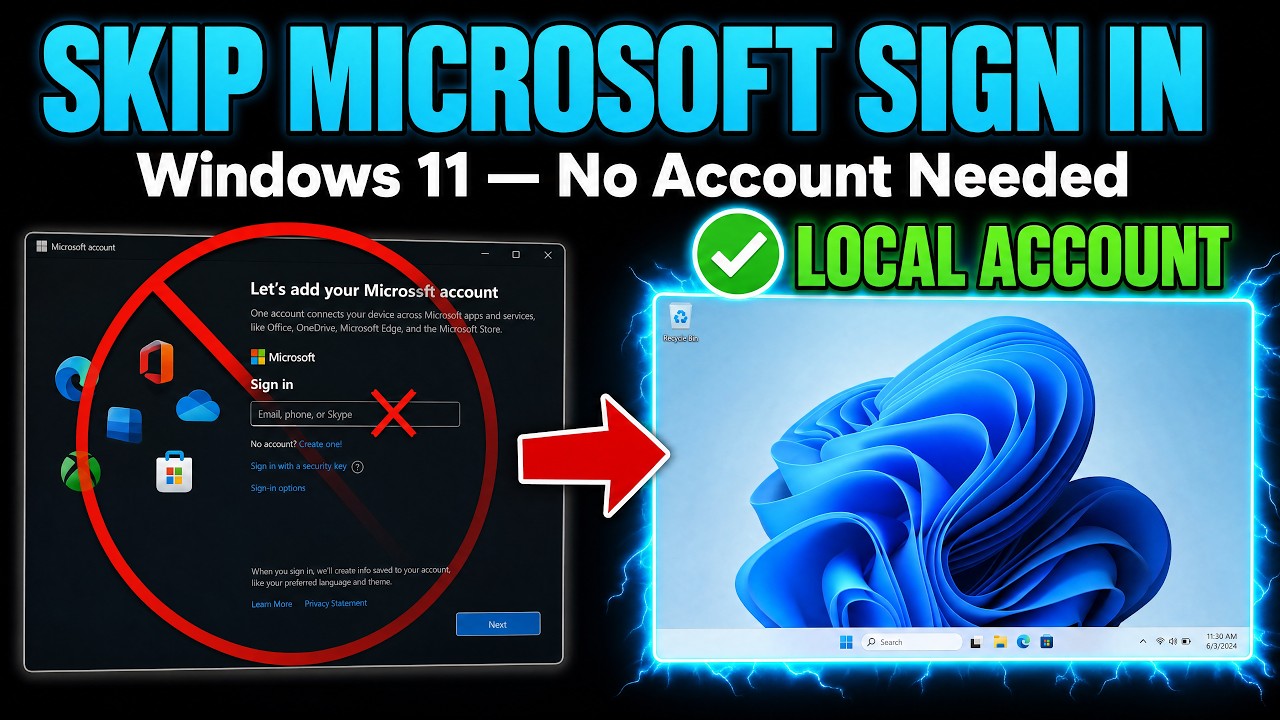
An offline account allows you to set up a local account without linking it to Microsoft.
- When you switch on your PC with Windows 11 for the first time, you will be prompted to create a Microsoft account. In this case, go to “Sign-in options”.
- Select the option “ Offline account”. Create a local user account here.
- To do this, choose a username and password. The computer will be set up without a Microsoft account connection.
