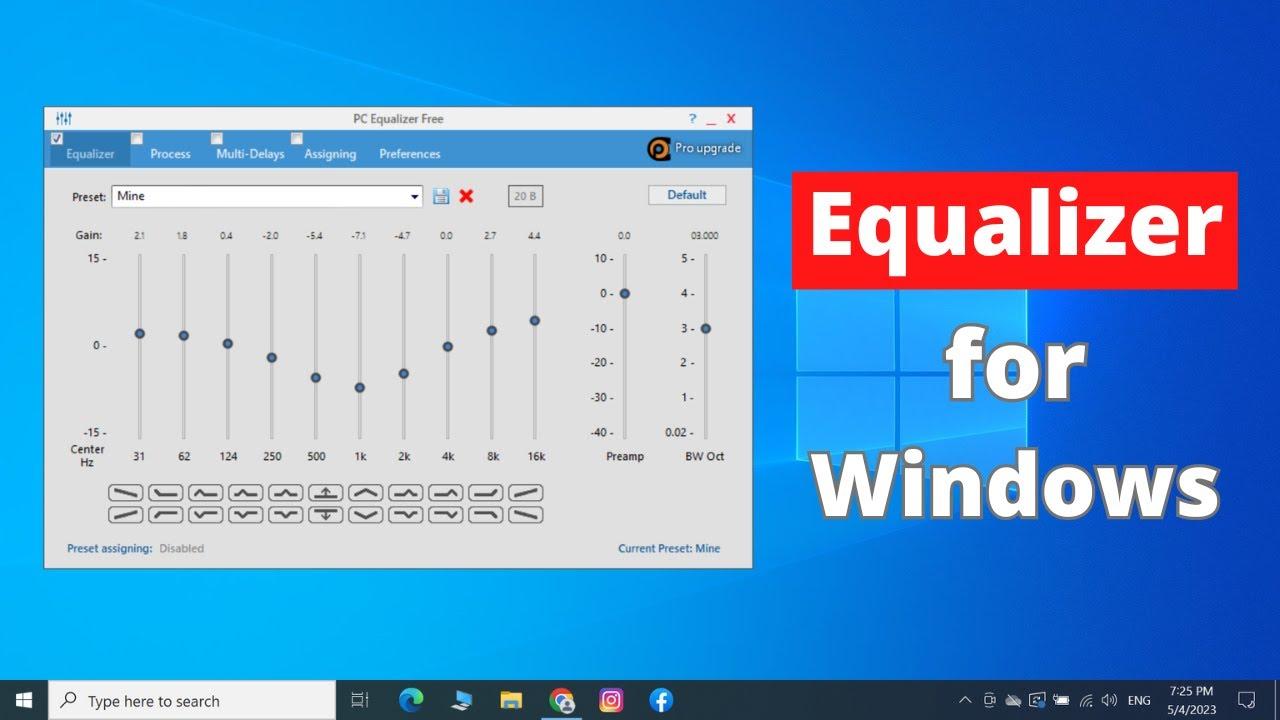
Although Windows 11 does not come with its own equaliser, there are numerous ways to customise your system’s sound. With the right tools and a bit of experimentation, you can get the most out of your audio hardware!
Understanding the Windows 11 equaliser: features and uses
An equaliser is a tool that allows you to selectively boost or cut different frequency ranges of an audio signal. For example, you can emphasise bass or treble to tailor the sound to your preferences. However, Windows 11 itself does not include a system-wide equaliser as standard.
- An equaliser selectively alters frequency bands in the audio signal to emphasise or attenuate specific tones. This allows you to customise the sound and create a personalised audio experience.
- Whether an equaliser is available to you depends on your audio hardware and the drivers installed. Some manufacturers supply their own audio software that includes an equaliser. However, the standard sound settings in Windows 11 do not include a freely configurable equaliser.
- An equaliser allows you to enhance your listening experience by adjusting the sound characteristics to suit your preferences or the specific usage scenario. This may vary depending on whether you are listening to music, watching films or playing games.
- Many users turn to third-party programmes to use a fully-fledged equaliser on Windows 11. These programmes offer settings and fine-tuning options to further personalise and optimise the sound.
Windows 11 equaliser: How to find the settings
There are various ways to use equaliser functions on Windows 11. These depend on your hardware and the drivers installed.
- Via manufacturer tools: Some laptops and sound cards have their own audio managers (e.g. Realtek Audio Console, Dolby Access, Nahimic) that include an equaliser. These programmes are usually installed alongside the relevant drivers and offer additional sound options.
- Windows sound settings: There is no system-wide equaliser in the standard Windows 11 sound settings. On some devices, under ‘Sound settings’ and ‘Advanced settings’, you may find a ‘Enhancements’ tab with basic sound options, but no full-featured equaliser.
- Third-party software: If your system does not include an equaliser, you can install tools such as Equalizer APO, Peace Equalizer or Voicemeeter. These programmes are often free and offer extensive options for sound optimisation.
- Update drivers: Make sure your audio drivers are up to date so that you can make full use of your hardware’s features. You can find driver updates in Device Manager or on the manufacturer’s website.

Enhance your listening experience: Make the most of your equaliser
Equaliser programmes allow you to specifically enhance your listening experience. The best settings depend on your preferences, the audio device you’re using and the type of media.
- For music lovers, it is advisable to boost the treble and bass slightly to achieve a balanced and dynamic sound. Many equaliser programmes offer presets for different music genres such as rock, jazz or classical.
- For films, you can choose profiles that emphasise dialogue and sound effects. A cinema or surround sound profile creates an immersive experience by clearly highlighting voices and enhancing action scenes. Ensure that the volume levels across the different frequency bands remain balanced to avoid distortion.
- Gamers benefit from an equaliser profile that emphasises ambient sounds and footsteps to help them locate opponents more effectively. A slight boost to the mid-range frequencies can help you perceive important audio details more clearly.
- Different speakers and headphones have their own sound characteristics. Try out various settings to get the best out of your equipment. A well-tuned equaliser can bring out the best in them.
Alternatives to the Windows 11 equaliser: an overview of the best tools
As Windows 11 does not come with its own equaliser, you can use a wide range of third-party programmes to optimise your system’s sound.
- Equalizer APO: A powerful and free open-source tool that operates system-wide and offers a wide range of customisation options. When used in combination with the Peace Interface, it is particularly easy to use.
- Voicemeeter: A versatile tool particularly suited to users who wish to manage multiple audio sources or devices. As well as equaliser functions, it also offers options for mixing and routing audio signals.
- FxSound Enhancer: Commercial software specifically designed for sound enhancement. It offers a user-friendly interface and numerous automatically optimised profiles for music, films or games.
- Other tools: Many programmes offer trial versions or are even completely free. Try out different solutions to find the best listening experience for you.