2
If images aren’t displaying in the Safari browser on your Mac or MacBook, there could be various reasons for this. Here are some troubleshooting tips.
Images aren’t displaying in Safari on your Mac – here’s why
The following tips may help if the Safari browser on your Mac is no longer displaying images:
- Try reloading the page by clicking the ‘Reload’ icon (or pressing F5). There may have been a problem with the images.
- You can also try opening a different page to narrow down the issue further. If the images are displayed there, the problem may lie with the previous page.
- If the problem persists, clear the browser cache in Safari. To do this, press the key combination [cmd] + [alt] + [E] on your Mac. If you have Safari installed on a Windows computer, press [Strg] + [Alt] + [E]
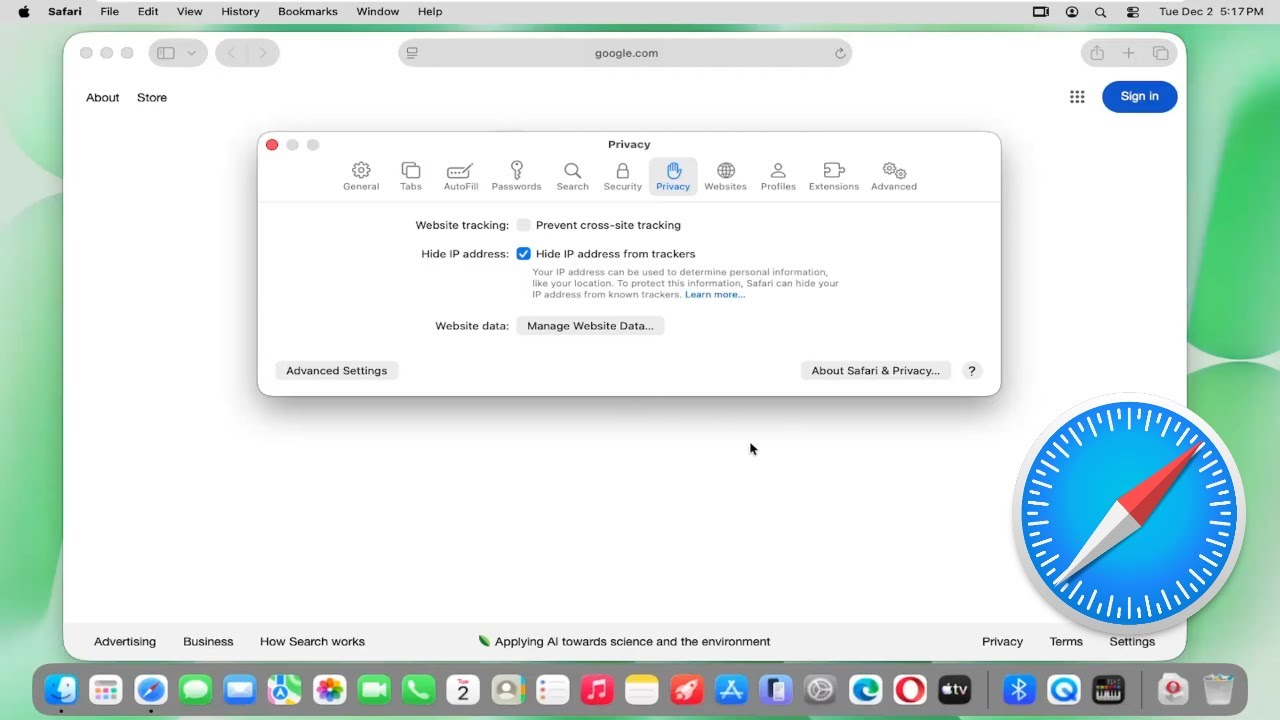
- Perhaps the display of images has been disabled in the settings. Open ‘Preferences’ at the top, then ‘Appearance’, and ensure that the option ‘Show images as soon as the page opens’ is enabled.
- The developer settings may also be responsible for this. Select “Developer” at the top and ensure that the “Disable images” option is not ticked.
- Make sure you have a stable internet connection. The images may not be loading or displaying due to a slow connection.
- A Safari plug-in may also be blocking the display of images. Disable all plug-ins and then restart the browser to test this.
- Your antivirus programme may be blocking the images because they have been mistakenly identified as a virus. To test this, you should temporarily disable the programme.
- If the image is from your website, make sure that the image filename does not contain any umlauts. Safari cannot process these, so the image will not be displayed.
- If none of the tips so far have resolved the problem, check whether there is an update available for Safari. Download the latest version of the browser.