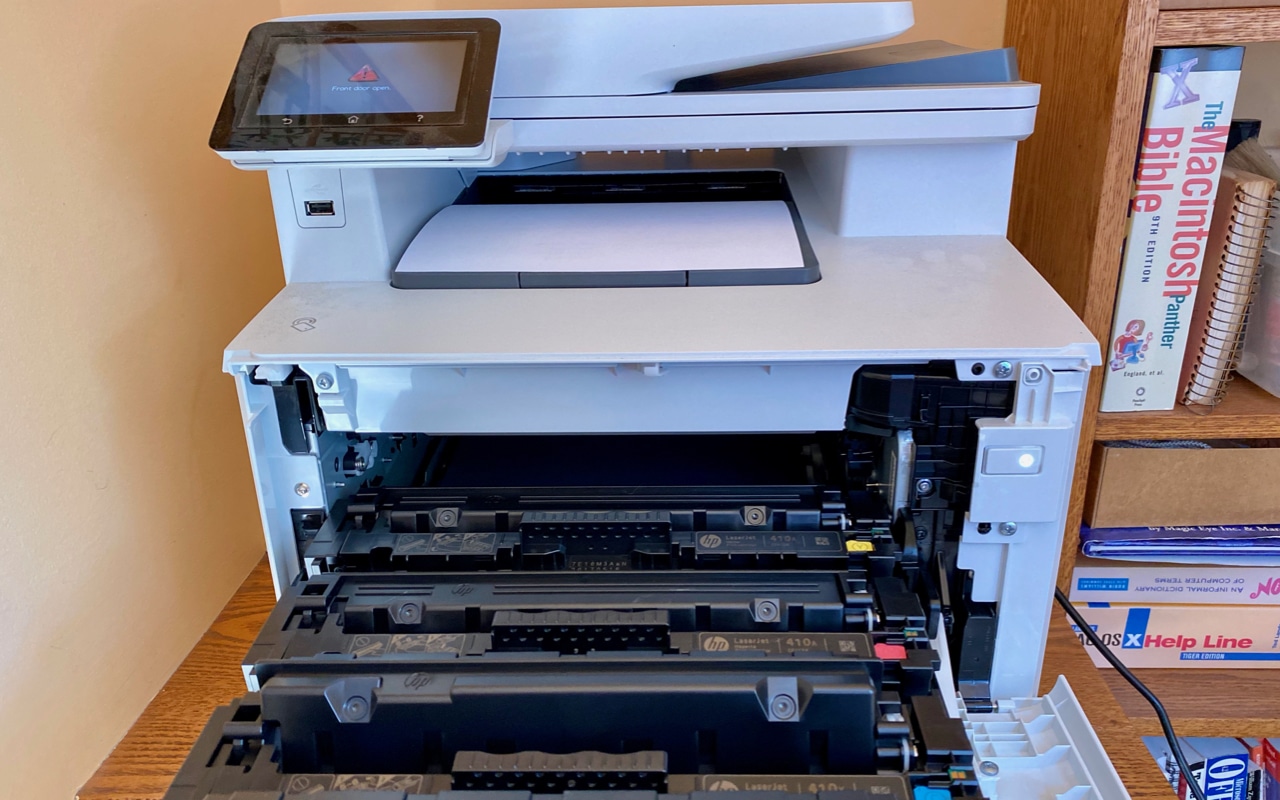
If Mac OS no longer recognizes your printer, the device drivers are usually to blame. In this practical tip, we’ll show you how to fix the problem.
Step 1: Check all connections
Before you go to the trouble of looking for an error, you should first check the connections between your printer and your Mac.
- Make sure the printer is turned on and connected to your Mac.
- If you’re using a network printer, a faulty Wi-Fi connection could also be the problem. In this case, reconnect your printer to your network.
Step 2: Is the printer compatible with macOS?
Apple provides a constantly updated list of supported printers on its website. All you need is your device’s model number—you’ll usually find it on the bottom or inside the printer.
- Open Apple’s list and use the [CMD] + [F] keyboard shortcut to launch your browser’s search function. Now enter your device’s model number. The browser will then automatically jump to the matching entries in the list.
- If your printer is on the list, you can also see the printer driver’s features right away. In the three right-hand columns, you’ll see the letters “D,” “F,” or “S.” Depending on the letter, you can “Print,” “Fax,” or “Scan” using your device and the Mac. If you can’t find your model in the list, Mac OS does not officially support your hardware.
- For specific questions, it’s best to contact your printer’s manufacturer.

Step 3: Update the printer software on your Mac
If you are unable to connect to your printer despite it appearing in the list, you should update your system. This is because Apple provides new printer drivers with every software update.
- Click the Apple logo in the top-left corner of the toolbar.
- Open “Software Update” to view all available updates for your system.
- Click “Update” to download the latest version of macOS. Then install the new system—your Mac will restart during this process.
- Afterward, you can search for new printers in the “Printers” section of System Preferences. Your connected device should now be recognized.
Step 4: Resetting the printing system—here’s how
If you’re unable to establish a connection despite having up-to-date software and a compatible printer, you should reset the printing system. Here’s how to delete all installed printers and add them again:
- Open the “Printing & Fax” section in Settings. Right-click in the list of installed printers to access the ‘Reset’ function.
- Close the warning message that appears by clicking “OK.” Mac OS will then reset the printing system; the printer list should be empty.
- By clicking the “+” in the lower-left corner, you can now add your printer again from the list of available devices and start using it.
