Are you constantly annoyed by the poor video quality in your WhatsApp status? With a few tips, you can easily fix the problem.
Improve video quality in WhatsApp status – these tricks will help!
WhatsApp is a popular messaging platform that was founded in 2009 and has been part of Meta Platforms since 2014. According to statista.de, over two billion people worldwide use WhatsApp (as of 2025) to send messages, pictures, and videos to friends, relatives, and colleagues. Over the years, additional features have been added to improve the user experience. There is now a status feature that allows users to upload files – but it’s very annoying when the video quality is anything but crystal clear.
- When you record a video with your smartphone, it usually looks great. However, when you upload it to WhatsApp Status, there may be compression issues during the upload process. The video will then appear very pixelated.
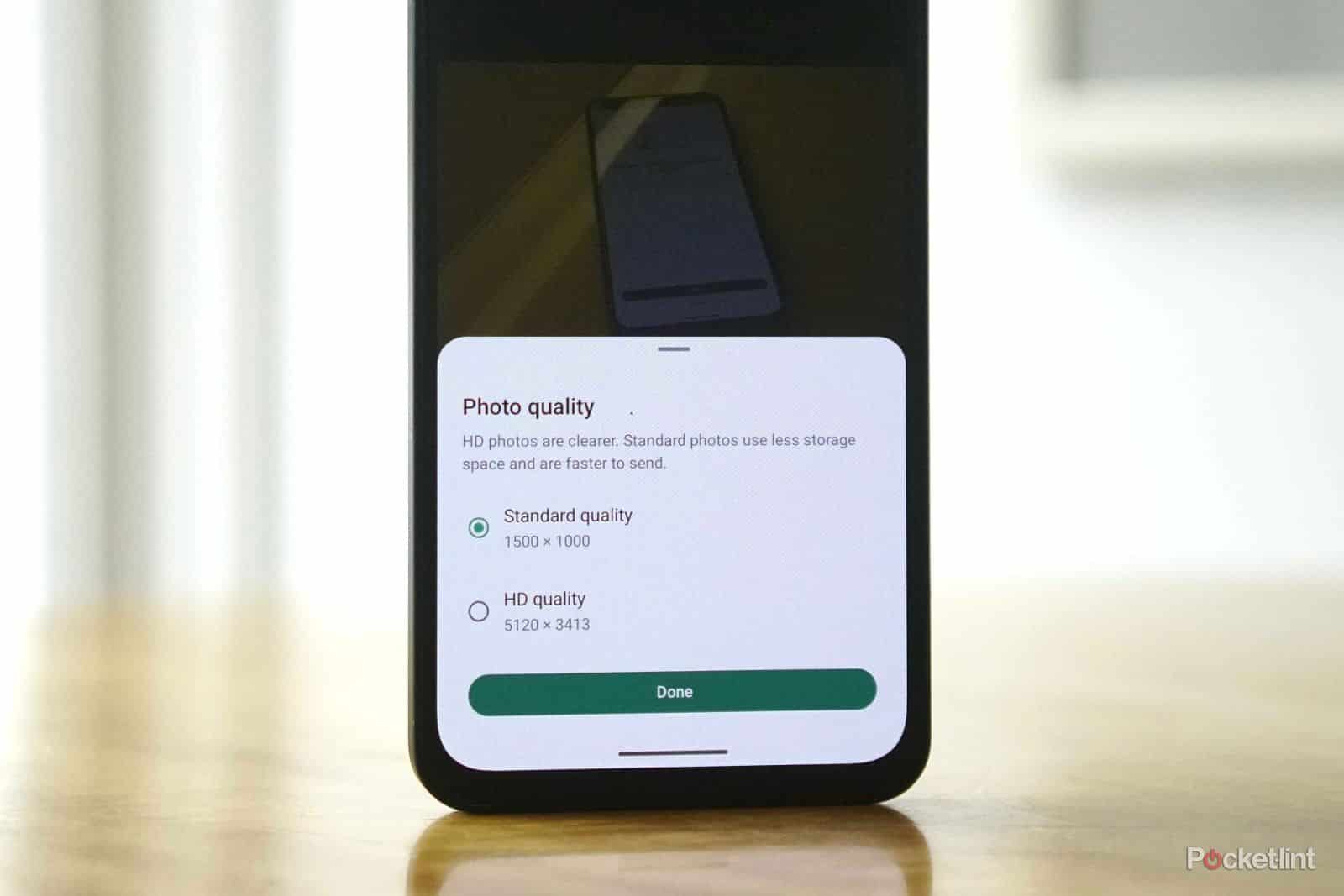
- This is because the WhatsApp application can only upload videos under 10 MB. If you take this into account, you can choose between “Standard” and “HD Quality” when uploading and upload a video in solid quality to your WhatsApp Status.
- You also have the option of optimizing the video in the app and customizing it to your liking. In addition to music, you can also add text, stickers, or smileys.
- You can check your video again in the preview. However, keep in mind that it is better to use Wi-Fi rather than mobile data when uploading a video to WhatsApp. This is the best way to reduce your data consumption.
- Since 2025, WhatsApp has been using the new Meta Low Bitrate (MLow) codec for status messages and video calls. This codec was developed to improve audio and video quality, especially under difficult network conditions. It offers twice the audio quality of the previously used Opus codec and requires about 10% less computing power.
Create, view, and enjoy WhatsApp status
WhatsApp not only offers the ability to chat with one or more contacts and send files. You can also share images, messages, or even videos in your status. The uploaded files remain available for 24 hours. After that, they disappear again.
- First, open WhatsApp on your smartphone. Then tap on the “Status” tab. You can post a status using the camera or pencil icon at the bottom right of the app.
- When you select the camera function, your gallery will open. Now select the desired images or videos. If your video is longer, manually split it into several 60-second segments. This will allow your contacts to watch your video in pieces.
- If online privacy is important to you and you don’t want all your contacts to be able to follow your WhatsApp status, click on the three dots at the top of your app. Select Settings and then Privacy. Here you can block contacts who should not have access to your files.

How can I improve video quality on WhatsApp?
If you want to take full advantage of the WhatsApp messenger service, the app offers various settings to improve video quality—but with certain limitations. Here is an overview of how to achieve the best video quality for your WhatsApp status.
- Open WhatsApp. Open the “Status” tab. Tap on the camera icon and select a video from your gallery. A small icon will appear in the top right corner (if enabled): “HD”. Tap on it and select “HD quality” instead of “Standard quality.”
- Incidentally, “HD” means 720p and not Full HD, which corresponds to 1080p. The feature is not always visible—it is being rolled out gradually. Compression still occurs, but to a lesser extent than with standard quality.
- You may not have received the additional HD feature yet. It has probably not been released in your region yet. Check your app version regularly and update WhatsApp in the App Store or Play Store.