3
Clearing browser data is an important step in protecting your online privacy and improving your browser’s performance. The procedure varies depending on your browser.
Clearing browser data: How to do it in Chrome
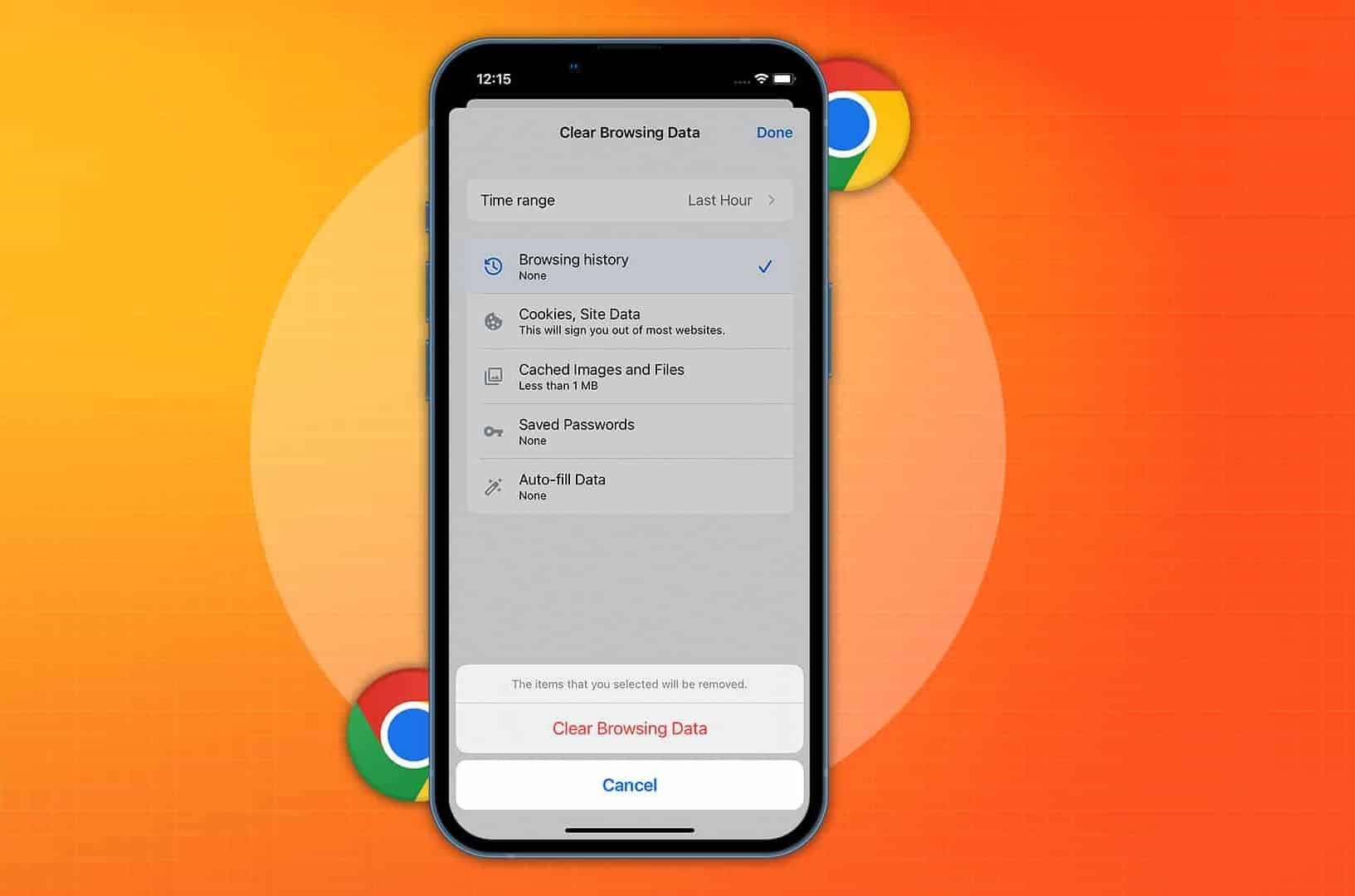
When you browse the internet, data such as your browsing history, cache and cookies are automatically stored. You can remove this browser data in Chrome in just a few steps.
- Open the menu by clicking on the three dots in the top right-hand corner.
- Select “Clear browsing data”.
- You can now select which data to clear and over what time period. If you wish to clear all data, select “All time” and leave all the boxes ticked for the data to be cleared.
- Confirm by clicking “Clear data”.
Microsoft Edge: Clear browsing data
If you use Microsoft Edge, clearing your stored data is also quick and easy:
- Click on the three-dot menu in the top right-hand corner and select “Clear browsing data”.
- You can choose which data to delete. You can also specify the time period for the data to be deleted.
- If you want to clear everything, select “All time” for the time range. Then click “Clear now”.

Deleting browser data in Firefox
In Mozilla Firefox, browser data such as the cache and cookies can be deleted via the settings.
- Open the menu in the top right-hand corner and select “Settings”.
- Click on the “Privacy & Security” tab on the left and scroll down to “Cookies and website data”. Select “Clear data”.
- You can now choose which data to delete and the time period to which this should apply.
- Click “Clear” to complete the process.
Deleting stored data in Safari
- Open the browser and click on ‘Safari’ in the top menu bar. Then select ‘Preferences’.
- Go to the ‘Privacy’ tab and click on ‘Manage Website Data’.
- Here you can view all stored data. If you wish to delete data from individual websites, click on them and select ‘Remove’.
- To delete all data at once, click on ‘Remove All Website Data’ and confirm by clicking ‘Remove Now’.
