227
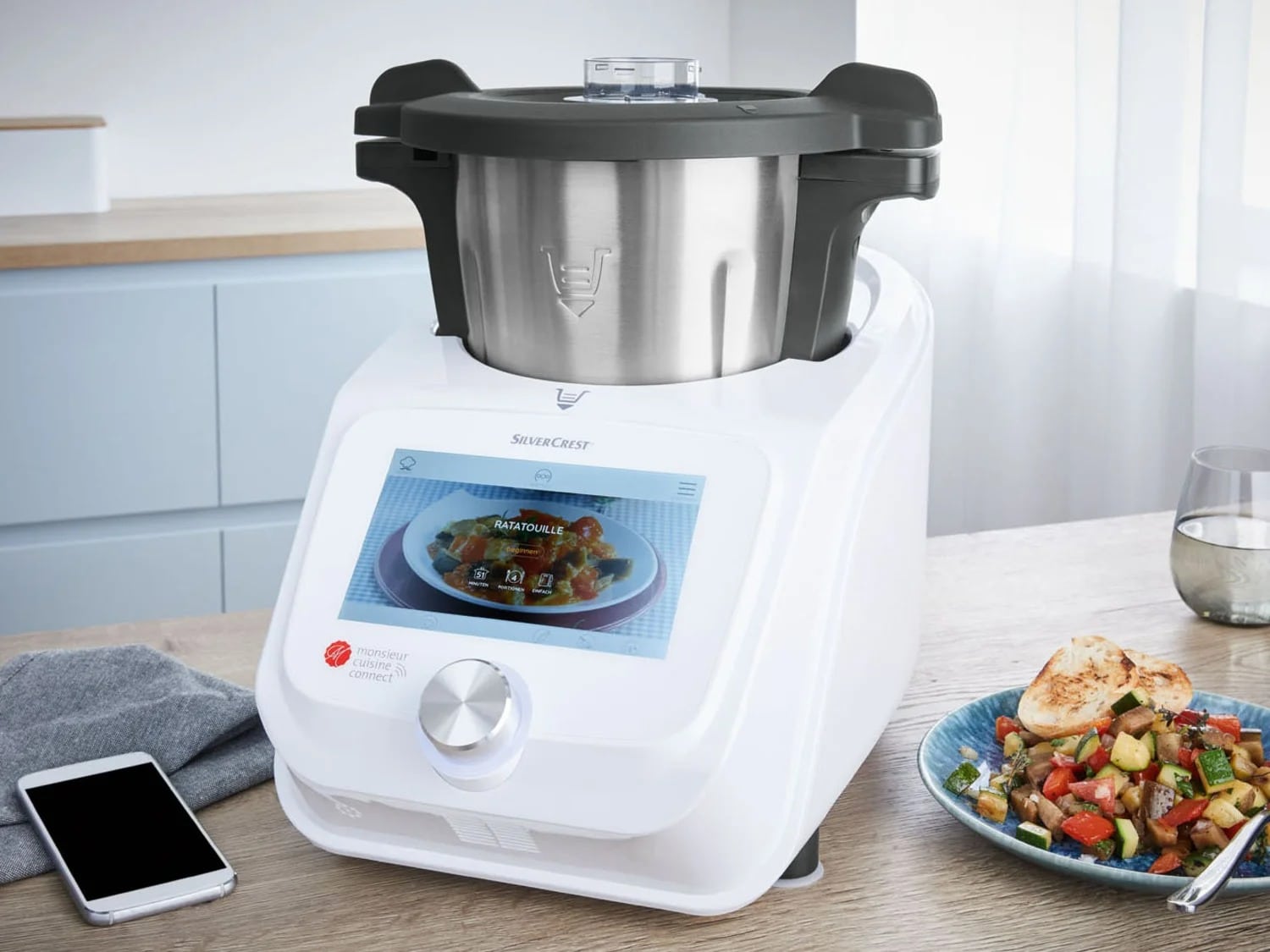
At first glance, transferring recipes to the Monsieur Cuisine Connect isn’t that easy. You can only use certain recipes from the app.
Transferring recipes: Which ones are suitable for the Monsieur Cuisine Connect
- You can only transfer recipes to this Thermomix alternative via the Monsieur Cuisine app. Once you’ve downloaded the app and connected it to your food processor, you’re all set.
- It’s only possible, to send official recipes from the MC cooking team to the food processor. You cannot transfer other recipes from the community, such as MC Plus or member recipes.
- When searching for recipes, check to see if the description includes the note Monsieur Cuisine Official. These are the recipes that can be transferred.
- Additionally, when searching for recipes, make sure the recipe is compatible with your device. The description lists the compatible devices, such as Monsieur Cuisine Connect or Monsieur Cuisine Smart.

Transferring Recipes with the Monsieur Cuisine Connect
- Mark the recipes you want to transfer as favorites in the app. To do this, open the corresponding recipe in the app and mark it as a favorite. You can do this by tapping the heart icon.
- The Monsieur Cuisine Connect will then automatically synchronize with the app when the Connect is turned on. If it’s already on, it will start synchronizing immediately.
- Please be patient, as the synchronization may take a little while, especially if you’ve favorited multiple recipes. Afterward, you’ll have access to the recipes on the device.
- If the recipe still isn’t displayed, simply restart simply restart the kitchen appliance. This usually helps resolve the issue.
- Note: To ensure you can use your Monsieur Cuisine Connect reliably and without issues, you must regularly update the device.