0
In this practical guide, we’ll show you what you need to bear in mind when fitting a new processor into your PC.
Fitting a processor: Basic safety guidelines
Before you start the installation, bear the following points in mind:
- When working with computer components, you should generally never do so on a carpet. Friction between the carpet and your clothing can generate an electrical charge strong enough to render a processor inoperable.
- To be on the safe side, we recommend that you wear an anti-static wrist strap when working with computer hardware. The wrist strap is simply placed around your wrist and attached to the case using the alligator clip.
- Tip: Get yourself an anti-static kit. It contains everything you need for a safe installation.
Fitting the processor into the computer: Here are the steps
Once you have opened the PC case, proceed as follows:
- On the motherboard, flip the lever on the CPU socket and open the retaining mechanism.
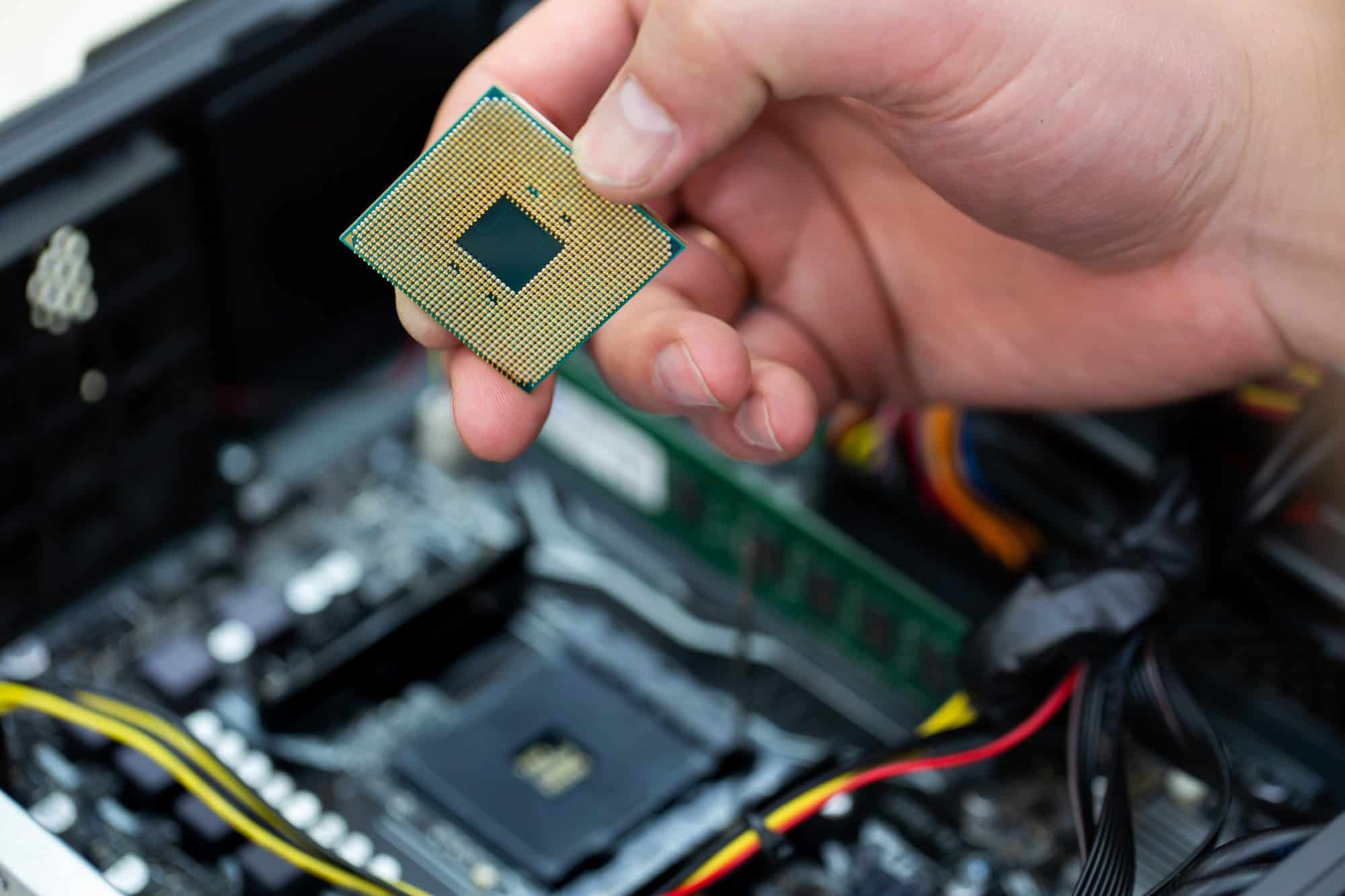
- There is a small triangle in one corner of both the CPU socket and the processor. Make sure these are aligned correctly. Furthermore, newer processors have distinctive notches that allow the processor to be inserted in only one direction.
- Carefully place the processor into the socket and ensure that it sits securely in place. Take care not to force the processor into the socket. If the processor does not fit into the socket, it is probably misaligned.
- You can then close the lever again and remove the plastic cover. You will need to apply a little pressure when locking the lever into place.
Fitting the processor cooler: what to bear in mind
To prevent the new processor from overheating, it is important to fit a cooler.
- Apply a drop of thermal paste to the centre of the processor. The paste will spread evenly as soon as you fit the cooler.
- Position the cooler at an angle to the processor and secure one side first. Then place the cooler straight onto the processor and secure the other two mounting points.
- Connect the cooler’s fan cable to the “CPU FAN” or “FAN” socket on your motherboard.
