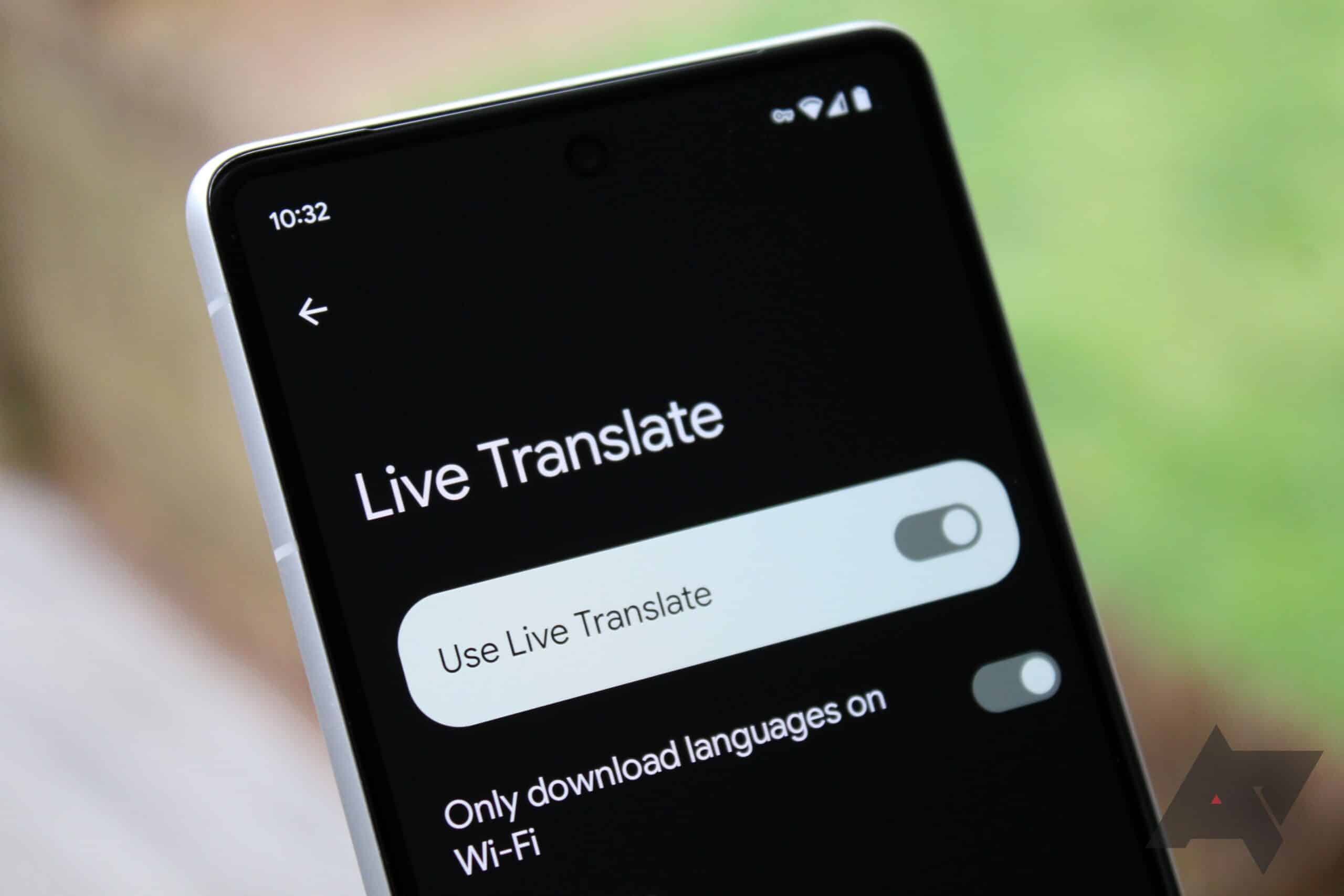
Google Live Translator lets you translate spoken language in real time. Learn how to enable this feature and use it effectively to overcome language barriers and facilitate international conversations.
Google Live Translator: What It’s All About
Google Live Translator offers a practical solution for overcoming language barriers. This feature is particularly useful in situations where quick and accurate translations are required, such as while traveling or during international business meetings.
- Google Live Translate is a feature within the Google Translate app that allows you to translate spoken language in real time.
- It is particularly helpful for communicating in foreign countries or during conversations with international partners.
- This technology uses advanced speech recognition and translation algorithms to deliver accurate results.
- To use Live Translate, you need a mobile device with a microphone and an internet connection.
How to enable Google Live Translate
There are several ways to enable Google’s Live Translation feature, depending on your device and intended use. On Pixel smartphones, Live Translation is built directly into the system, while other Android users can use the Google Translate app. The key steps are listed below, both for Google Translate and specifically for Pixel phones.
- Live Translation with the Google Translate App: Open the Google Translate app on your smartphone. Tap “Conversation” or “Live Translation.” Select the source and target languages at the bottom. Allow the app to access your microphone. Tap the microphone icon for one of the languages and speak; the app will translate what you say in real time and display it on the screen.
- Additional feature: Tap to Translate: Open the profile picture at the top of the app and go to Settings. Enable “Tap to Translate” there. Grant permission for the “Show over other apps” option. A small button will appear at the edge of the screen, allowing you to translate text directly in other apps.
- Live Translation on Google Pixel Phones: Open your device settings. Go to “System” and select “Live Translation.” Enable “Use Live Translation.” Download the appropriate language packs if needed. You can set a default language as well as additional languages. Once enabled, your Pixel will automatically translate incoming messages or video audio in real time without requiring you to copy text.
- Tips and tricks: In “Split Screen” mode, both conversation partners can simultaneously read their language and the translation. Depending on the language, this feature requires an internet connection and works best on the latest Android versions and Pixel models. If you encounter issues, check whether the microphone and overlay permissions for the Google Translate app are enabled.
- These steps enable quick and convenient live translations—for conversations, apps like WhatsApp, or directly within your device’s system interface.

Advantages and Disadvantages of Google Live Translator
Google Live Translator offers numerous advantages that make it an indispensable tool for international communication. However, there are also some limitations that users should be aware of.
- Advantages: Wide language selection with over 100 supported languages, covering almost every language barrier. Versatile input options: text input, voice input, and camera-based translation (e.g., street signs or documents). Real-time translation with very fast output of translations. Offline functionality: downloadable language packs enable translations even without an internet connection. Free to use with comprehensive features for everyday life and travel.
- Disadvantages: Inaccurate translations, especially with longer sentences, technical texts, or linguistic nuances. Translations are often word-for-word without considering context or cultural subtleties. Translation quality varies greatly depending on the language. Some language pairs are translated indirectly via English, which increases the likelihood of errors.
- Lacks professional precision; a professional translator is recommended for important or business documents. Data privacy risks exist, as entered data may be processed and stored online. A lack of cultural adaptation and insufficient consideration of idioms or colloquial expressions can lead to misunderstandings.
- In short: Google Live Translator is a handy tool for quick, free translations in everyday life and while traveling; it supports many languages and input methods and even offers offline modes. However, it has limitations for complex, professional, or culturally sensitive translations, as it does not reliably capture context and nuances, and data privacy concerns exist.
- This makes it ideal for personal use, but less suitable for professional translations or sensitive content.
Tips for getting the most out of Google Live Translator
These tips will help you make the most of Google Live Translator’s features and facilitate communication with people who speak other languages.
- Use the “Conversation” feature in the Google Translate app to translate conversations in real time. Set the source and target languages, tap the microphone icon for the respective language, and speak clearly and distinctly, as the tool recognizes clear pronunciation better.
- Grant the app permission to access the microphone so that live translation works.
- For multilingual conversations, you can enable “Split Screen” mode, which allows both speakers to see their translations on separate halves of the screen.
Automatic language detection switches between languages, or you can manually activate the microphone.
- Download the languages you need for offline use so that translations work even without an internet connection—ideal for when you’re on the go.
- Use the Google Translate widget on your home screen to quickly access translations, e.g., to translate copied text.
- When entering text, avoid ambiguities, figurative language, and very long or complex sentences. Instead, use clear, simple phrasing or synonyms to achieve better translation results.
- Live translation with AI support also works well in noisy environments and in up to 71 languages. The app automatically reads out longer pauses so that the person you’re talking to can hear the translation as well.
- You can use the transcription feature to see spoken language transcribed and translated in real time. You can save, copy, or share the text. You can also adjust the text size.