1
In this practical tip, we explain how easy it is to create a colour gradient using the image-editing software Photoshop.
Colour gradients in Photoshop – here’s how it works
- In Photoshop, open the photo or image for which you want to create a colour gradient.
- Select the desired foreground and background colours for the colour gradient.
- Click on the Gradient tool in the toolbar and drag the gradient across the image with the mouse. You can create the gradient vertically, horizontally or diagonally.

Tips for creating colour gradients in Photoshop
- If you do not want to apply a colour gradient across the entire image, first select the desired area using the selection tool. The colour gradient will then only be applied to the selected area.
- A colour gradient does not always have to be linear. Using the small buttons below the menu bar, you can change the shape and create, for example, a radial or reflective gradient.
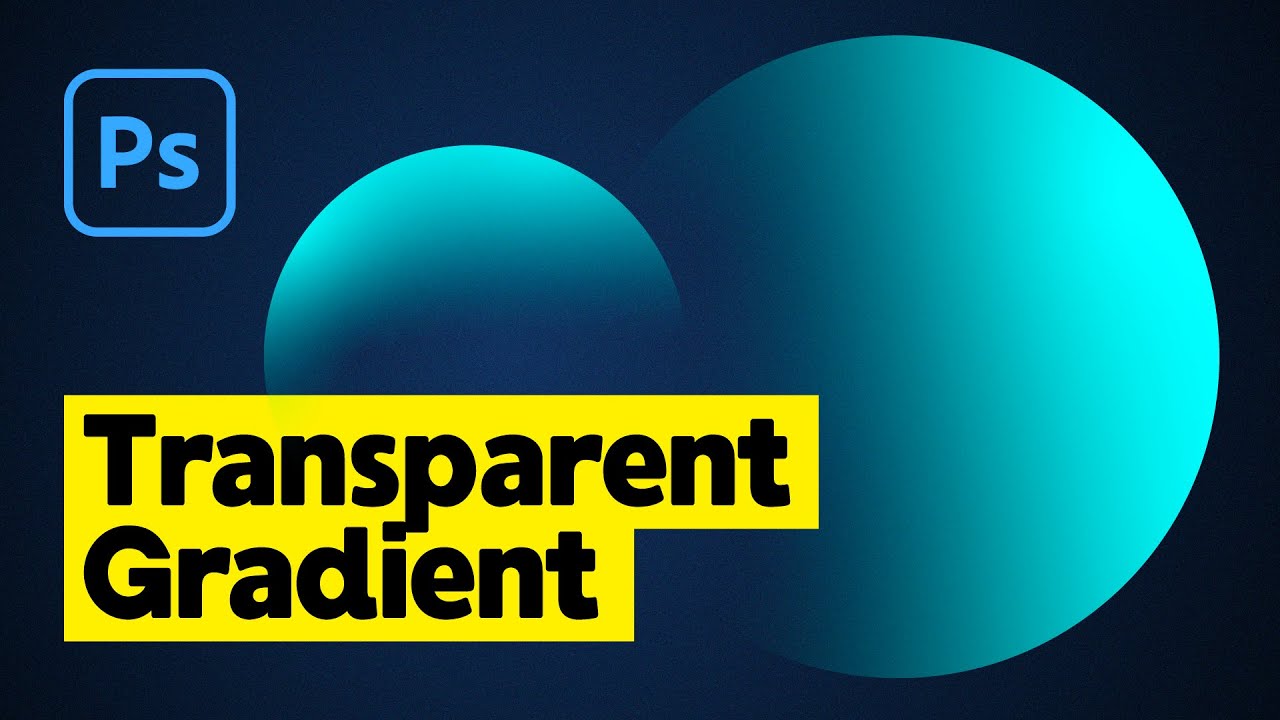
- If you do not want a fully opaque colour gradient, you can also have the effect fade from the foreground colour to transparency. To do this, click on the drop-down menu with the colours below the menu bar. Here you will find further options in addition to the setting that fades to transparency.