147
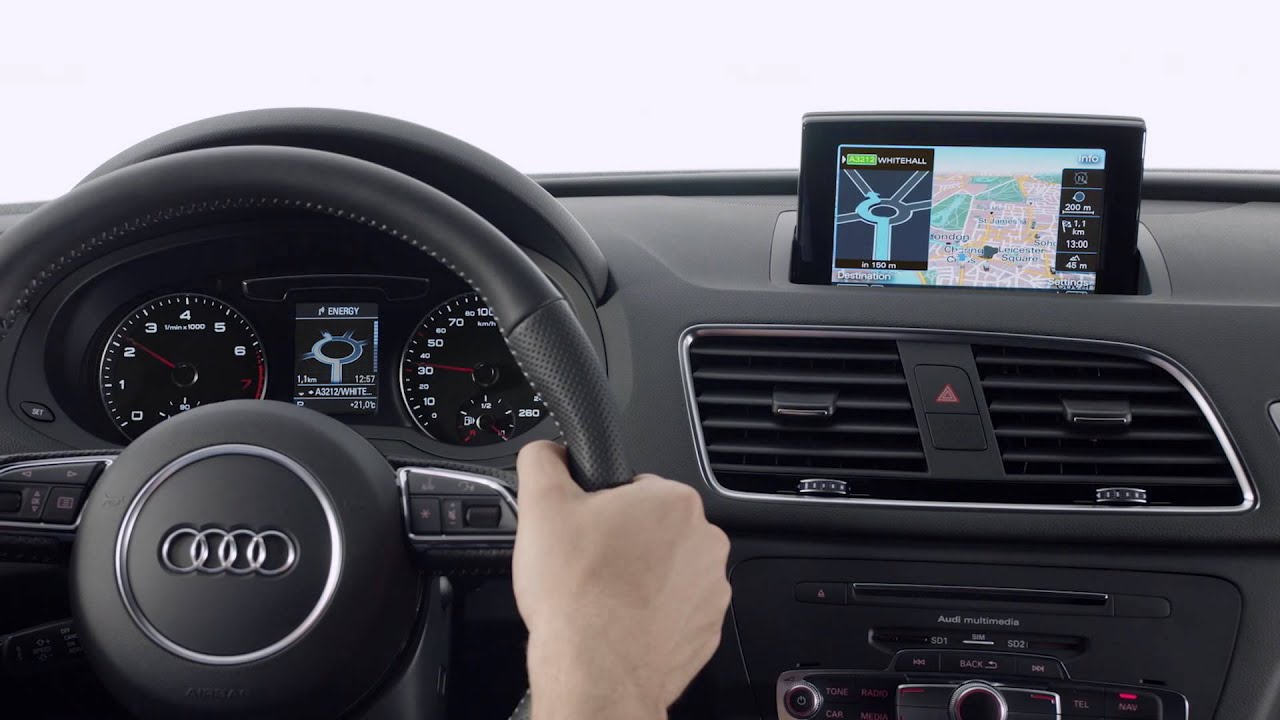
Updating the Audi navigation system is part of maintaining a modern vehicle—outdated maps waste time, cause detours, and slow down system performance. This detailed roadmap will guide you safely through the process.
Updating the Audi Navigation System: Check Prerequisites and Prepare Equipment
Successfully updating an Audi navigation system starts with clarifying the technical requirements. Don’t overlook any details, or the process will end up in the error menu.
- Identify the MMI System: In the vehicle, press the CAR and Menu buttons simultaneously until a hidden service menu appears. The software version (e.g., MHI2_ER_AU58) indicates whether you have an MIB1, MIB2, or MIB3 system. Older MMI 3G models require physical storage media, while newer generations use online updates.
- Obtain compatible storage media: For models manufactured through 2018, you’ll need a blank SD card (32 GB, formatted to exFAT). Starting in 2019, USB-C flash drives (FAT32) or Audi connect handle the task. Do not use cheap, no-name media—read errors are inevitable.
- Activate your Audi user account: Register on the Audi Update Portal using your vehicle identification number (starting with the 4th digit of the windshield code) and vehicle registration certificate. If you haven’t received the confirmation email, check your spam folder or contact Audi Support via the hotline.
- Ensure a stable power supply: For models without a hybrid powertrain, connect an external charger. The update process only runs stably with the engine running—for hybrids, activate “On-Board Power Mode” via the vehicle settings.
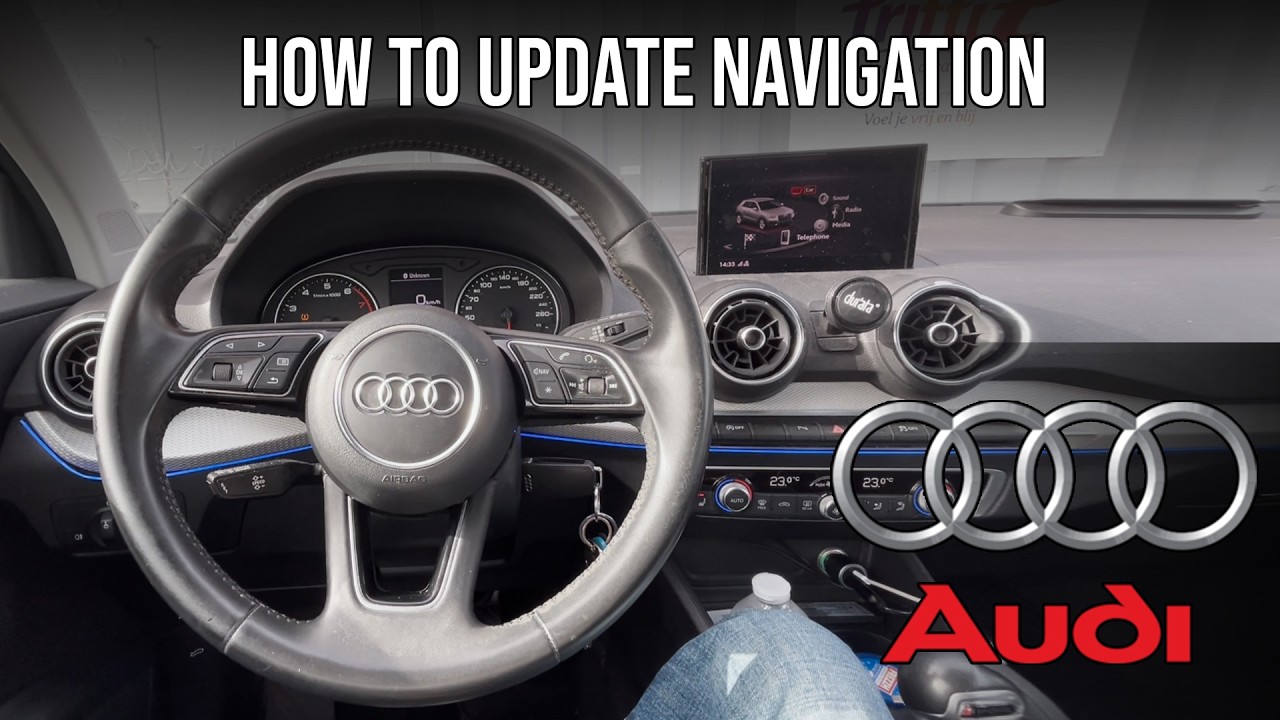
Updating the Audi Navigation System: Risk-Free Step-by-Step Installation
The actual process of updating the Audi navigation system requires patience and strict adherence to the sequence. Interrupting the process can lock up the control unit—stay focused.
- Download Map Data: Log in to the Audi Update Portal , select “Navigation,” and confirm the vehicle identification. Save the ZIP file directly to the storage device—do not unzip it manually. If the “Download” button is missing, clear your cookies or switch browsers.
- Transfer data to the vehicle: Insert the storage device while the ignition is off. Start the engine and wait 2 minutes until all background processes have initialized. Navigate to “Settings” > “System Update” > “Navigation.” Ignore any intermediate messages regarding software version.
- Start and monitor the update: Confirm the warnings regarding the duration. On MIB2/3 systems, a progress bar will appear—on MIB1, the navigation button will flash. Do not interrupt the process, even if the display briefly goes black. The situation only becomes critical if error messages such as “CRC error” appear—in that case, replace the data disc.
- Check for success: After the system restarts, check the current date in the navigation menu under “Map Information.” Test the route to a recently opened road—if the system finds it, everything worked. Delete the update files from the storage device and store it in the glove compartment.
- Repeat the Audi navigation update every 12 months—Audi releases updates quarterly, but an annual update is sufficient for private users. Reuse the same SD card or USB drive—do not format it, or you’ll destroy the partitioning. If the update gets stuck, a reset will help: With the engine running, press and hold the Back button, the ignition button, and the volume control for 15 seconds.