6
You can customise the Android TV interface to suit your personal preferences. We’ll show you how to rearrange your apps and turn off annoying recommendations.
Android TV: Changing the app layout on the home screen
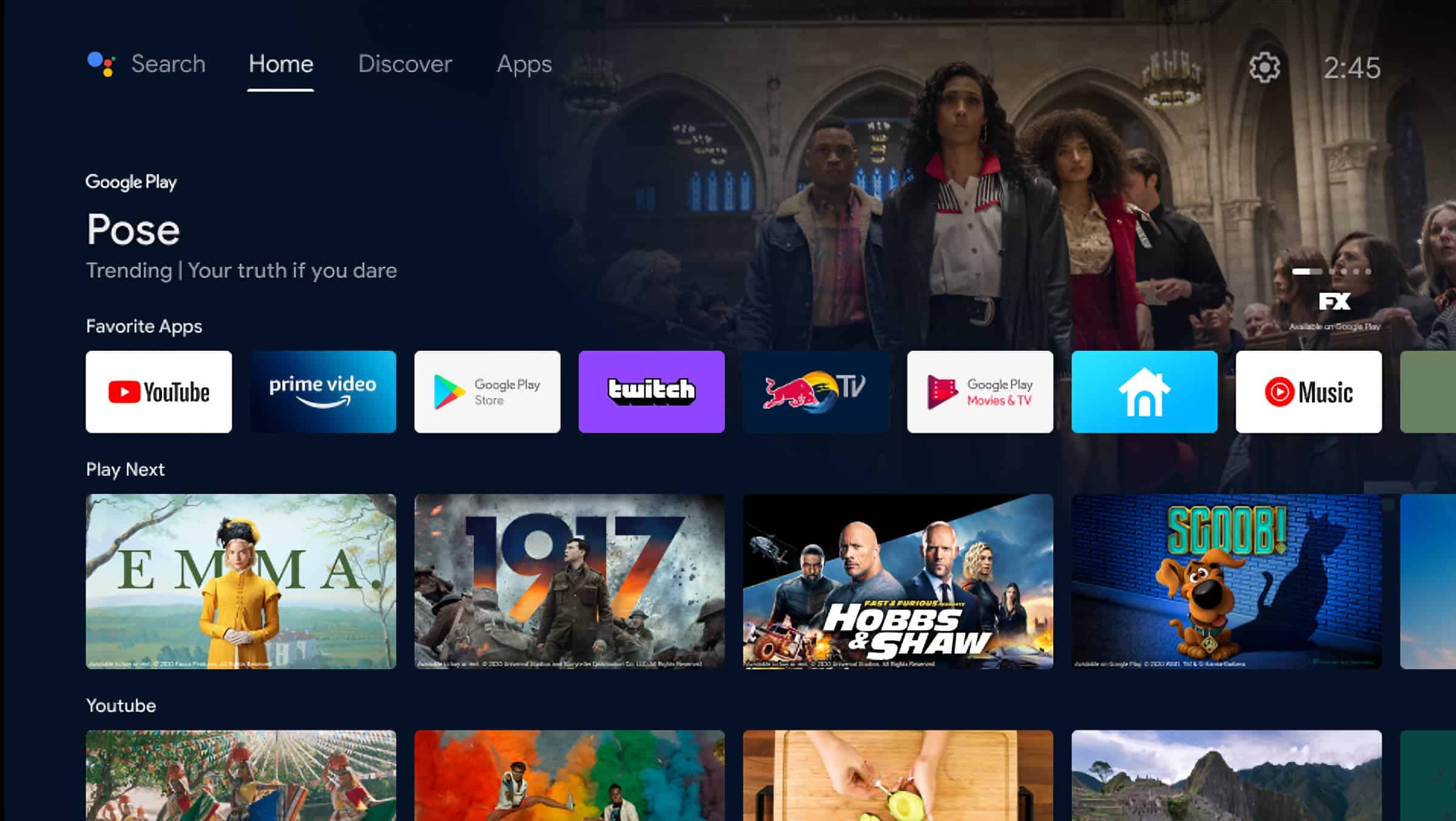
There are numerous useful apps for Android TV. Over time, however, your app collection can become extremely cluttered, with important apps disappearing to the very back. Here’s how to rearrange the apps to suit your preferences:
- Simply select the app you want and press and hold it. After one or two seconds, the bin icon will appear at the bottom.
- Instead of deleting the app, you can now move it left or right.
- Once you’ve reached the desired position, confirm your selection. The app will be placed there and saved.

Disable recommendations on Android TV
The Android TV home screen always displays recommendations from Google’s own apps, such as YouTube and Google Play Movies. If you find these recommendations more of a nuisance than a help, you can simply switch them off:
- To do this, open ‘Android Settings’ in ‘Settings’.
- Under the ‘Device’ category, you’ll find an overview of ‘Apps’.
- Search for an app such as “YouTube” and switch off “Notifications”.
- If notifications from other Google apps appear later, you can also disable them in the same place.
