550
You have an iPhone and would like to give another device such as an iPad a hotspot so that it can also access the internet via Wi-Fi. We explain how it works and what options you have for sharing your mobile connection.
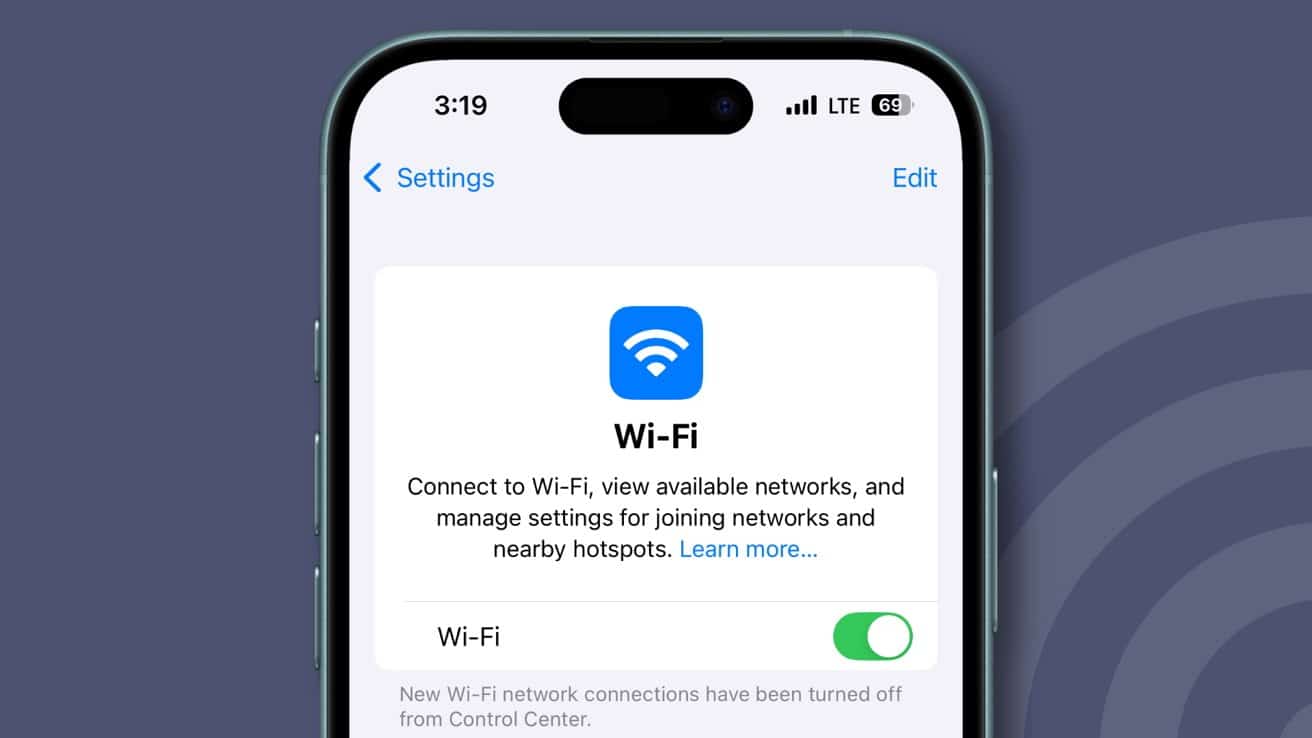
How to create a Wi-Fi hotspot with the iPhone
You can use the iPhone to create a Wi-Fi hotspot so that a device can access the Internet without a mobile phone or Wi-Fi connection. This can be helpful, for example, if you want to work on the move, which is easier with a notebook or tablet than with the iPhone.
- Open the gear icon for the iPhone settings.
- In the first block, you will find the iPhone connection settings and the “Personal hotspot” item.
- Make sure that you have activated mobile data, otherwise you will not be able to share an Internet connection via hotspot.
- Select Personal hotspot and activate the hotspot for others and assign a password.
- Other participants can then find your hotspot under the name of your iPhone.
Other ways to open a hotspot on your iPhone
In addition to a WLAN connection, the iPhone can also open the hotspot in other ways.
- On the one hand, you can create a family share in which family members can always log in to your hotspot.
- A Bluetooth connection is also possible to open a hotspot. All you have to do is connect the device to the iPhone via Bluetooth.
- You can also connect your iPhone to a notebook via a data cable and share the connection via USB. This has the advantage that your iPhone is also charged directly, because the hotspot is of course at the expense of the data volume and the battery.
- You can also use USB to connect a computer without a WiFi card to the Internet using the iPhone as a modem.