2
If you’ve inserted a new SIM card into your smartphone, you’ll also need to change your number in WhatsApp so you can continue using the instant messaging service. We’ll show you how.
Android & iOS: Change your WhatsApp number
- Make sure your new phone number is activated and that you can receive text messages and calls.
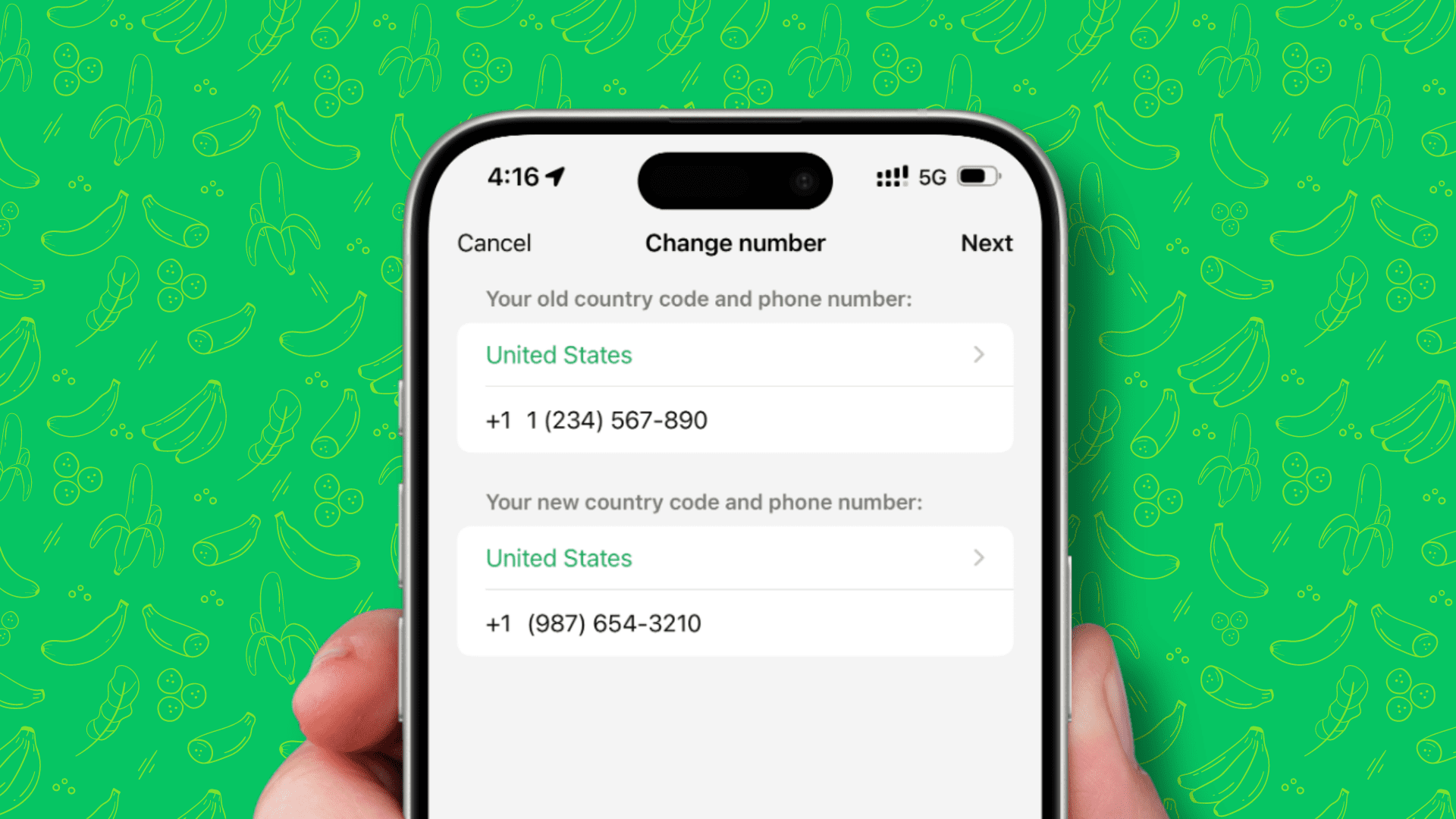
- In WhatsApp, go to Settings, tap ‘Account’, then tap ‘Change number’.
- Under ‘Change number’, enter your current WhatsApp number in the top text field and your new phone number in the bottom text field.
- Confirm your details by tapping “Done”.

Changing your WhatsApp number – what you need to bear in mind
- WhatsApp automatically transfers all account data – such as subscription duration, groups, profile and chat histories – to the account with the new number.
- Once you have updated your number, the account with the previous number will be deleted and removed from your friends’ WhatsApp contacts. You’ll need to share your new phone number with your contacts so they can continue to communicate with you.
- If your smartphone runs on a different operating system and you want to edit your phone number in WhatsApp, find your operating system on the official WhatsApp website and follow the instructions provided there.
