4
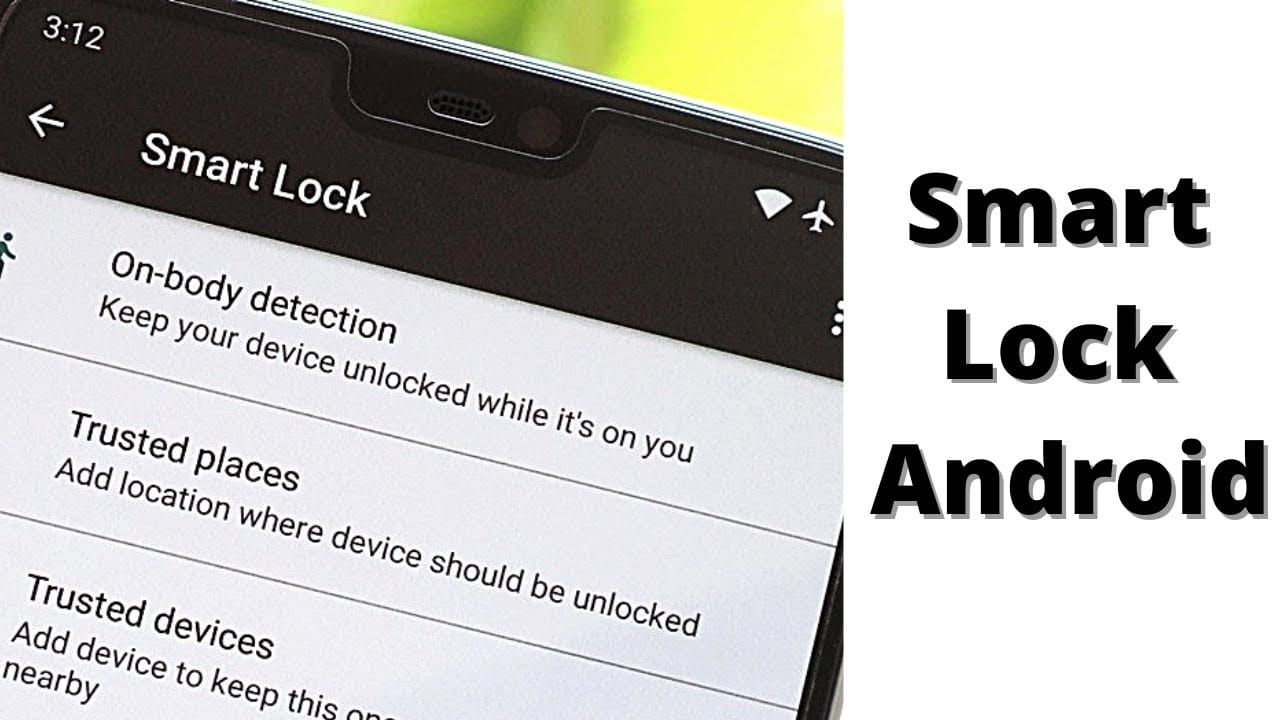
With Android 5.0 Lollipop, you can set up Smart Lock on your smartphone or tablet for the first time. In this practical guide, we explain exactly what Smart Lock is and how you can set it up on your Android device.
Smart Lock from Android 5.0 Lollipop onwards
With Smart Lock, you can specify in your device settings that your Android device will automatically unlock as soon as your smartphone or tablet is connected to a trusted Bluetooth device, you are in a trusted location, or the device recognises your face using the camera.
- The ‘Smart Lock’ feature is available from Android version 5.0 Lollipop onwards and can be enabled in the device settings.
- Before setting up Smart Lock, you should ensure that your smartphone or tablet has the latest Android update installed. An update may resolve the initial bugs with the feature that occurred in the first versions of Lollipop.

Android: Setting up Smart Lock
A Google Nexus 5 running Android Lollipop 5.0.1 was used for this guide.
- On your smartphone or tablet, open the ‘Settings’ app and select ‘Security’ under ‘User’.
- If you do not already have a screen lock, you will now be prompted to set one up. To do this, follow the instructions on your screen to set a password, a PIN or a pattern.
- Make a note of your screen lock if necessary, as you will need to enter it again if you change your Smart Lock settings.
- Now enable the Smart Lock feature if it is currently disabled. To do this, go to the Security menu, select ‘Advanced’, then ‘Trust Agents’, where you can toggle the Smart Lock feature to ‘On’ with a swipe.
