1
Sharing a workbook is a useful feature in Excel. It allows you and other users to work on the document simultaneously over a network.
Sharing a workbook in Excel
- Open the Excel workbook you wish to share.
- Click the ‘Share’ option in the top-right corner of the ribbon and select OneDrive.
- Once the workbook has been uploaded, a window titled ‘Share’ will open. Here, you can invite other users via email or generate a link to the workbook.
- Select the desired permissions for the recipients (e.g. Edit or View only) and click “Apply”.
- Add the people with whom you wish to share the workbook.
- Optionally, you can add a message.
- Click “Send” to complete the sharing process.

Alternative sharing method
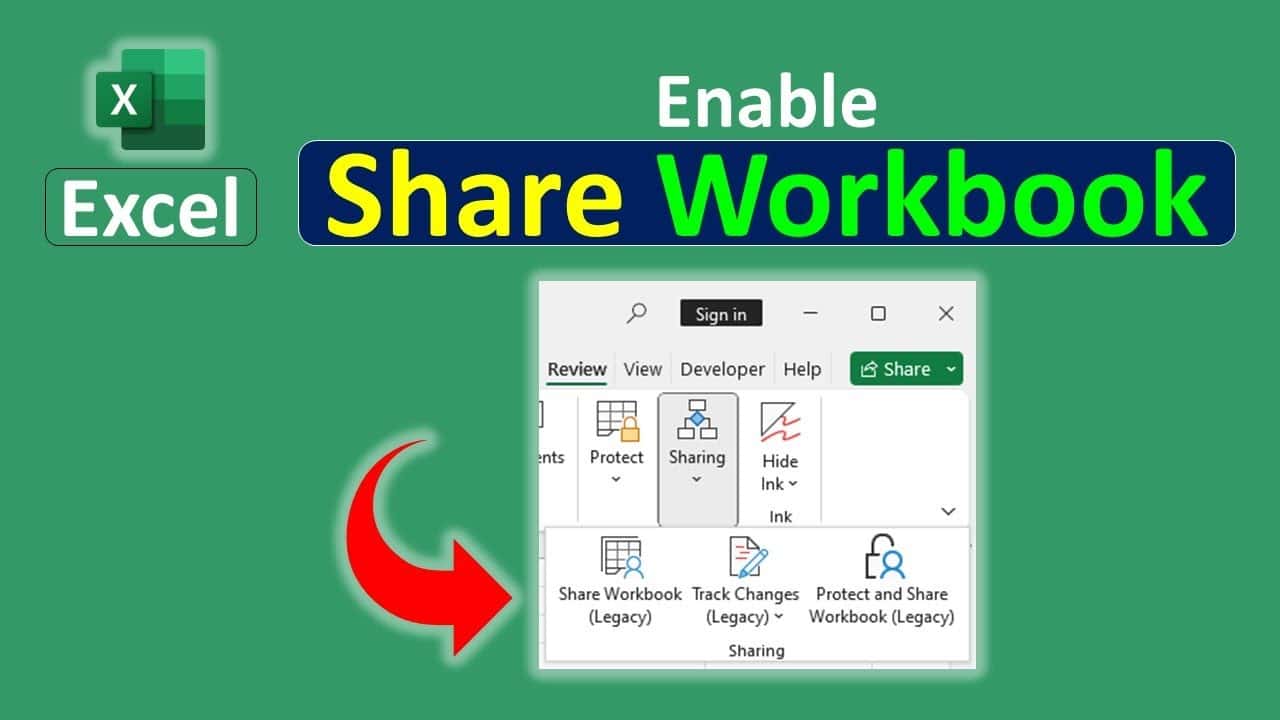
For older versions of Excel, or if you wish to share without using OneDrive, follow these steps:
- Click “Review” and then “Share workbook”.
- In the dialogue box, tick the “Multiple users can edit…” checkbox and confirm by clicking “OK”.
- Please note: There are some restrictions on shared workbooks, e.g. limited formatting options and the conversion of pivot tables into standard tables.
