384
Microsoft Word provides all the tools you need to efficiently design an envelope template.
Create an envelope template in Word
To create a suitable envelope template in Word, some default settings are necessary to ensure the result matches the formats of standard envelope sizes exactly.
- Open file: Start Word and select the “New” option under “File”.
- Use the search function: At the top of the window, you’ll see the search bar where you can enter “Envelope.” Microsoft Word has a collection of templates that are specifically optimized for envelope printing. These templates already account for standard sizes such as DL (220 x 110 mm) or C5 (162 x 229 mm).
- Create envelopes manually: If none of the templates meet your needs or you want to use a custom size, click “Envelopes” under the “Mailings” tab. In the new window, enter the sender and recipient addresses. In the next step, you can set the exact envelope size via “Options.”
- Tip for precise work: When entering dimensions manually, make sure they match the envelope you’re using exactly to achieve a perfect print result. Envelope sizes such as DL or C5 are stored in Word by default. If you are using a custom size, you can also enter it manually.

Optimize Design and Formatting
An attractively designed envelope is more than just printing on a blank piece of paper. The design can have a subtle yet effective impact on the recipient. Professionalism is especially important in business correspondence. Here are some key design details:
- Adjust font and size: Use a font that matches your company’s style. Typical business fonts like “Arial” or “Times New Roman” convey a professional image. Avoid ornate or illegible fonts. The font size should also be between 10 and 12 points to ensure readability.
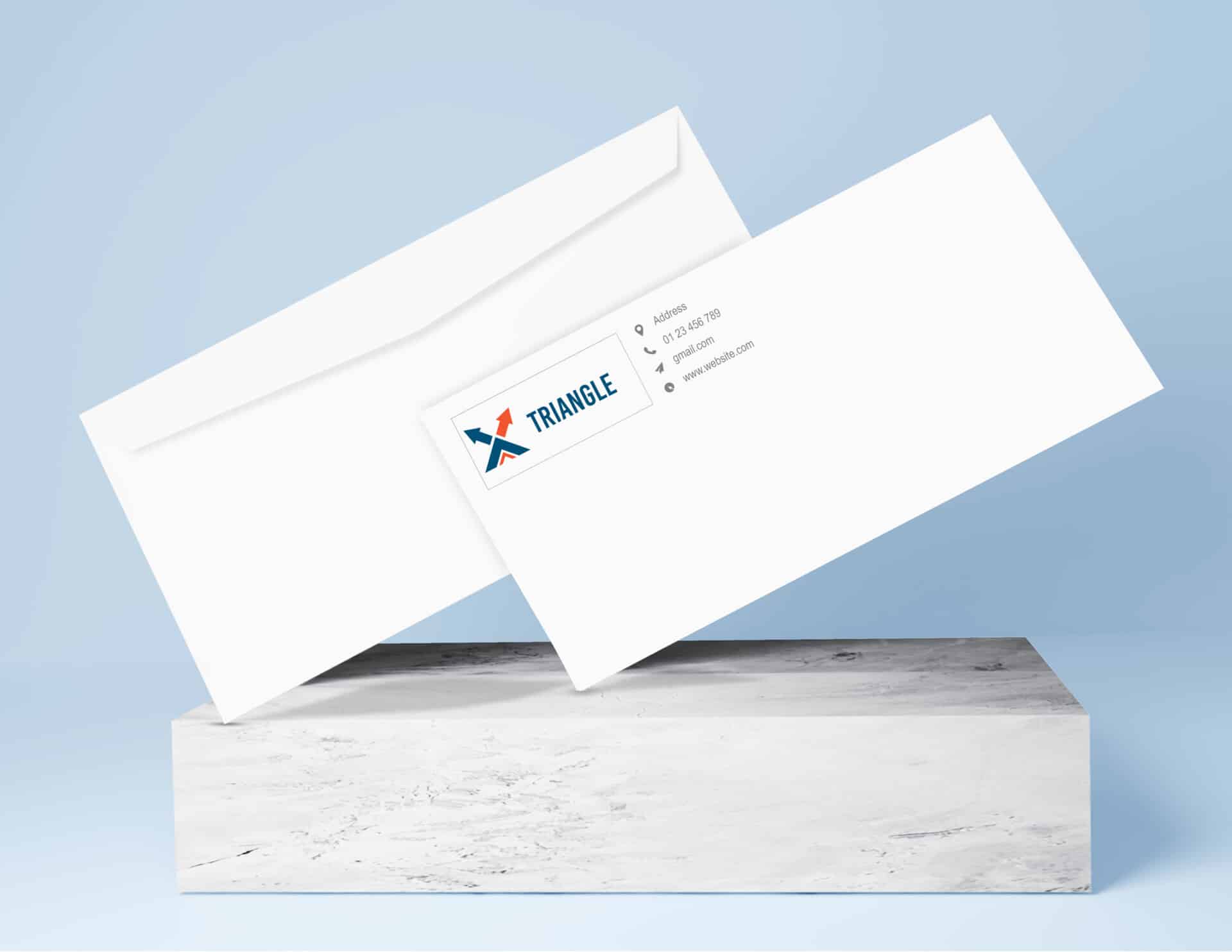
- Incorporate your logo and graphics: Insert your company logo under “Insert > Pictures.” Make sure it has sufficient resolution so it doesn’t appear pixelated when printed.
Position the logo discreetly, for example in the top left or top right corner next to the return address.
- Insider tip for logos: Save your logo as a PNG file with a transparent background. This prevents unsightly color blocks that could disrupt the design.
- Use colors: If your company has a corporate identity, the colors on the envelope should be consistent. Use subtle colors for the text or the logo’s background so that readability isn’t compromised. Avoid bright colors, which can look unprofessional if the print quality is poor.
- Check spacing and alignment: Before final printing, it is recommended to check via “File > Print Preview” to ensure all elements are correctly positioned. The margin from the edge of the cover should not be too small to prevent the text from shifting during printing.