286
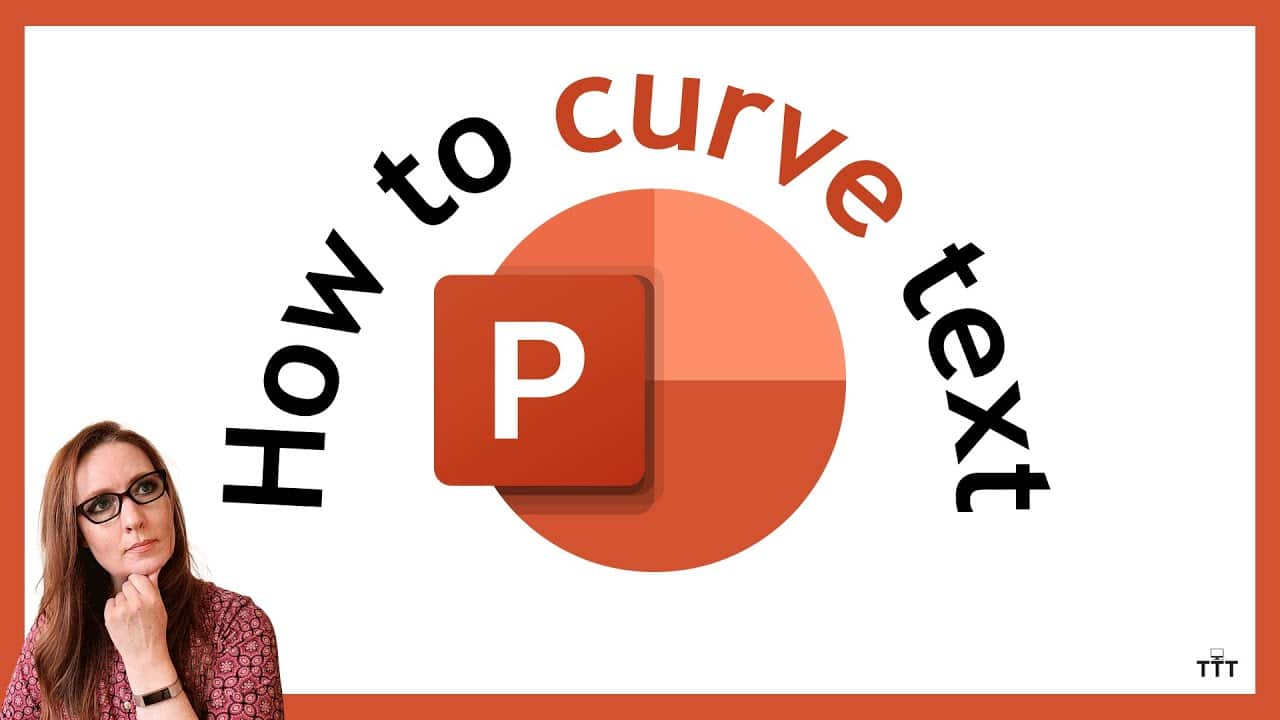
Curved text can be an eye-catcher in PowerPoint presentations. For example, you can wrap it around logos or other image elements.
Insert Curved Text in PowerPoint
Curved text gives you even more design options. For example, you can wrap the text around a logo or similar element.
- First, create a text box in PowerPoint by clicking “Insert> Text Box” in PowerPoint.
- Now select the text box you want to curve by clicking on it.
- In the menu bar, select “Shape Format”.
- In the “WordArt Styles” group, click “Text Effects”.
- In the menu that opens, select “Transform” and choose the desired bend.
Customize the shape and design of curved text
After you’ve selected the desired curve, you’ll see yellow adjustment points in the text box. You can use these to precisely adjust the shape of the curved text:
- Drag the yellow point to increase or decrease the curvature of the text.
- The white handles at the corners change the size of the entire text box without affecting the curvature.
- To combine curved text with other graphic objects such as logos or images, select the objects and right-click to choose “Select Group > Group.” This allows you to move, scale, or format all elements together.
- In the “Shape Format” menu, you’ll find additional editing options: change color (text fill and text outline), add shadows, reflections, and glow effects, and rotate the shape precisely by entering a value or by dragging the rotation handle.
- PowerPoint offers various text transformation options: With an “Up/Down Curve,” the text is curved convexly or concavely. Text in a circle or ellipse shape is displayed along a round or oval path. With a “Loop” or “Wave” shape, the text follows wavy lines.
- To undo the curved effect, simply select the “Do Not Transform” option from the “Transform” menu. This resets the text to its normal, straight form.
Practical Examples and Limitations
Curved text is ideal for highlighting titles or important statements, such as:
- To design a logo or graphic as text wrapping around it.
- To add emphasis to slide titles.
- To artistically combine illustrations with text.
However, please note the following limitations
Keep certain limitations in mind when you want to add curved text in PowerPoint.
- Very long texts can only be curved to a certain extent; otherwise, the effect becomes confusing or the text appears too small.
- Not all fonts look equally good when curved. Simple, clean fonts are often more readable than highly ornate or thin fonts in PowerPoint.
- The editable area is generally limited to a text box; complex continuous text is not well-suited for this.