1
With Windows 10 and later versions, you can send faxes even without a traditional fax machine. To do this, your PC must be connected to a telephone line via either an internal or external modem, or you must be using a fax server or an online fax service.
Sending a fax using Windows Fax and Scan
To send a fax directly via Windows, you must connect your PC to a telephone line – either via a modem or a suitable fax server. You can then use the built-in Windows tool ‘Windows Fax and Scan’:
- Launch ‘Windows Fax and Scan’: Open the Start menu and type ‘Fax’ into the search bar to find the tool.
- Setting up a new fax: Click ‘New Fax’ in the top-left corner. The setup wizard will launch. Follow the instructions to configure the fax correctly.
- Compose a fax and add attachments: Once set up, the fax window will open. Enter the recipient’s number, a subject line and your message. You can use the paperclip icon to add images or PDF files as attachments.
- Sending a fax: Click on ‘Send’ to send the fax.
Alternative without a modem: Use online fax services
If you do not have a modem or a telephone line, you can also send faxes online.
- Many providers allow you to send faxes directly via the internet – often free of charge for a limited number of transmissions.
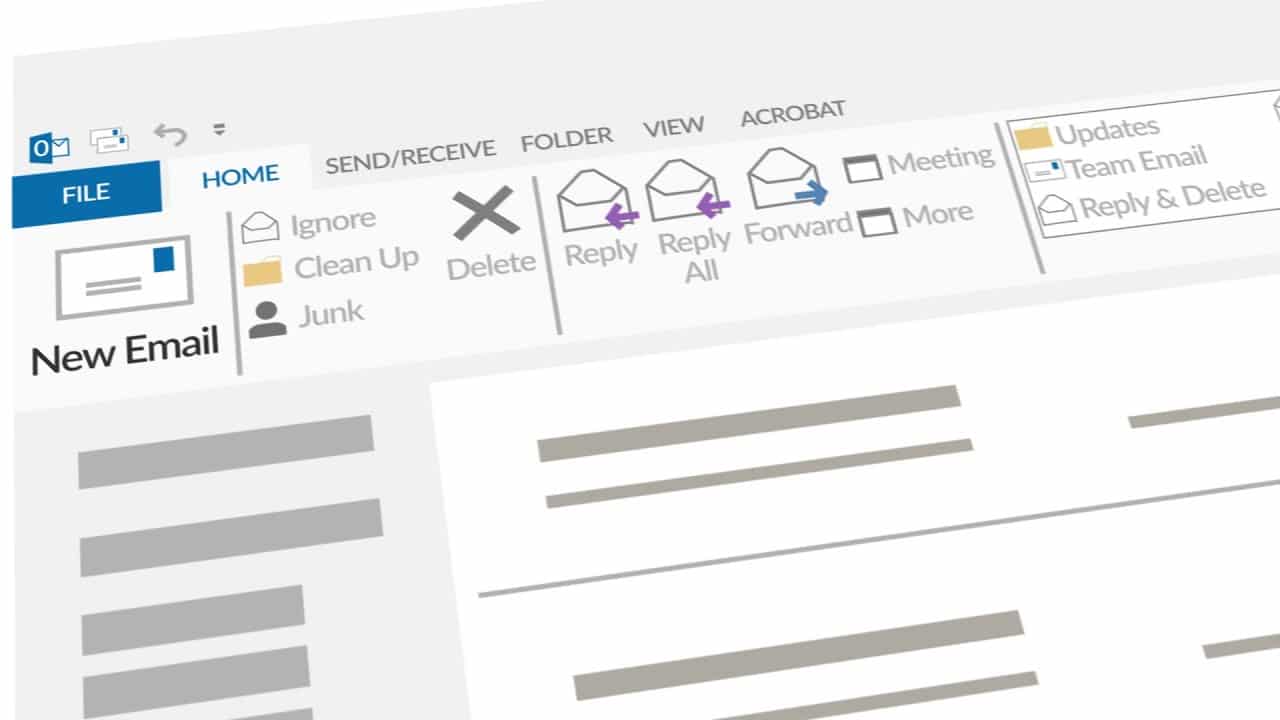
- In addition, Outlook offers a fax function that allows you to send documents directly as faxes. This option is particularly useful for businesses and regular users.
- Another option is to send faxes directly via a FRITZ!Box, which is particularly common in Germany.