253
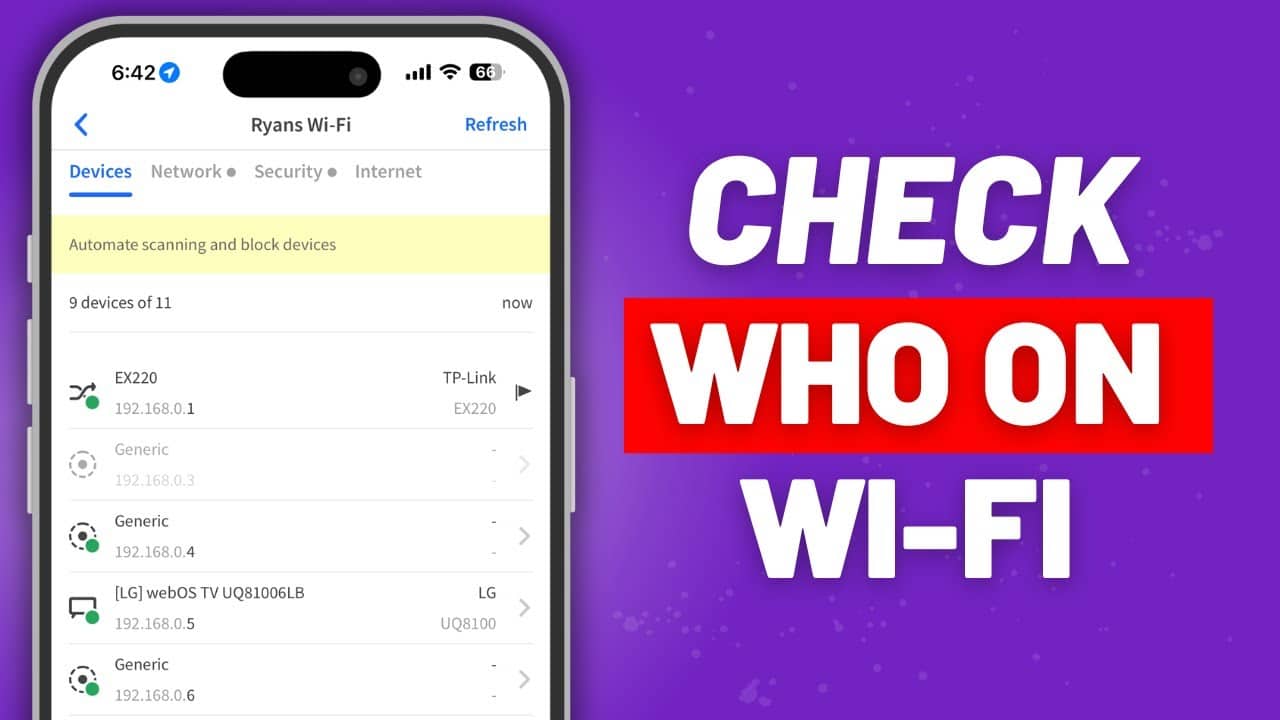
If you’re worried that a stranger is on your Wi-Fi, you can view all connected devices through your router. We’ll show you how to track down these Wi-Fi intruders using your Telekom router, your Fritz!Box, or a simple tool.
Find out who’s on your Wi-Fi—here’s how with Telekom routers
- Open the router configuration in your browser. After entering your device password, the configuration screen will open. You’ll usually find the password on the bottom of your router.
- Click on “Network” in the menu on the right. There you’ll find the entry “NAT & Port Rules” in a list; select it.
- A list of already registered devices will open—you can view all connected devices by clicking the “Add Device” button.
- It’s best to turn off all other devices except one so you can give that one a name and identify it in the future. You can repeat this step for all devices you recognize.
- If a device appears in the list that you cannot identify, someone else is using your Wi-Fi. In that case, you should change your Wi-Fi password as soon as possible or set up a MAC filter.
View Connected Wi-Fi Users—Here’s How with the Fritz!Box
- Open the Fritz!Box configuration in your browser and enter your router password here as well.
- In the menu on the left, you’ll find the entry “Home Network”; after clicking it, select the sub-item “Network.” The page that opens consists of three tabs: The “Devices and Users” tab shows you a list of connected devices.
- The Fritz!Box offers more features here than the Speedport router: For example, you can view devices that have connected in the past. Currently connected devices are also marked with a green dot next to their name.
- By clicking the red “X,” you can remove individual devices from the list—the Wi-Fi connection will then be disconnected. You can then change your router’s password as described in this practical tip .

Who’s Using My Wi-Fi? Expose Hackers with an IP Check
If you don’t own any of the router models listed above, you can also use a small Windows program to test the devices connected to your network.
- To do this, download the freeware “AutoScan Network” from the manufacturer’s website.
- After installation, open the program—a detailed, step-by-step guide in English will walk you through the tool.
- Under the section “Where is located in the network,” select the entry “localhost” for your own network. You will then see a list of all IP addresses connected to the network.
- Using the “WhatsMyIPAddress” website, you can now determine the addresses of your own devices one by one. If an address appears that you cannot identify, there is an unauthorized device on the network.
- This practical tip applies to the Speedport W303V with firmware 1.10 and the Fritz!Box 7170.