1
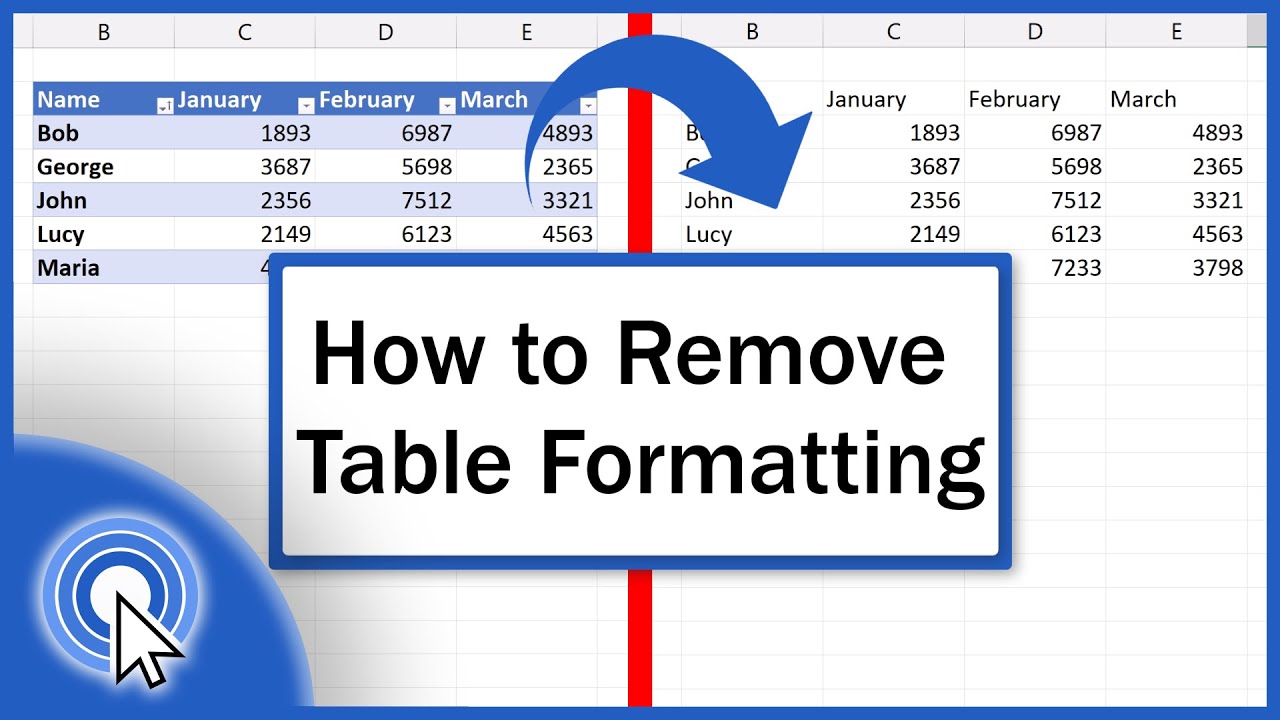
You can remove formatting in Excel just as quickly as you created it. There are even several methods to choose from.
How to remove simple formatting in Excel
- Select the cells from which you want to remove the formatting.
- Click on the ‘Home’ tab in the menu bar.
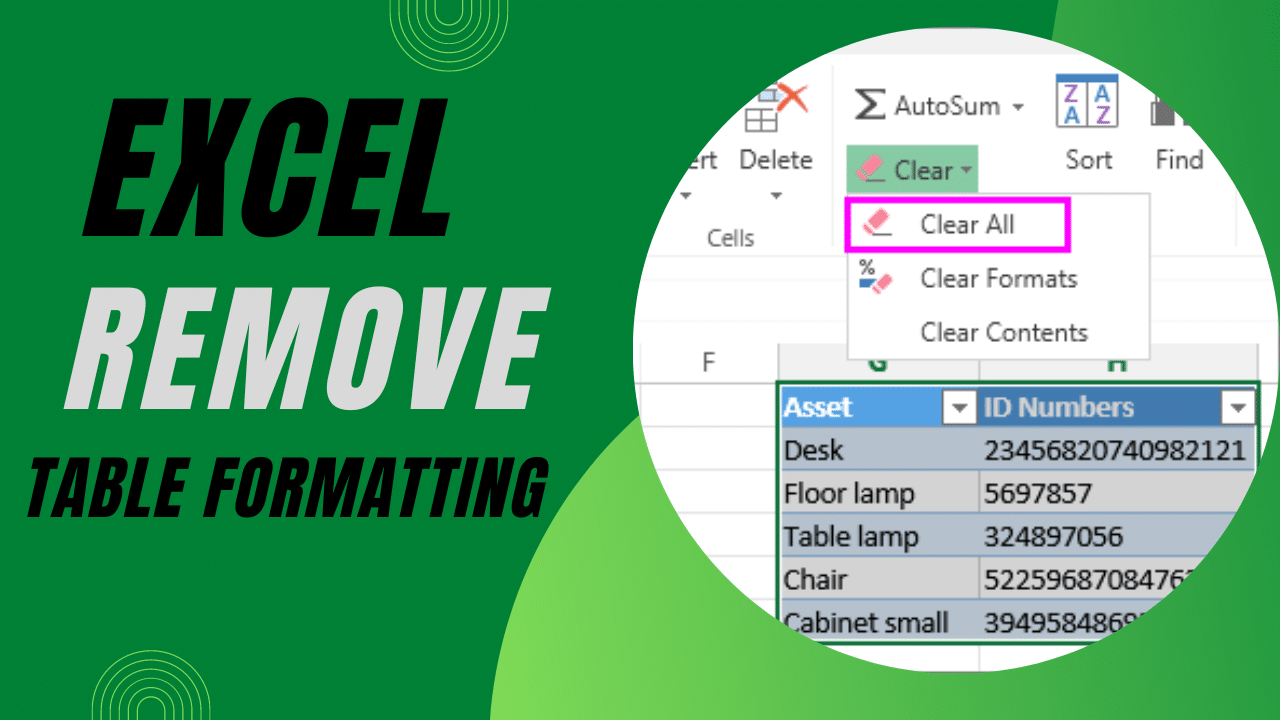
- Click on ‘Edit’ and select ‘Clear’.
- Click ‘Clear Formats’ to remove the formatting whilst retaining the cell contents.
Removing conditional formatting in Excel
Highlight the desired cells. In other words, select the cells from which you wish to remove the conditional formatting.
- Then click on the ‘Home’ tab.
- Click on ‘Conditional Formatting’ and then on ‘Clear Rules’.
- Select either ‘Clear rules from selected cells’ or ‘Clear rules from the entire worksheet’, depending on whether you want to remove the formatting from specific cells or the entire worksheet.
Use the Quick Analysis magnifying glass
To do this, first select the cells from which you wish to remove the formatting.
- Then click on the lightning bolt icon. You will find a table icon with a lightning bolt at the bottom right-hand corner of the selected cells.
- In the menu that appears, select ‘Formatting’ and then ‘Clear Formatting’.
