184
In Windows, you need administrator rights in many everyday situations, such as when installing new software. We’ll show you how to properly manage administrator rights in Windows and resolve any issues that may arise.
Administrator Rights in Windows: Basics and Usage
In Windows, you need administrator rights in many situations, such as when installing new software or changing important system settings.
- Administrator Rights: If you use your Windows computer with only one user account, you automatically have administrator rights. If there are multiple users, at least one account must have administrator rights—usually the account created during the initial setup of the PC . Multiple accounts can also be granted administrator rights.
- Obtaining Temporary Administrator Rights: If your account is not an administrator account, you can still perform some administrative tasks. When installing software or changing certain settings, a User Account Control (UAC) dialog box appears, prompting you to enter an administrator account and its password. After confirmation, you will temporarily be granted the necessary rights.
- Running Programs with Administrator Rights: If you only want to launch a specific application with administrator rights, there are several methods available. One simple option is to right-click the program icon and select “Run as Administrator” from the context menu.
- Alternatively, you can hold down the Ctrl + Shift keys and double-click the program icon to launch the application with administrator privileges as well. If you need the Command Prompt or PowerShell with administrator privileges, you can open them from the Start menu by right-clicking the respective icon.
Get Permanent Administrator Rights
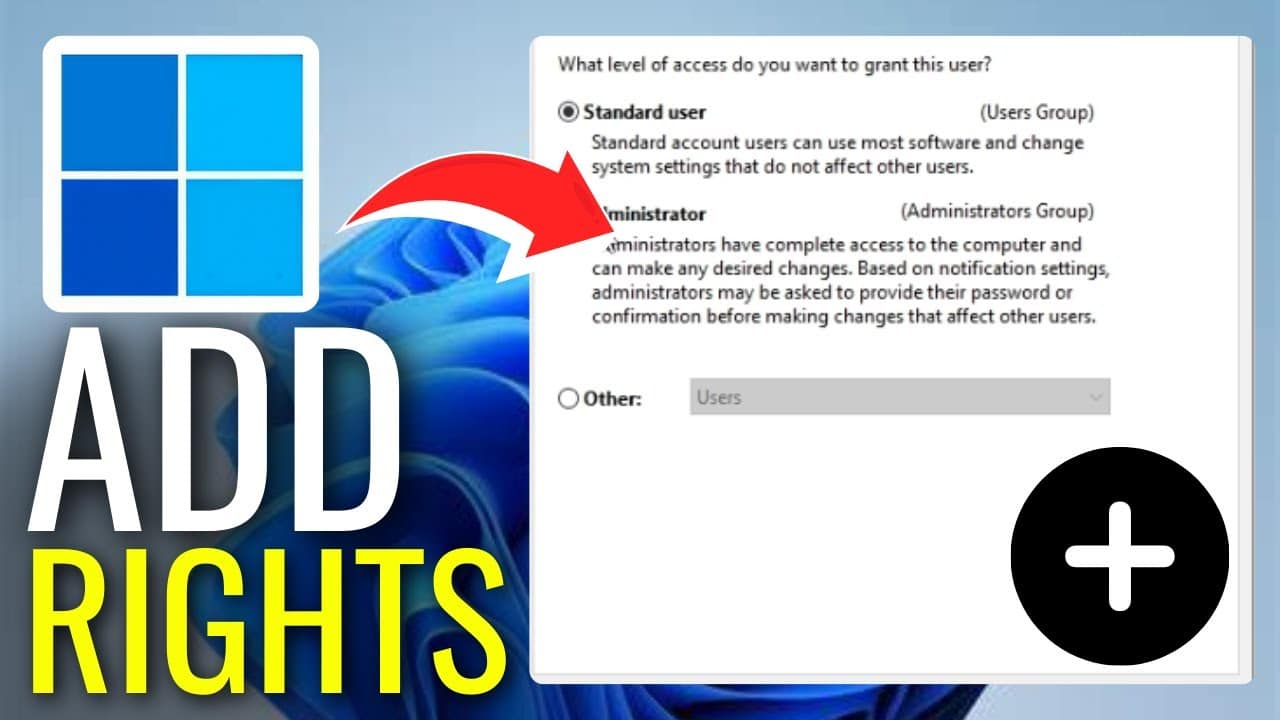
If you want to permanently convert your account to an administrator account, follow these steps in Windows 10 and 11:
- Open “Settings”: Press the Windows key + I and navigate to Accounts > Family & other users (in Windows 11: Accounts > Other users).
- Select an account: Select the appropriate account and click “Change account type.”
- Set up an administrator account: Select “Administrator” from the drop-down list and confirm by clicking OK.
- Password required: If you do not have administrator rights yourself, an administrator must enter their password.

Enable the hidden administrator account
If you want to permanently obtain administrator privileges, you must convert your account to an administrator account.
- Open Command Prompt as an administrator: Press the Windows key + S, type “cmd,” right-click it, and select “Run as administrator.”
- Type the following command: net user administrator /active:yes
- Set a password: Since the account does not have a password by default, you should set one immediately: Enter a strong password and confirm it.
- Switch to the standard user: If you no longer need the administrator account, deactivate it with: net user administrator /active:no
Error message: “You do not have administrator rights” – Solutions
If you receive this message, try the following:
- Check if you are using an administrator account: Under Settings > Accounts > Your info, you can see whether your account has administrator privileges.
- Request administrator privileges: If you are not an administrator, ask the system administrator if your account can be upgraded.
- User Account Control (UAC) disabled: If programs are not requesting admin rights, the UAC setting may have been changed. Go to Settings > System > About > Advanced system settings > User Accounts to ensure it is enabled.
- Troubleshoot Windows errors: If the problem occurs after an update, try a System Restore or reset the permissions using the Group Policy Editor (gpedit.msc) or the Registry.