160
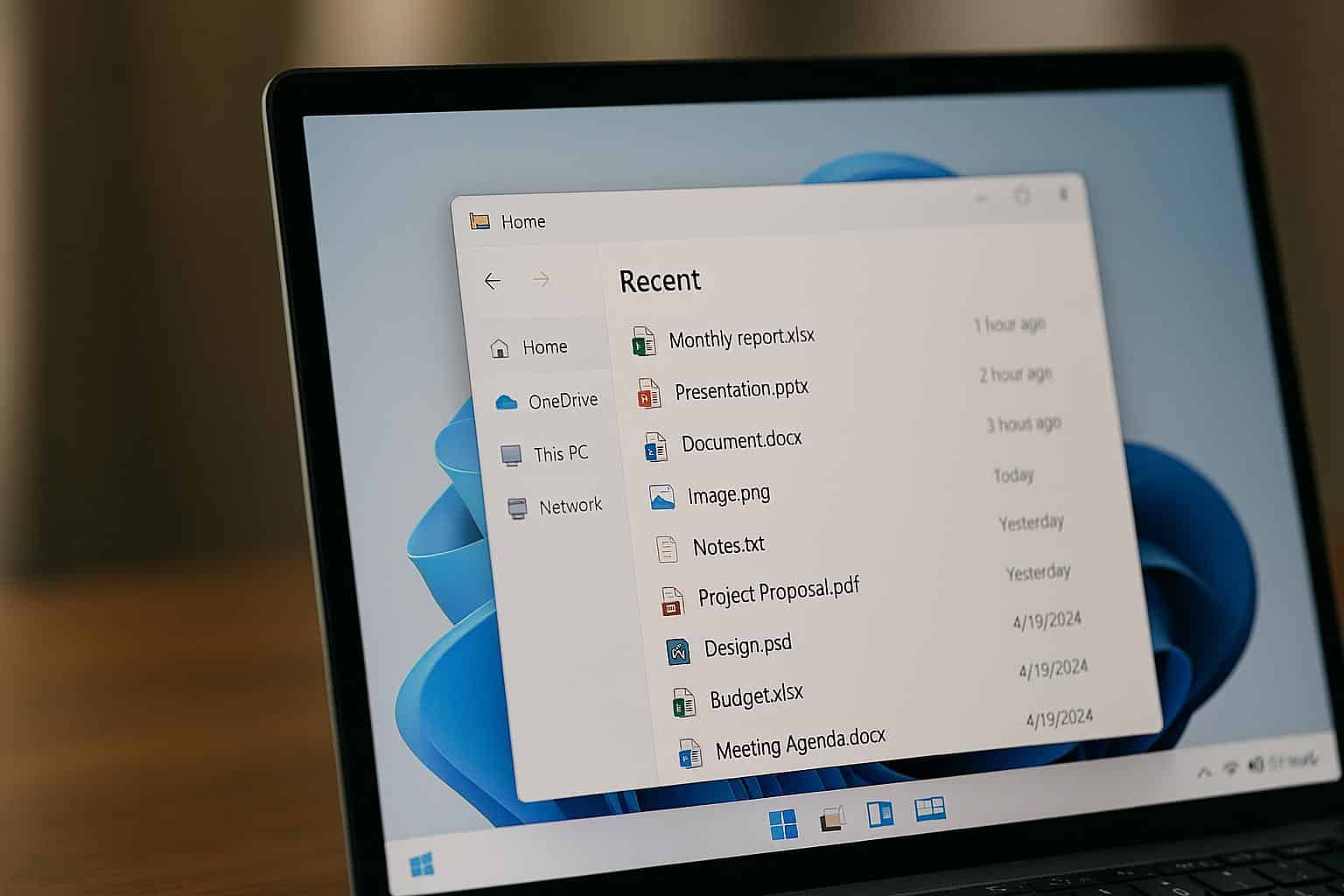
Viewing recently opened documents is a handy feature in Windows that lets you quickly access your most recently used files.
View recently used files via the Start menu
The Windows Start menu offers an easy way to access recently used files.
- In the Start menu, you can click the “Documents” or “Recently Used” button to view a list of your most recent files. This list is automatically updated by Windows and shows files you’ve recently opened.
- When you click on a document, it opens immediately in the corresponding application. This feature helps you avoid having to search for important files, especially if you frequently work on the same documents.
- You can adjust the number of files displayed in the Settings. To find this option, open Settings and select “Personalization.”
- Under “Start,” you can enable or disable the display of recently used documents.
View recently used files in File Explorer
In addition to the Start menu, File Explorer also offers a direct way to view recently used documents.
- Open File Explorer and navigate to the “Quick Access” section. This section is usually located in the top-left corner and contains your most recently used files and folders.
- Quick Access updates automatically, so you’re always up to date. If you use certain documents regularly, you can pin them to Quick Access by right-clicking on the file and selecting “Pin to Quick Access.”
- Conversely, you can also remove files from the list by simply deleting them or manually resetting the list. In File Explorer’s options, you can configure which files are displayed here and whether you want to use the feature at all.
- This gives you more control over which documents appear in Quick Access.

Viewing Recently Used Files in Office Applications
- Open the respective application and find the list under “File” > “Recent.” This overview shows you all the documents you’ve recently opened in that application, sorted by date and time.
- This allows you to quickly return to a file you’ve recently worked on without having to search for it again in File Explorer. You can pin specific documents so they always remain in the list.
- To do this, click the small pin icon next to the file name. This ensures that particularly important files are always at your fingertips.
- To clean up the list, you can manually remove documents from the overview or reset the entire list. This allows you to keep your work environment organized and maintain a clear overview.
- Office add-ons make it easier to access frequently used files directly in Word, Excel, and other applications.