203
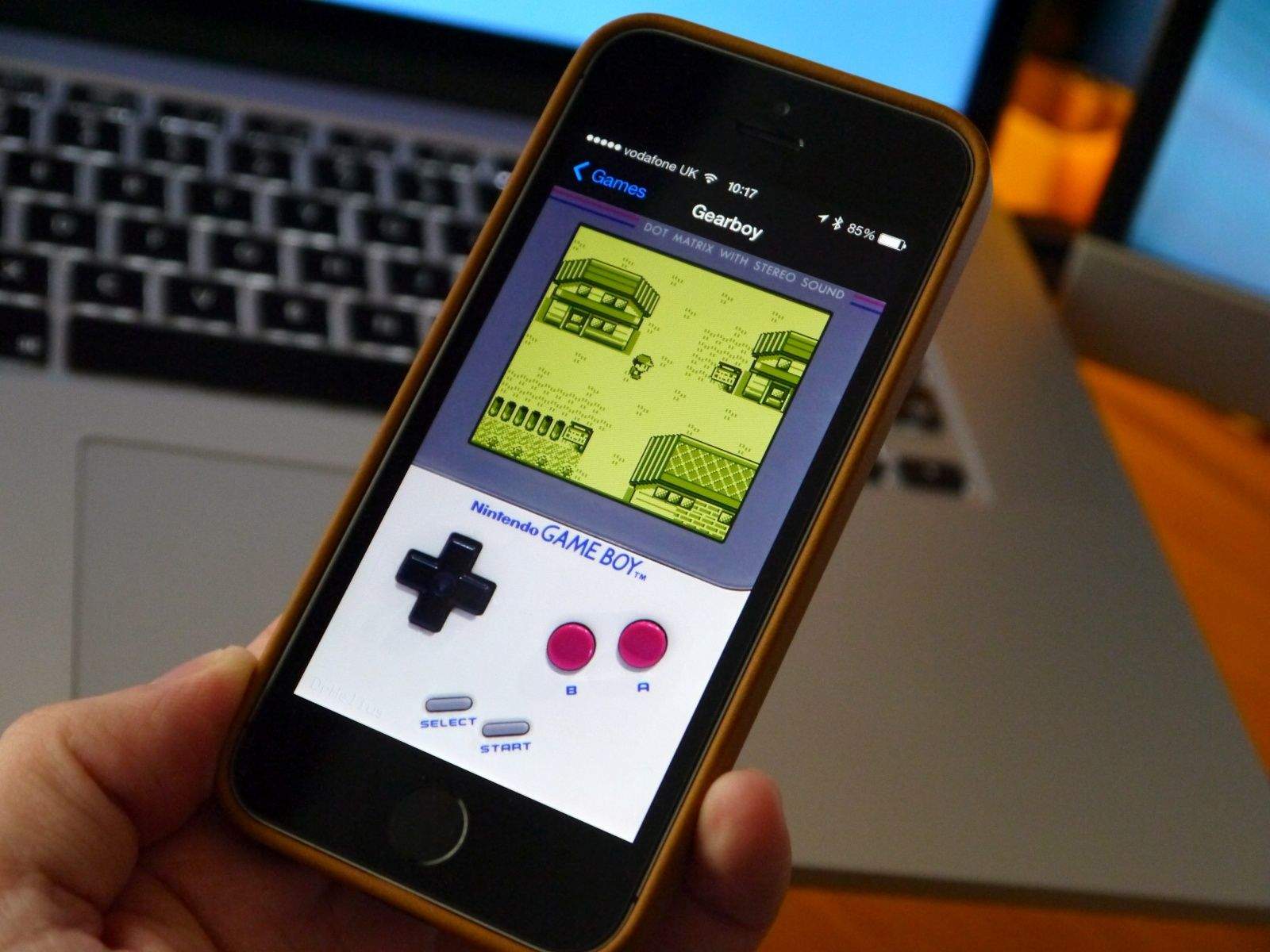
The Game Boy emulator for the iPhone brings the golden ’90s right into your pocket. With tools like Delta or GBA4iOS, you can play Super Mario Land or Pokémon Blue right on your modern Apple device—provided you skillfully navigate Apple’s restrictions.
Game Boy Emulator for iPhone: Current Tools and Installation
The selection of Game Boy emulators for the iPhone is larger than many people realize. In addition to classics like Delta, solutions such as GBA4iOS, SameBoy, and AD Boy have become established. Each emulator has its own strengths, but the installation process usually follows a similar pattern.
- Install SameBoy via the App Store: SameBoy is one of the few emulators that occasionally appears in the official App Store. Search for “SameBoy,” download the app, and open it. If you see error messages, check Settings > General > VPN & Device Management to see if you need to manually mark the app as trusted.
- Sideload GBA4iOS via AltStore: Download AltServer from altstore.io onto your PC/Mac, connect your iPhone, and install AltStore. Open AltStore on your iPhone, tap “Browse,” search for GBA4iOS, and start the installation. Enter your Apple ID and wait for the icon to appear.
- AD Boy for Experts: AD Boy (adboy.net) runs without a jailbreak but requires weekly reinstallations via Sideloadly or AltStore. Download the .ipa file from the official website, drag and drop it into Sideloadly, and follow the instructions.
- Pro Tips: Use a separate Apple ID for AltStore to avoid conflicts with other apps. SameBoy supports Game Boy Color games in HD—enable the option under “Settings > Video.” GBA4iOS offers cloud saves via Dropbox: Link your account in the app under “Settings > Dropbox Sync.”

ROMs, Features, and Legal Pitfalls—Straight to the Point
An emulator is only half as fun without the right games—but legal risks lurk here. Use only ROMs you’ve created yourself from your own cartridges or public homebrew titles.
- Transferring and managing ROMs: Save .gb or .gbc files to iCloud Drive or locally on your iPhone. Open GBA4iOS, tap the “+” icon in the bottom bar, and select the file. For fan translations like Pokémon Prism , decrypt ROMs using web tools such as Decryst before importing them.
- Use modern emulator features: In Delta, enable the rewind feature by holding two fingers down on the screen—time will rewind 10 seconds. Add cheat codes via .cht files from sites like cheatslips.com : In Delta, tap a game > Cheats > + and paste the code.
- Play multiplayer locally: Connect two iPhones via Bluetooth, then in Delta, go to Settings > Controller > Multiplayer the Local Link mode, and start games like Pokémon Red/Blue to trade Pokémon.
- Avoid ROM websites with aggressive ads or .exe downloads—these often spread malware. Archive sites such as archive.org/details/retro-games sometimes host legal homebrew titles.
- SameBoy does not store any data outside the device, while GBA4iOS collects IP addresses and usernames during Dropbox sync . Read the privacy policies within the apps.
- Apple’s certificate revocation regularly blocks enterprise apps. Export save data in Delta via Settings > Data > Export Save to back it up on a PC.
- In Delta, go to Settings > Audio & Video and disable HD Mode if older iPhone models (e.g., iPhone 8 or X) experience stuttering.
- In SameBoy, use the Frame Skip option to force smoother animations in demanding games like Donkey Kong Land . Close background apps like Spotify or YouTube to free up RAM.
- In AD Boy, reduce the audio latency by setting the value to “128 ms” under Settings > Audio Buffer—ideal for rhythm-based games like Guitar Hero Mobile.
