310
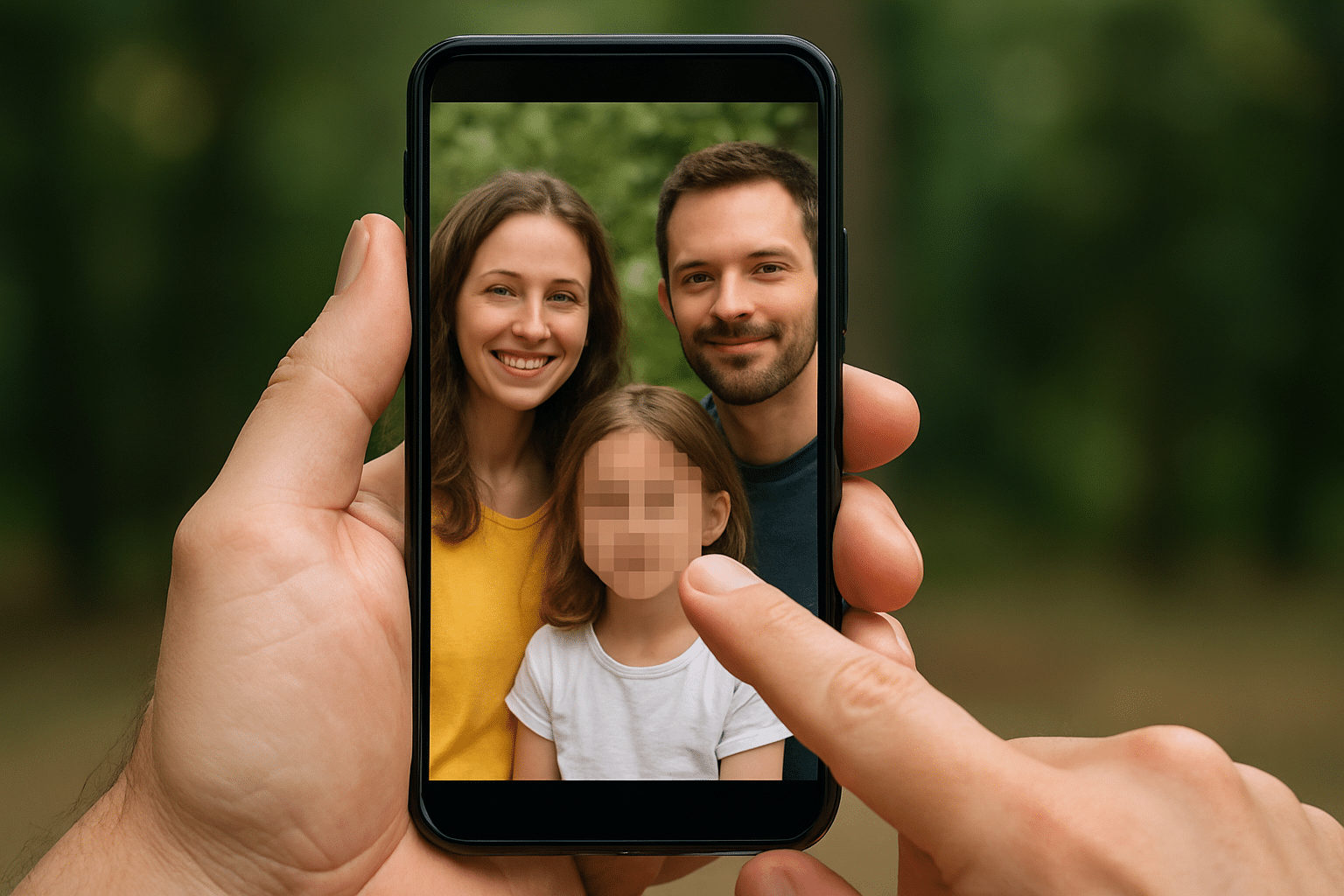
Learn how to blur faces on your iPhone to protect your privacy. Discover various methods and apps that help you remove sensitive information from your photos before sharing them online.
Blurring Faces on the iPhone: Methods and Apps
There are several ways to blur faces in photos or videos on the iPhone. Here are the best methods and tools for quickly and reliably obscuring faces.
- Using the Photos app (built-in tool, photos only): Open the desired photo in the Photos app. Tap “Edit” and then “Markup.” While there isn’t a specific pixelation or blur tool, you can use the thick marker or another pen to black out or paint over the face. This method is simple but not particularly professional, since the face is usually just painted over and not actually pixelated.
- With WhatsApp (Photos only, simple pixelation): In WhatsApp, select a photo you want to send. Go to edit mode and select the pixelate or mosaic tool (usually the right-hand tool). Paint over the face or the area you want to pixelate. You can send the result directly or save it as a screenshot.
- With specialized apps (photos & videos, professional results): For better and more precise pixelation—especially when dealing with multiple faces or videos—we recommend an app from the App Store. PhotoDirector is free and offers a mosaic feature that lets you mark faces and adjust the intensity of the pixelation. Also suitable for videos.
- Filmora is also free and offers a mosaic feature for photos and videos. On the iPhone, it currently still requires manual operation, but it’s very flexible. Automatic face detection is coming soon. Snapseed is also very user-friendly, with automatic face detection and a blur tool.
- For simple cases, the Photos app or WhatsApp is sufficient. For professional, flexible, and secure pixelation—especially when dealing with multiple faces or videos—a specialized app such as PhotoDirector, Filmora, or Snapseed is recommended.

Blurring Faces in Videos on iPhone
There are several effective methods and apps available for blurring faces in videos on your iPhone. Below you’ll find step-by-step instructions as well as an overview of recommended apps.
- PowerDirector App (recommended for automatic pixelation): Download the PowerDirector App for free from the App Store. Open the app and start a new project by selecting the desired video. Under the tools, select the “Mosaic” option. For automatic pixelation, click “Auto Mosaic”: The AI automatically detects and pixelates faces. You can adjust the intensity and soft edges of the effect. If there are multiple people, you can specifically select which faces should be pixelated
- Mosaic Video & Face Pixelation App: Open the app and select a video from your gallery or record a new one. Choose the desired blur shape (rectangular or circular). Drag the blur area onto the face with your finger. Adjust the intensity of the blur using the slider and save the finished video.
- iMovie (pre-installed, for simple blurring): Open iMovie and import your video. Insert an image (e.g., a blurred or pixelated image) as a picture-in-picture over the face. Adjust the size and position of the image to cover the face. Export the edited video.
- All of the apps mentioned are available in the App Store and offer both free and premium features. This allows you to easily blur faces in your iPhone videos while complying with privacy regulations.