330
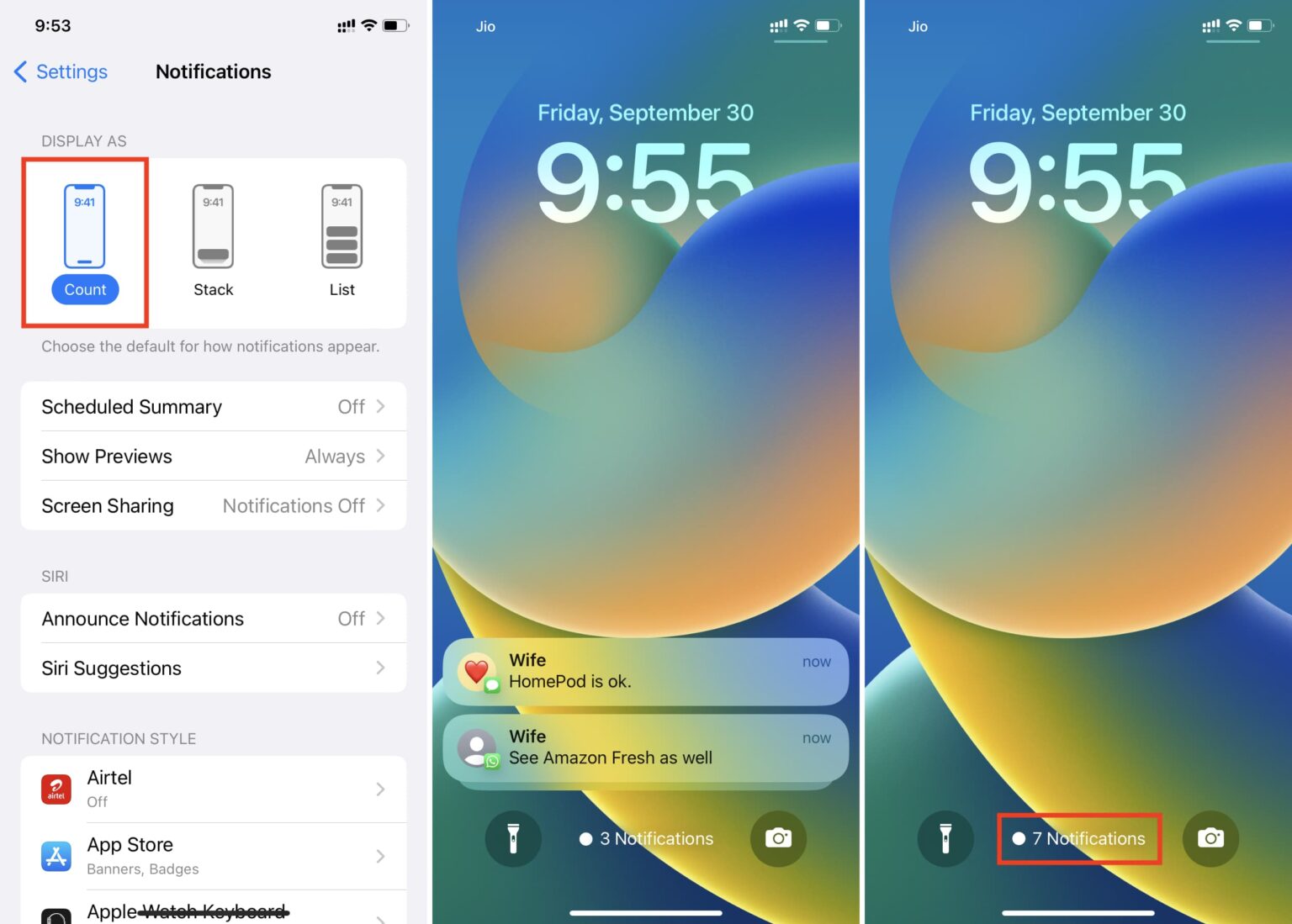
If you don’t want to see Notification Center on the iOS lock screen all the time, you can disable it in just a few steps.
Disable Notification Center on the Lock Screen
- Go to Settings and tap “Notifications.”
- Select the desired app.
- Under “Notification Options,” you’ll find the “Lock Screen” option—turn it off.
- Repeat the process for all apps that you don’t want to display notifications on the lock screen.
Differences Between Banners, Notifications, Previews, and Widgets
Apple distinguishes between several display types for notifications:
- Banners: Short alerts that appear at the top of the screen while you’re actively using the device.
- Notifications: These appear permanently on the lock screen or in the Notification Center.
- Previews: Show the content of the message (e.g., text or an email excerpt). They can be set to “Always,” “When unlocked,” or “Never.”
- Widgets: Small information panels on the Today view or the lock screen (e.g., weather, calendar, fitness data).

Privacy: How to Hide Sensitive Content
It’s especially important to protect confidential information on shared devices or in your daily work life. Apple offers several ways to hide content on the lock screen:
- Disable message previews: Go to Settings > Notifications > Show Previews.
- Lock sensitive apps: Go to Settings > Screen Time > Restrictions you can protect apps from unauthorized access.
- Lock Notification Center: Under Face ID & Passcode prevent access to notifications when the device is locked.