288
If you want to reset your iPhone, you can do so with just a few clicks in iTunes. Alternatively, you can reset your iPhone directly on the device itself.
Resetting your iPhone via iTunes: Here’s how
If your iPhone frequently crashes or you’re experiencing other issues with the device, you can reset it. To reset the device, you can use iTunes.
- Launch iTunes on your computer and connect your iPhone to the PC using a USB cable.
- Select the iPhone by clicking on the device icon in the top-left corner.
- You can now create an iTunes backup, which you can restore to your device after the reset. To do this, click on ‘Back Up Now’ under ‘Backups’.
- Next, click the ‘Restore iPhone…’ button in the overview and confirm the process in the following window by clicking ‘Restore’ again.
- Once the process is complete, you can restore your backup or set up the device as a new iPhone.
Alternative: Set up your iPhone directly on the device
Alternatively, you can set up your iPhone without using iTunes. However, you should still create a backup first.
- To do this, open Settings and tap your name at the very top.
- Tap ‘iCloud’ and then ‘iCloud Backup’.
- If you haven’t already done so, slide the switch to the right to enable iCloud Backup. Then tap “Back Up Now”.
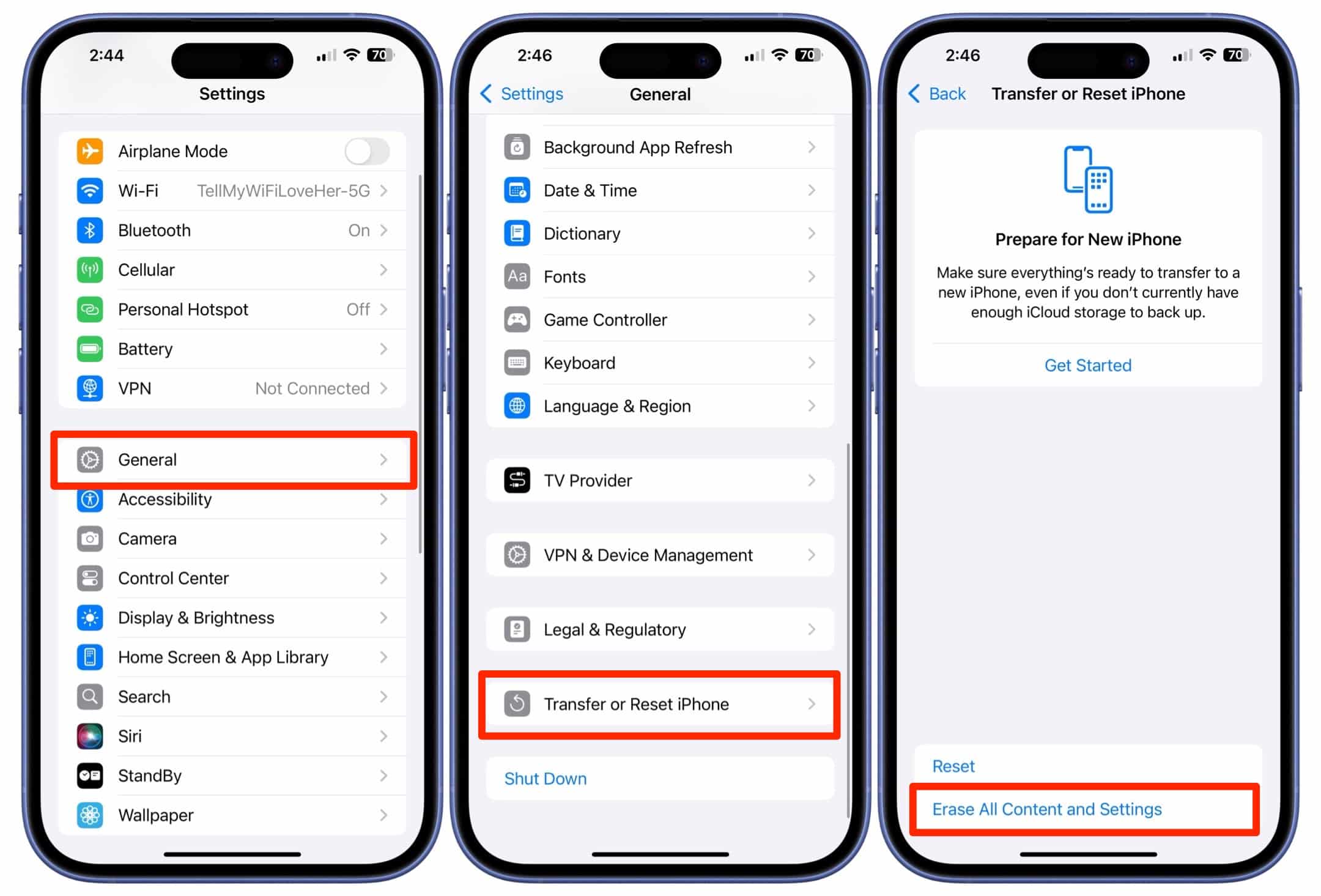
- Once the backup has been created, go back in Settings and select the “General” menu item.
- Scroll right to the bottom to the “Transfer or Reset iPhone” option. Tap this option and, in the next step, select “Erase All Content and Settings”. Note: You’ll also find the “Reset” option here. However, if you want to restore the iPhone later using the iCloud backup, you must erase all content and settings.
- Once the data has been deleted, the iPhone will start the set-up process and you can restore your iCloud backup.
