10
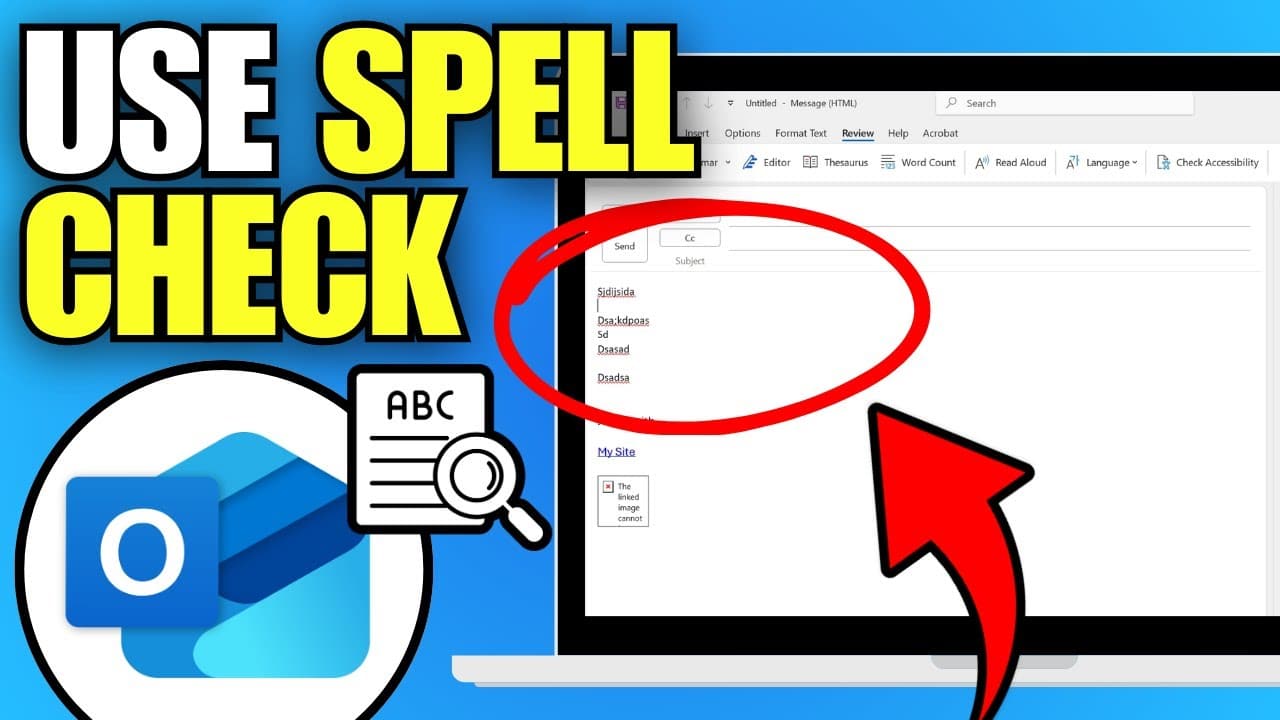
If you enable spell check in Outlook, every email will be checked for spelling mistakes before it is sent and then corrected.
Enable spell check in Outlook 2013 and 2010
- Open Outlook and click on the ‘File’ tab in the top-left corner of the screen.
- Select ‘Options’ here; a new window will open.
- Click on ‘Mail’ in the menu on the left and, on the right-hand side, tick the boxes next to ‘Check spelling as you type’ and ‘Mark grammar errors as you type’.
- Confirm your selection by clicking “OK”. The feature is now successfully enabled.
- To disable it, follow the same steps as described above and untick the boxes.
- Note: If you are using the latest version of Microsoft 365, the ‘File’ tab is no longer available. However, automatic spell-checking is enabled by default in this version.

Enabling and disabling spell check in Outlook 2007
For older versions of Outlook, proceed as follows:
- Open Outlook, select ‘Tools’ from the menu bar at the top, and then click on ‘Options’.
- A new window will open; switch to the ‘Spelling’ tab.
- Tick the box next to ‘Check spelling before sending’.
- Then click the ‘OK’ button to save your settings.
