140
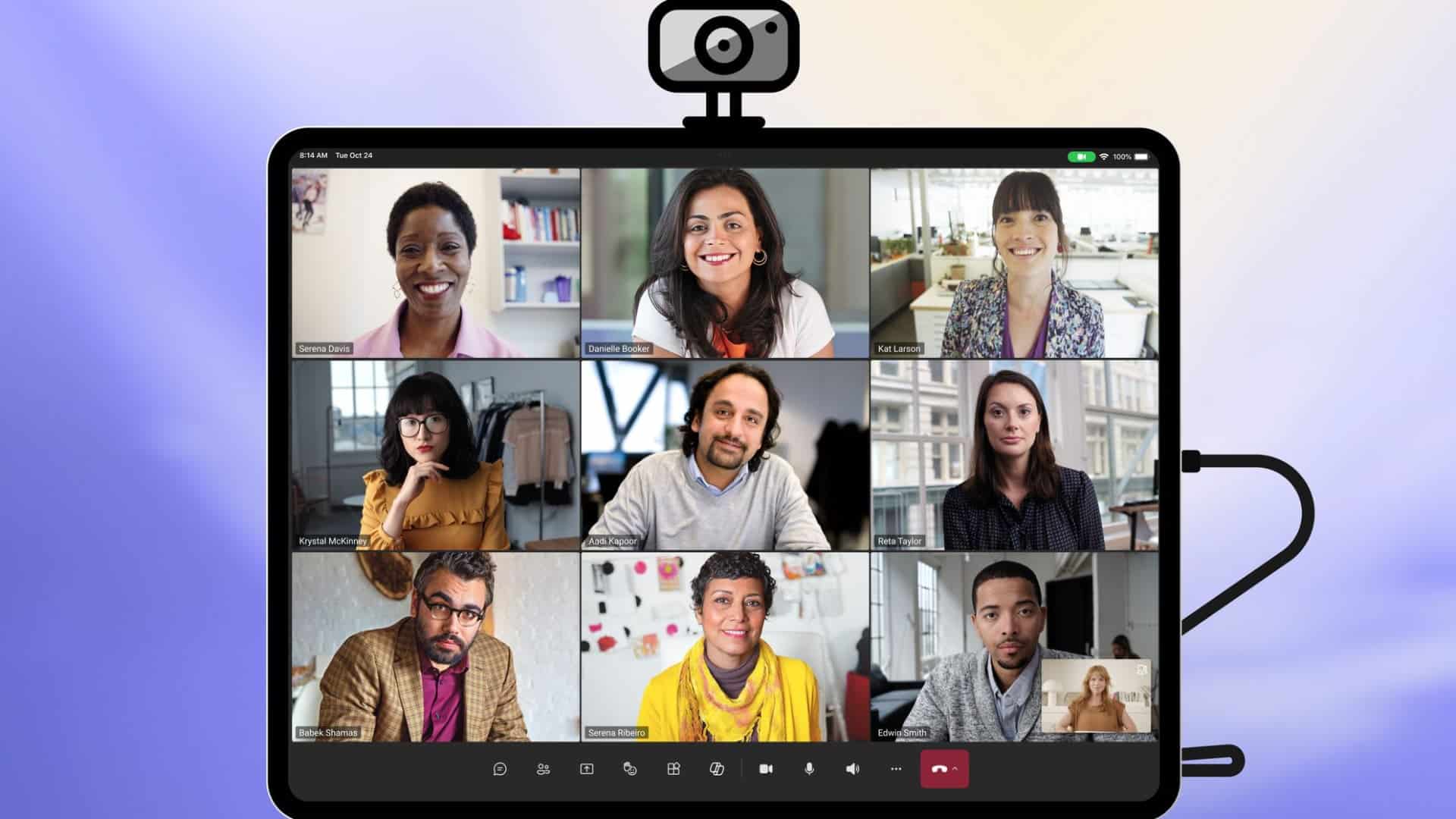
Do you have an important video call coming up in Teams? If so, you should test your camera in Teams first. Read on to find out how.
Testing your Teams camera: step-by-step guide
- Open Microsoft Teams on your computer.
- Click on the three dots next to your profile picture in the top right-hand corner and select ‘Settings’ from the drop-down menu.
- Click on “Devices” in the left-hand navigation bar.
- Make sure the correct camera is selected by checking the drop-down menu under “Camera”.
- You will already see a “Preview” under the “Camera” section. This opens a preview window showing the video feed from your camera.
- Check the video quality by testing your movements and ensuring that you are visible in the frame.
- Adjust the settings if necessary to achieve the best video quality.
- Click ‘Close’ to close the preview window and return to the settings.
- Close the settings and start your Teams meeting or call to see your camera in action.
- Find out what to do if your Teams camera isn’t working.

Why should you test your Teams camera before an important call?
It’s important to test your Teams camera before an important call to ensure that everything is working smoothly and that you won’t encounter any technical issues during the call. A successful camera test gives you the peace of mind that you’ll look professional during a video chat. And that:
- Your camera is working: By carrying out the test, you can ensure that your camera is working perfectly and won’t cause you any problems during the call.
- The video quality is good: A test allows you to check the video quality and ensure that your image is clear and sharp, so that you can be seen during the call.
- The lighting and background are suitable: The camera test also gives you the opportunity to ensure that the lighting and background are appropriate, so that you are clearly visible during the call and are not distracted by unsuitable backgrounds.
- The audio and video settings are correct: A test allows you to check and adjust the audio and video settings to ensure they are correct and that you can be heard and seen clearly during the call.
