5
You should connect your LG Smart TV to the internet to be able to make full use of all its features. Once successfully connected to the internet, you can watch videos on YouTube, use the service and access media files from network hard drives and local computers. In this article, we’ll explain exactly how to connect your LG TV to the internet.
How to connect your LG TV to the internet
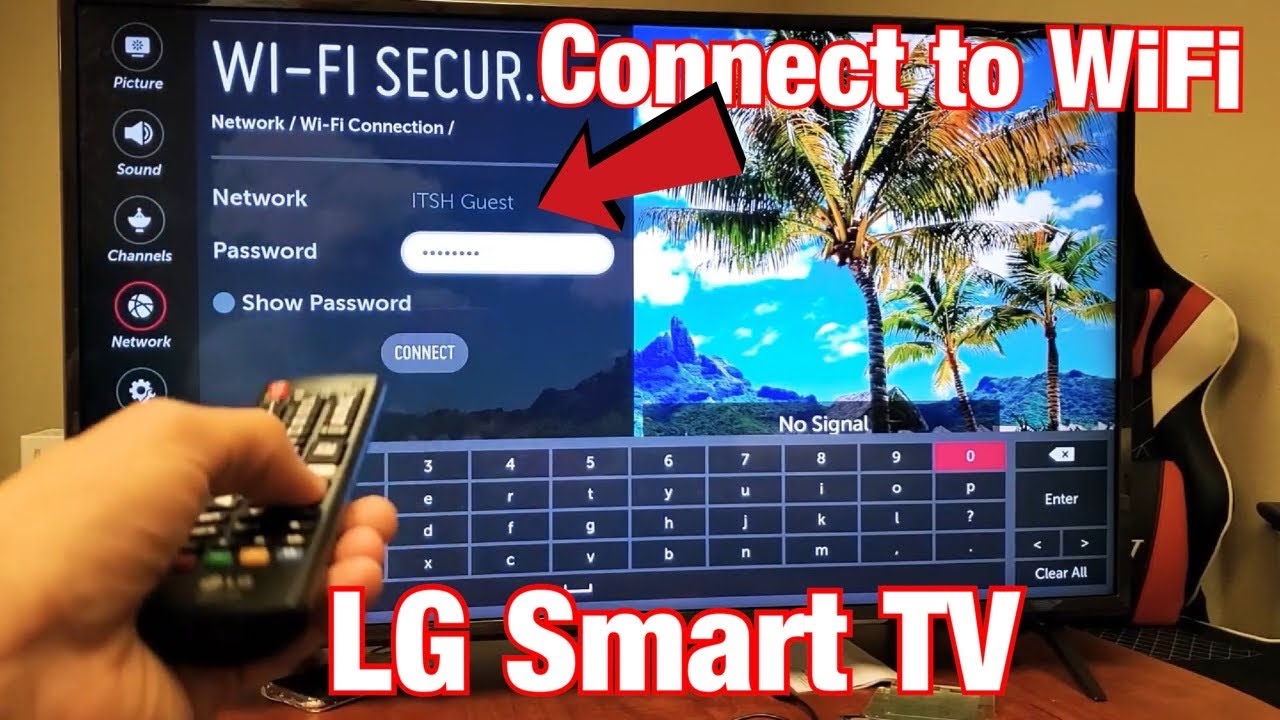
- First, you need to check whether your TV has built-in Wi-Fi. If it does and you have set up a Wi-Fi network at home, you simply need to enter your Wi-Fi password in the relevant options menu and the TV will do the rest. The options menu usually appears when you set up the TV for the first time. If you wish to change anything afterwards, please refer to the manual to find out how to access the network settings again. The procedure may vary from model to model.
- If your LG TV does not have built-in Wi-Fi, you can purchase a Wi-Fi dongle to add Wi-Fi functionality. For all LG models that support this upgrade (please be sure to check the manual first), the LG AN-WF100 is the right choice. Once plugged in, the TV will immediately display the options menu, where you simply need to enter the password.
- However, the easiest way to connect your LG Smart TV is via an Ethernet cable. To do this, simply plug the cable into the appropriate socket on the TV and it will connect to the internet straight away.