3
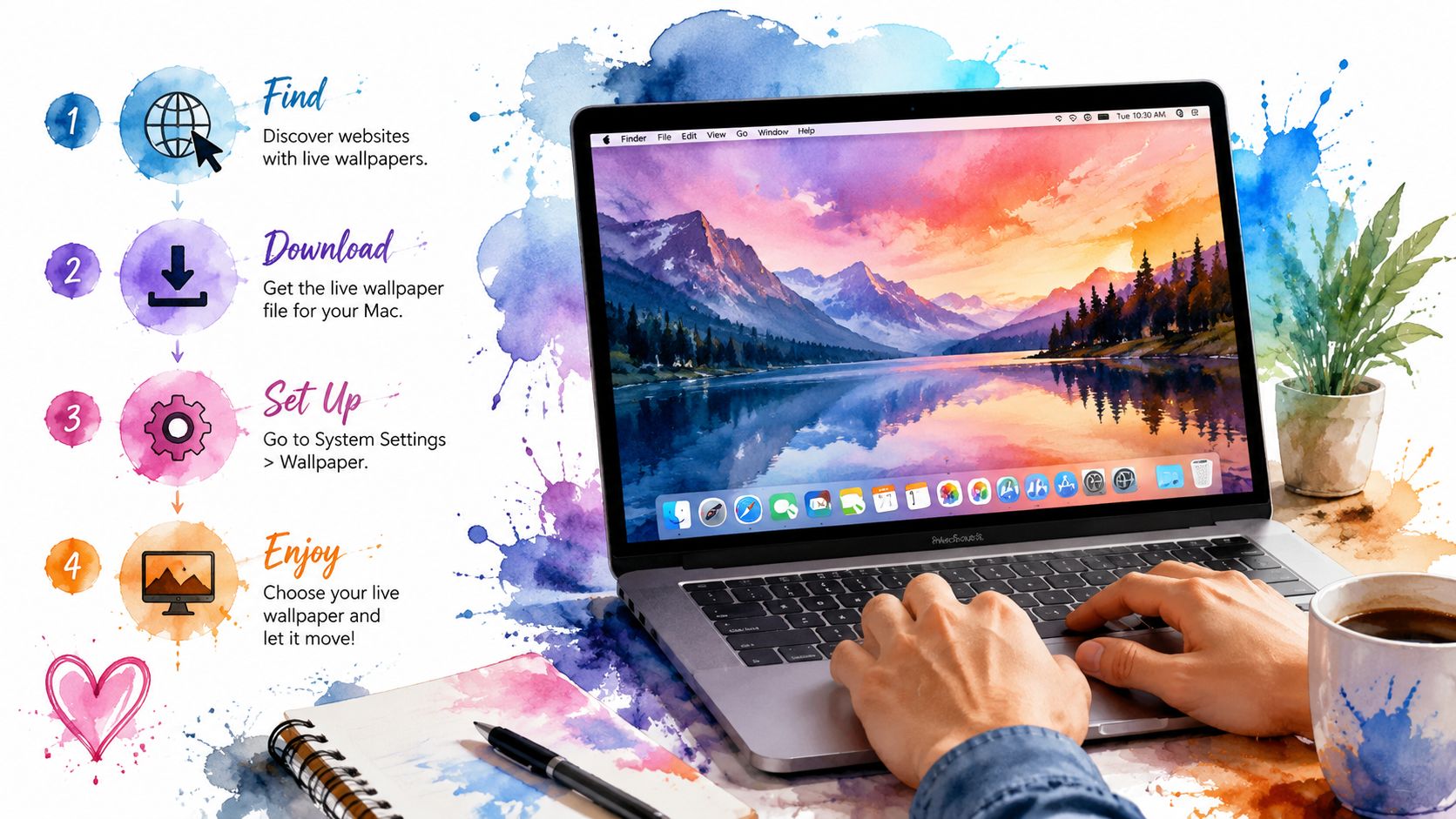
In this practical tip, we’ll show you how to use a video as your desktop background on your Mac.
Mac: Video background with VLC Media Player
In the free ‘VLC Media Player for macOS’, you simply need to adjust a few settings to view your video as wallpaper.
- Launch VLC Media Player, click on “VLC” and then “Preferences”.
- On the left-hand side, select the “Subtitles & OSD” option and untick the box next to “Enable On-Screen Display (OSD)”.
- Save and close the settings so that they take effect.
- Open the settings again and, at the bottom left under “Show settings”, click on the “All” option.
- Now switch to the Interface settings and expand them. Click on the icon next to “Main Interfaces” to expand this setting as well.
- Select “macosx” and tick the box next to “Use as desktop background”.
Set a video as your background – paid add-on
With the paid Mac add-on “Add Movie Wallpaper”, you can set HD videos as your background.
- The add-on features a collection of videos from which you can select one to set as your background. However, you can also set your own videos.
- To do this, click on ‘Preferences’ and select ‘Custom’ from the drop-down menu.
- Then select your chosen video in the “Open Dialog”.
- The software also allows you to adjust the volume of the videos. This means you can set individual volume levels for your videos.