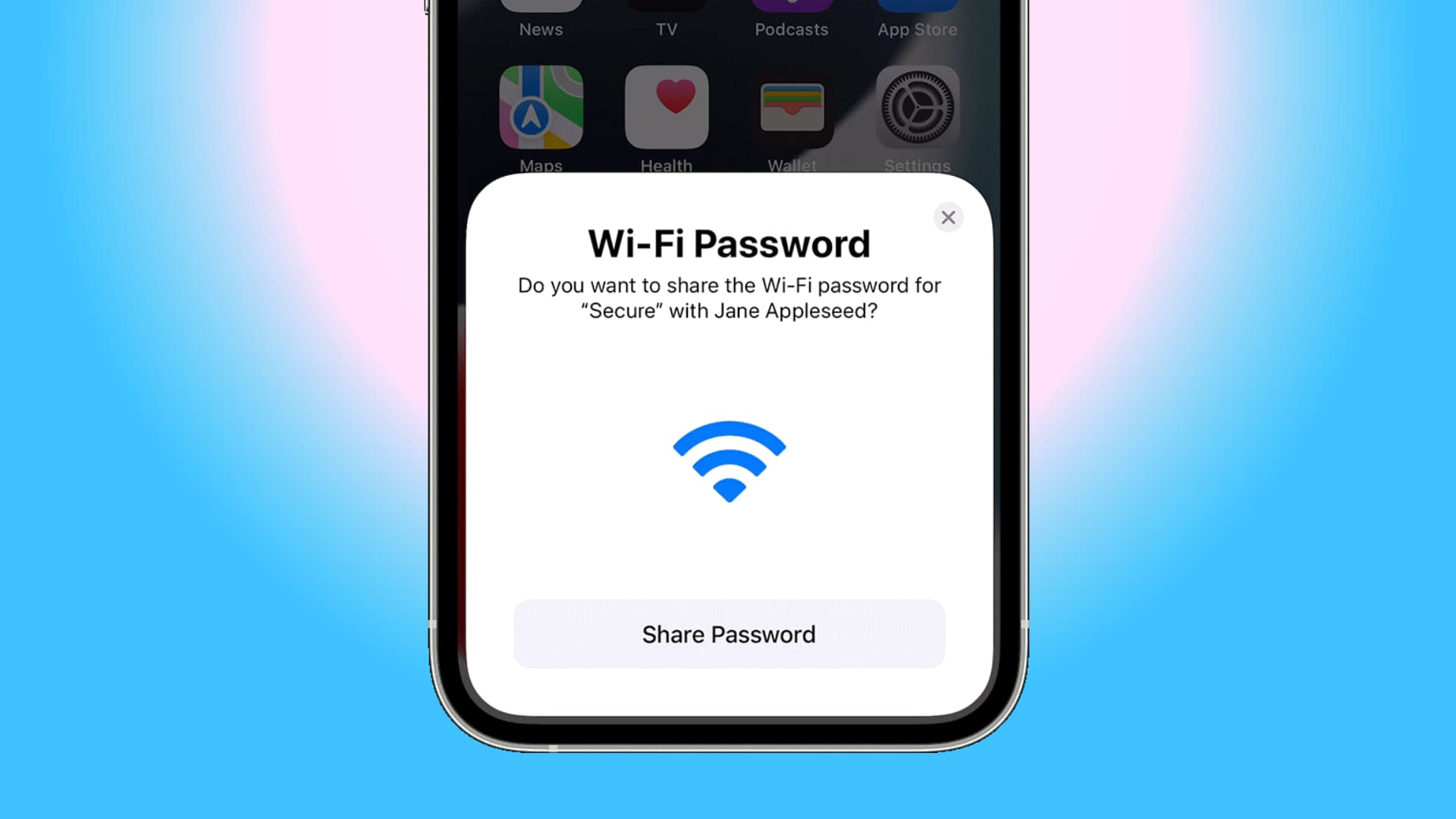
You can easily share your iPhone’s Wi-Fi with other devices. Our guide shows you, step by step, which settings to adjust to ensure smooth internet access.
How does Wi-Fi sharing work on an iPhone?
The Wi-Fi sharing feature on the iPhone is a convenient way to provide other devices with internet access. Especially when you’re on the go or in situations where a conventional router isn’t available, sharing your mobile data connection can be a great solution.
- Wi-Fi sharing on the iPhone is based on the hotspot feature, which allows you to share the iPhone’s mobile data connection with other devices. This feature is enabled through the device’s settings and requires an active cellular connection.
- To share Wi-Fi, first go to your iPhone’s “Settings.” There you’ll find the “Personal Hotspot” option, where you can enable the feature. Once it’s turned on, other devices can connect to the network provided by your iPhone.
- It’s important to set a secure password for the hotspot to prevent unauthorized access. To do this, go to the Personal Hotspot settings and select ‘Change Password’. Enter a strong, unique password.
- Please note that sharing your mobile data connection can affect your data allowance. Therefore, monitor your usage regularly to avoid unexpected charges. Using the hotspot can also increase your iPhone’s battery consumption.
Technical Requirements for Wi-Fi Tethering on the iPhone
When you set up your iPhone as a Wi-Fi hotspot, there are some technical requirements and steps you should keep in mind to ensure a stable connection.
- Your iPhone must have an active SIM card with a data plan that allows tethering. Check the terms of your mobile plan, as some carriers charge additional fees for using the hotspot feature.
- Cell service should be stable to provide a reliable internet connection. Make sure you’re in an area with good network coverage, especially when multiple devices are connected at the same time.
- Update your iOS operating system regularly to ensure that all features work optimally. Operating system updates often include improvements to network connectivity and security updates.
- If you experience connection issues, restart your iPhone or turn the Personal Hotspot feature off and then back on. In some cases, resetting the network settings may also help.

When is Wi-Fi sharing on the iPhone particularly helpful?
Sharing Wi-Fi via the iPhone can be useful in various everyday situations. It offers a flexible solution for internet access when regular Wi-Fi isn’t available.
- When traveling, you can set up a hotspot with your iPhone to provide laptops or tablets with an internet connection without having to rely on public or unsecured Wi-Fi networks.
- In rural areas or places without broadband access, the iPhone offers a fast alternative for going online. This is especially convenient for working from home or streaming.
- If your home network goes down, the iPhone can serve as a temporary replacement to help you stay productive or continue important online activities. However, you should keep an eye on your data usage.
- For impromptu meetings or presentations where you need quick internet access, the iPhone offers an easy way to provide access to other participants.
Security Considerations When Sharing Wi-Fi on an iPhone
There are several security considerations to keep in mind when sharing Wi-Fi via your iPhone to protect data integrity and privacy.
- Avoid making the hotspot publicly accessible. Limit access to known devices and people to prevent misuse and unauthorized access.
- Always use a strong and complex password for the hotspot. Avoid simple passwords or ones that are easy to guess, such as birthdates or simple number sequences.
- Turn off Personal Hotspot when it’s no longer needed. This minimizes the risk of unknown devices connecting or misusing your connection.
- Enable two-factor authentication on your Apple ID to ensure additional protection. This provides an extra layer of security in case someone attempts to gain unauthorized access to your device.