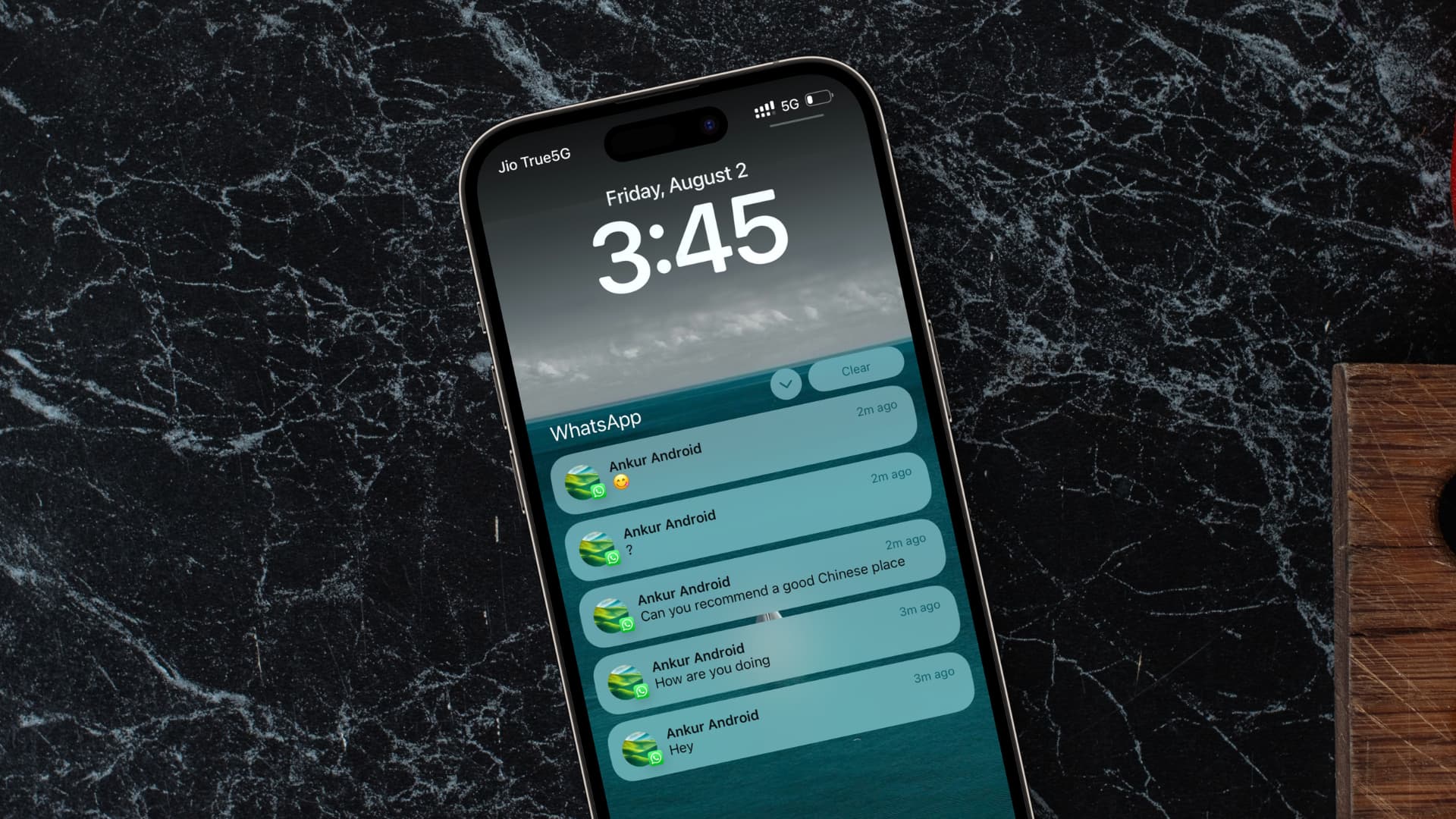
If you would like to see WhatsApp messages on your phone’s lock screen, you just need to adjust the settings on your device. However, please note that this feature may compromise your privacy to a certain extent.
Display WhatsApp messages on the lock screen: How to do it on an iPhone
For many people, everyday life would be impossible without the WhatsApp messenger. To ensure you don’t miss any messages, ideally incoming messages should appear on your phone display even when your lock screen is active. As an iPhone user with a device running iOS 16 or later, you can set this up as follows:
- First, open the “Settings” on your iPhone.
- In the ‘Notifications’ category, search for “WhatsApp”.
- Activate the option “Allow Notifications” here.
- Make sure that the option “Lock Screen” is activated under “Notifications”.
- Under “Show previews,” you should choose between ‘Always’ or “When unlocked.” This is the only way you can see message content directly on the lock screen.
View WhatsApp messages on the lock screen on Android
Depending on the manufacturer and Android version, the menu navigation may vary slightly. The following steps are therefore intended as a general guide. Some manufacturers, such as Samsung or Xiaomi, use customized user interfaces, which may result in different menu names and paths. You may need to search for terms such as “lock screen,” “notifications,” or “app notifications.”
- Open the Settings on your Android device.
- Navigate to “Apps” or “Notifications” and select “WhatsApp”.
- Enable the “Allow notifications” option.
- Make sure that the ‘Messages’ or “Message notifications” category is enabled.
- In addition, especially with newer Android versions, you must explicitly grant permission for notifications to be visible under “Lock screen” or “Show notifications on lock screen.”

WhatsApp on the lock screen: Consider the data displayed
Even if WhatsApp messages appear on your lock screen, this does not automatically mean that their full content is visible. And from a data protection perspective, that would not be a good thing.
- In the WhatsApp settings, under “Notifications,” you can specify whether only the sender’s name or the message text should be displayed. This allows you to control how much your display reveals despite the lock screen.
- Because don’t forget: the more that can be seen on the lock screen, the more unauthorized persons can read your private conversations – at least if your smartphone is lying around unattended. You should therefore choose your display settings carefully with your personal security needs in mind.
- For example, you can specify that message content should only be displayed when the device is unlocked – this would be a good compromise between convenience and data protection.