267
If you want to turn off subtitles on Amazon Prime Video, it’s not hard. We’ll explain how to do it in this practical tip.
Amazon Prime Video: How to Turn Off Subtitles
Log in to your Amazon Prime account and select a movie or TV show.
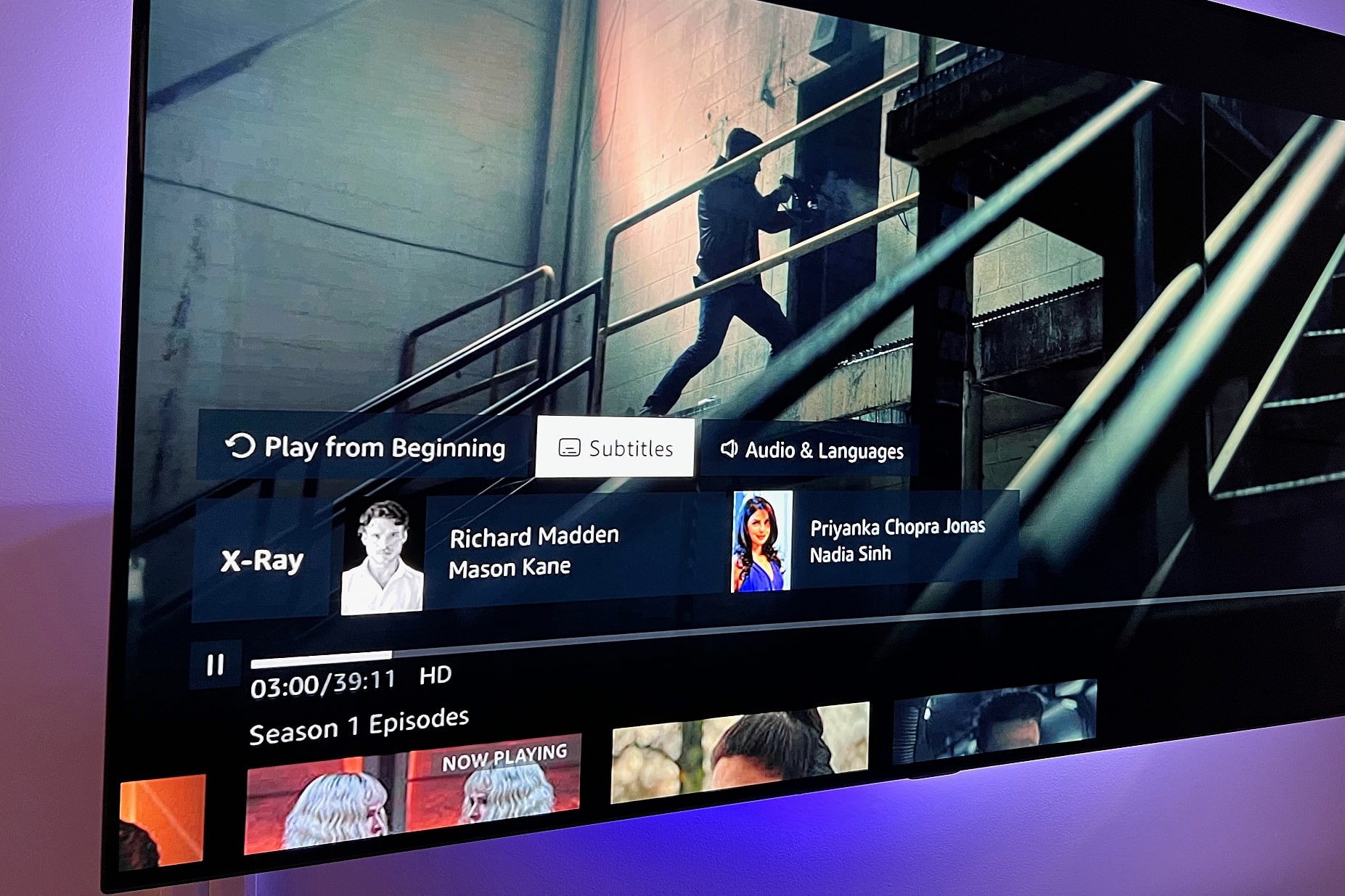
- Once the movie or TV show has loaded, click the speech bubble icon in the top-right corner of the window. There, you’ll see options for subtitles and audio. If you’re using an “Amazon Fire TV,” press the “Menu” button on your remote and select “Turn off subtitles.”
- Under the “Subtitles” entry, select the “Off” option.
- Now you’ve turned off the subtitles and can watch the movie without them.
Subtitles on Amazon Prime: Turning Them Off on Different Devices
The controls vary depending on the device:
- On a PC or laptop: During playback, click the speech bubble icon in the player and select the desired subtitle or turn it off.
- On smartphones and tablets: Tap the screen while streaming, select the subtitles icon, and turn them on or off.
- On Amazon Fire TV or smart TVs: Use the Menu or Options button on the remote and select “Subtitles.” There, you can toggle between ‘On’ and “Off.”

Amazon Prime: Common Issues with Turning Subtitles On and Off
Occasionally, you may encounter difficulties when subtitles do not display or turn off as desired. In such cases, the following tips may help:
- Subtitles appear even though they’re turned off: Restart the stream or log out and log back in.
- Subtitles can’t be turned on: Check whether the selected movie or TV show even offers subtitles in the desired language.
- Wrong language: Check the language settings in both the subtitle menu and the profile settings.