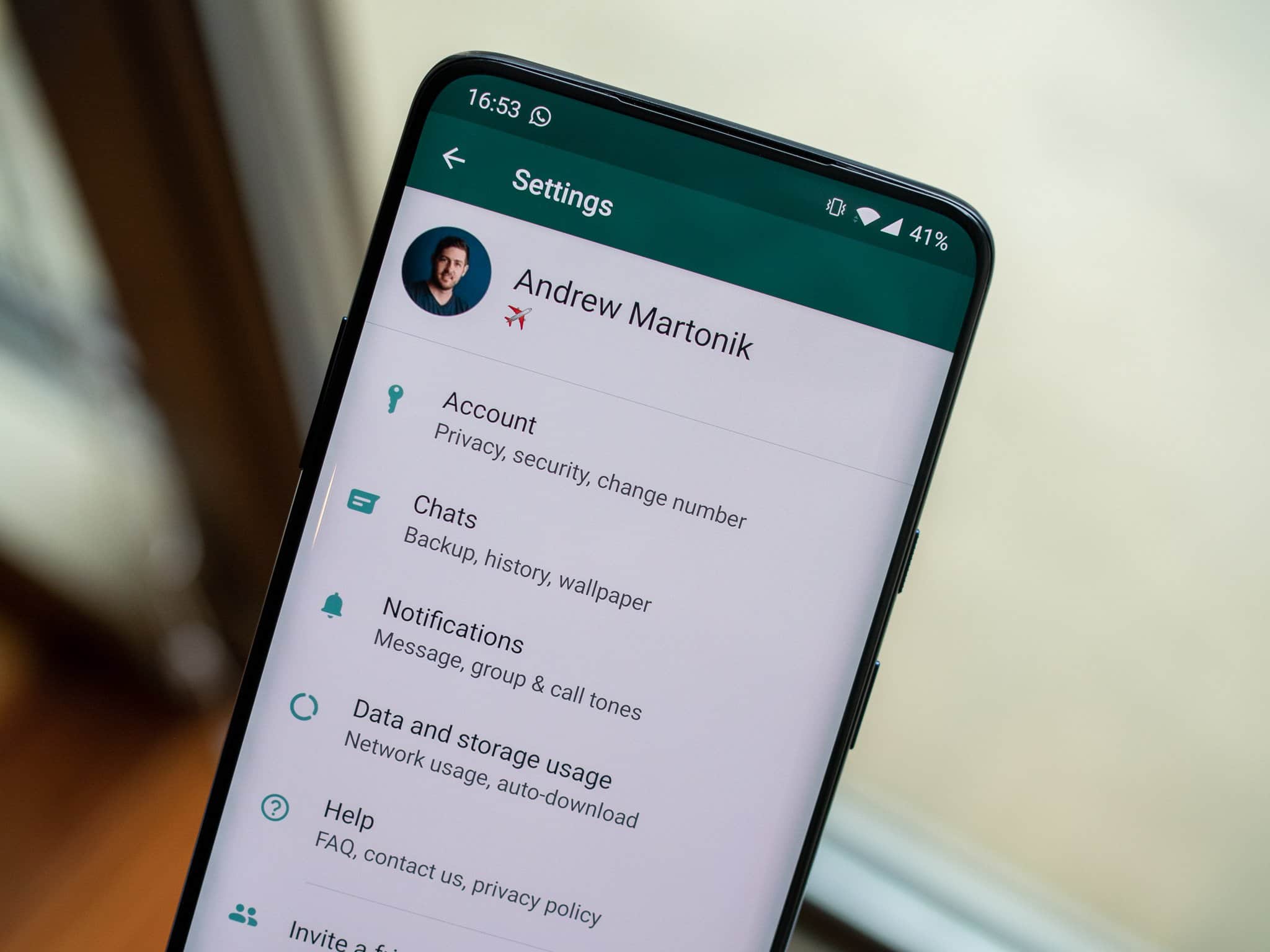
Learn how to open WhatsApp settings and customize your app. Discover useful tips for adjusting notifications, privacy options, and chats to enhance your user experience.
Open WhatsApp Settings: Step-by-Step Guide to Customization
WhatsApp is one of the most widely used messaging apps worldwide and offers numerous settings options to customize the user experience. Whether it’s notifications, privacy, or chat options, the right settings can make a big difference. But how exactly do you open WhatsApp settings?
- To open the settings in WhatsApp, first launch the app on your smartphone. The app icon is usually located on your home screen or in the app menu. Tap the WhatsApp icon to launch the app. Once the app is open, you’ll see the main screen with your chats.
- Look for the three-dot icon or the gear icon in the upper-right corner of the screen. Tapping this icon takes you to the menu, where various options are displayed. This menu layout is similar on both Android and iOS devices.
- In this menu, select “Settings.” This is the section where you can make adjustments. When you tap “Settings,” a new screen opens with several categories offering different options.
- If you’re having trouble finding the settings, check to see if your app is up to date. Sometimes the positions and icons change with updates, so updating the app may be necessary to use the current user interface correctly.
Optimize your WhatsApp notifications: Never miss important messages again
Notifications are an important part of using WhatsApp. They inform you about new messages, calls, and more. Optimizing your notification settings ensures that you don’t miss any important information while still avoiding being disturbed by constant notifications.
- Open the Settings in WhatsApp and navigate to the ‘Notifications’ section. Here, you can configure both the sound and vibration for incoming messages and calls. Choose a sound that you like and make sure the volume matches your preferences.
- In addition to the general notification settings, you can also set specific sounds for individual chats. This is especially helpful if you want to quickly recognize who is messaging you without having to look directly at the screen. To do this, open the relevant chat, tap the name or number at the top of the chat, and select ‘Customize Notifications’.
- If you’re active in group chats, you can manage notifications for them separately. Group chats are often very active and can quickly become disruptive. You can mute notifications for specific periods or disable them completely by opening the group and tapping “Mute.”
- Don’t forget to take your smartphone’s priority modes into account. By enabling a Do Not Disturb mode, you can ensure that only the most important notifications get through. This helps you stay focused and avoid distractions while working or in meetings.

Privacy on WhatsApp: How to Protect Your Privacy
Privacy is a key concern for many WhatsApp users. The app offers several settings to protect your privacy and control who can see what information about you. It is important to familiarize yourself with these options and customize them to suit your needs.
- In the WhatsApp settings, you’ll find the “Account” section, where the privacy settings are located. Here, you can control who can see your profile picture, status, and last seen information. You can choose between “Everyone,” “My Contacts,” or “Nobody.” Choose the option that best suits your desired level of privacy.
- You can also disable read receipts. By default, WhatsApp shows when you’ve read a message. However, if you don’t want others to know when you’ve read their messages, you can turn this feature off. Note that you will then no longer receive read receipts either.
- Another important feature is the blocking function. If you receive unwanted messages from certain people, you can block them. To do this, go to the chat with that person, tap their name at the top of the chat, and select ‘Block’. That person will then no longer be able to send you messages and will not see any changes to your profile.
- Current security features such as two-factor authentication provide additional protection for your account. This feature requires an additional code in addition to your password when logging in on a new device. Go to the ‘Account’ section and enable two-factor authentication to better secure your account.
Effectively Organize and Personalize WhatsApp Chats
In addition to notifications and privacy settings, WhatsApp offers numerous features to organize and customize your chats. By using these features, you can make your communication more efficient and optimize the app for your needs.
- One of the most useful features in WhatsApp is the ability to archive chats. If you no longer want a chat to appear in your main overview, you can archive it. This helps you keep things organized without deleting the chat entirely. To archive a chat, press and hold it, then select the archive option.
- WhatsApp also offers the option to highlight important messages within a chat. This is especially handy if you frequently need to access specific information. To highlight a message, press and hold it and select the star function. You can find all highlighted messages later in the ‘Starred Messages’ section.
- For better organization, you can also change the chat background images.
Go to the chat settings and select ‘Background’. You can choose from various images or use your own photo. A personalized design makes using the app more enjoyable and unique.
- Finally, you should use WhatsApp’s backup feature. Regular backups ensure that your messages and media files are saved in case something happens to your device. Go to the ‘Chats’ section and enable the backup option. You can set how often backups should be performed and whether videos should be included.